

SCORM & xAPI Packages
Upload and deliver SCORM 1.2 / 2004 and xAPI (Tin Can) e-learning packages in Arythmatic, with automatic completion and score tracking.
SCORM & xAPI Packages
Arythmatic can host and play SCORM and xAPI (Tin Can) e-learning packages as lessons inside a course. Learners launch the package in their browser, and Arythmatic automatically tracks completion, score, and time — then rolls that progress up into course completion and certificates.
SCORM and xAPI are Professional-plan content types. If your workspace is on a lower plan, the SCORM and xAPI options are hidden in the lesson picker and uploads are rejected. See Monetization & plans to upgrade.
What are SCORM and xAPI?
SCORM (Sharable Content Object Reference Model) and xAPI (also called Tin Can) are the two industry standards for packaging interactive e-learning. Authoring tools such as Articulate Storyline, Adobe Captivate, iSpring, and Rise export a .zip in one of these formats. Arythmatic hosts the package, serves it securely over its CDN, and records the learner's activity.
| Format | Package contains | Tracks via | Use when |
|---|---|---|---|
| SCORM 1.2 | imsmanifest.xml at the root | SCORM runtime (completion, score, suspend/resume) | Most common; broadest authoring-tool support |
| SCORM 2004 | imsmanifest.xml at the root | SCORM runtime + multi-SCO linear navigation | Multi-module courses, richer status model |
| xAPI (Tin Can) | tincan.xml at the root | Statements sent to the built-in LRS | Modern packages, richer activity data |
xAPI packages must contain a tincan.xml manifest at the root. cmi5 packages are not yet supported.
Before you start
- A course with at least one section (chapter). See Create a course and the Curriculum builder.
- Your package exported as a single
.zip, up to 500 MB, with its manifest (imsmanifest.xmlfor SCORM,tincan.xmlfor xAPI) at the root of the zip (not inside a subfolder). - The Professional plan (or higher).
Add a SCORM package
1. Open the curriculum builder
From your course's detail page, click Edit Curriculum. Add a section if you don't have one yet (give it a title and Save Section), then click Add Lesson inside that section.
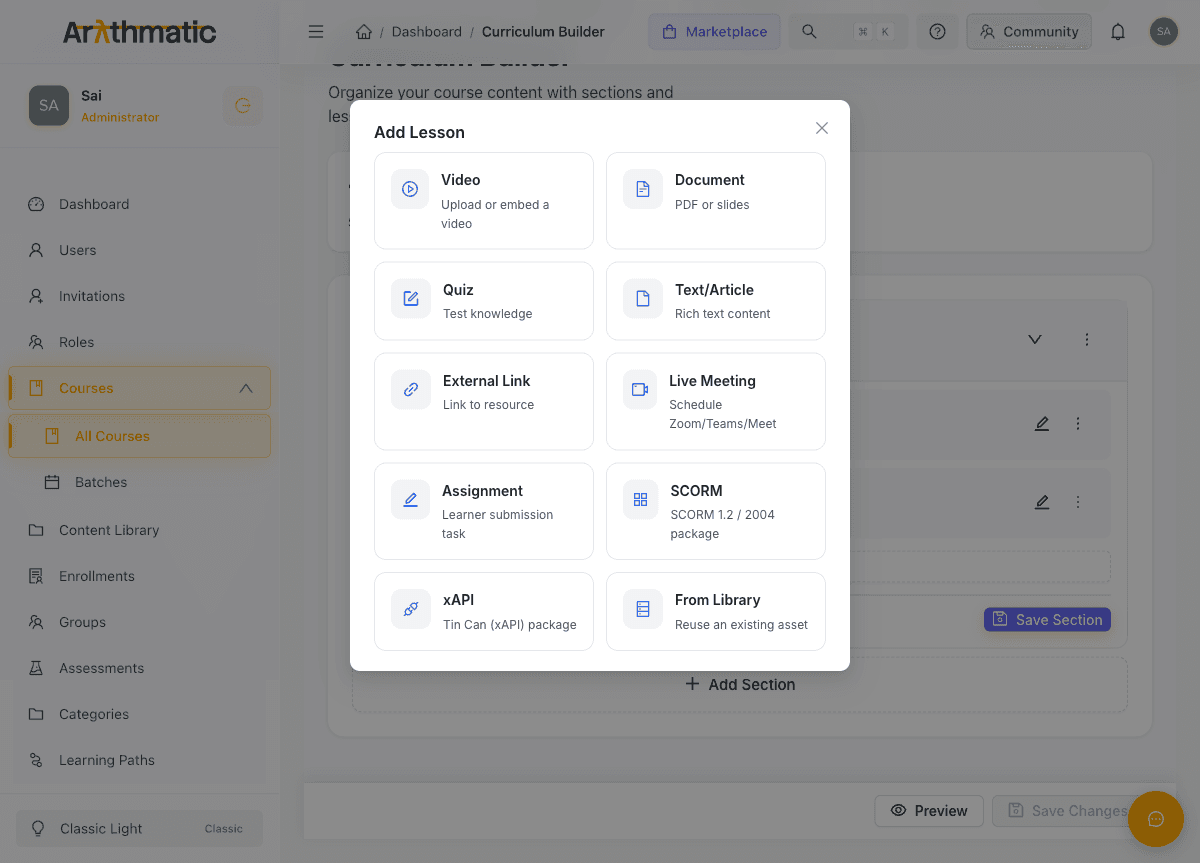
2. Choose the SCORM lesson type
In the Add Lesson dialog, pick SCORM — "SCORM 1.2 / 2004 package". (The xAPI option sits right next to it.)
3. Upload the package
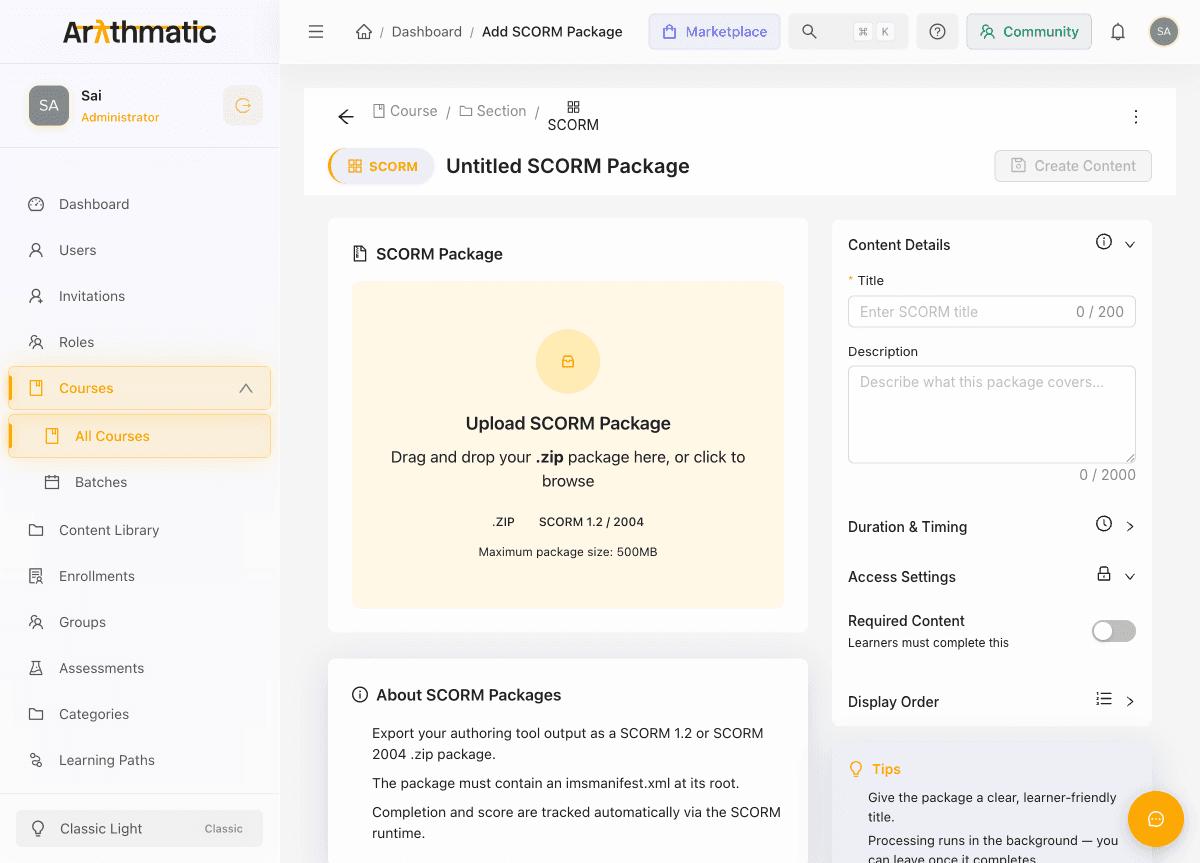
Drag your .zip onto the upload area (or click to browse), then give the lesson a Title. Optionally set a description, duration, and whether the lesson is required for course completion.
4. Create the content
Click Create Content. Arythmatic uploads the package and processes it in the background — it extracts the files, reads the manifest, and publishes the content to the CDN. Processing usually completes within a few seconds; you can leave the page and it will finish on its own.
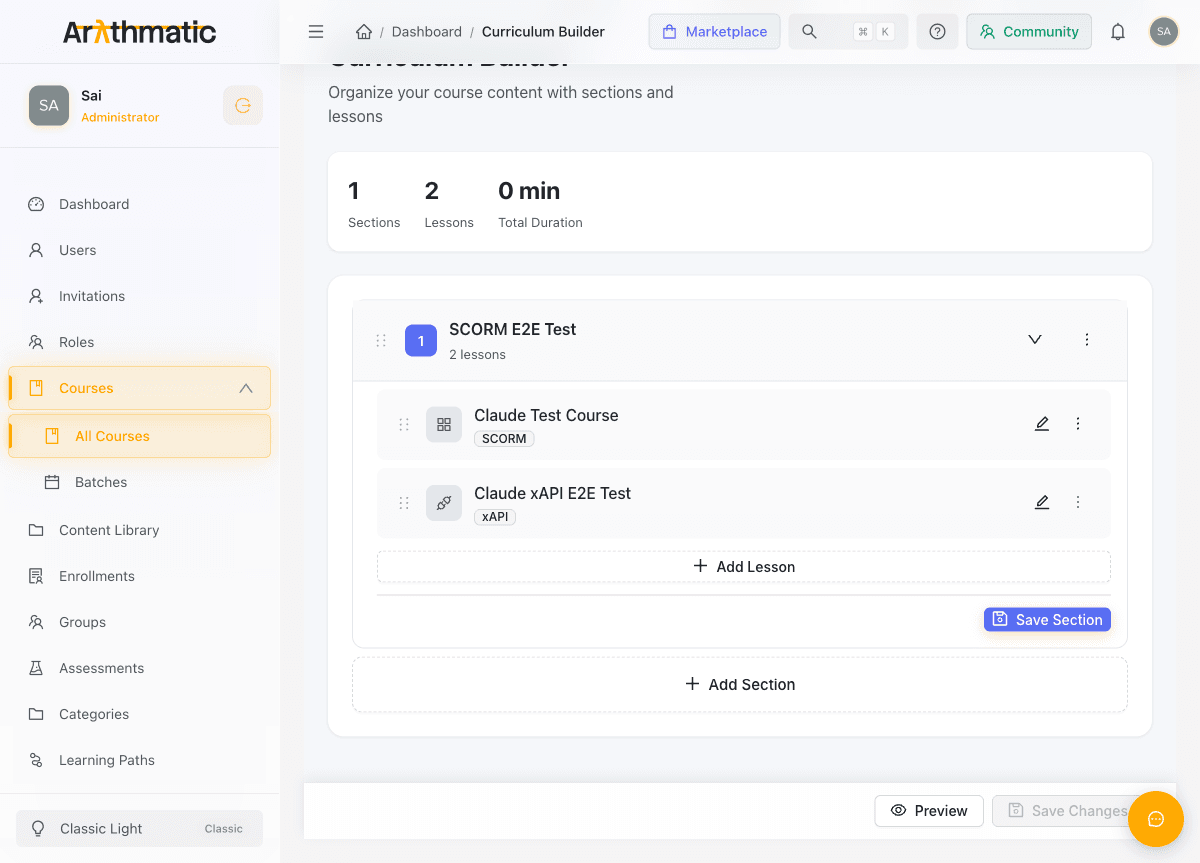
When it's done, the lesson appears in your curriculum with a SCORM badge.
Add an xAPI package
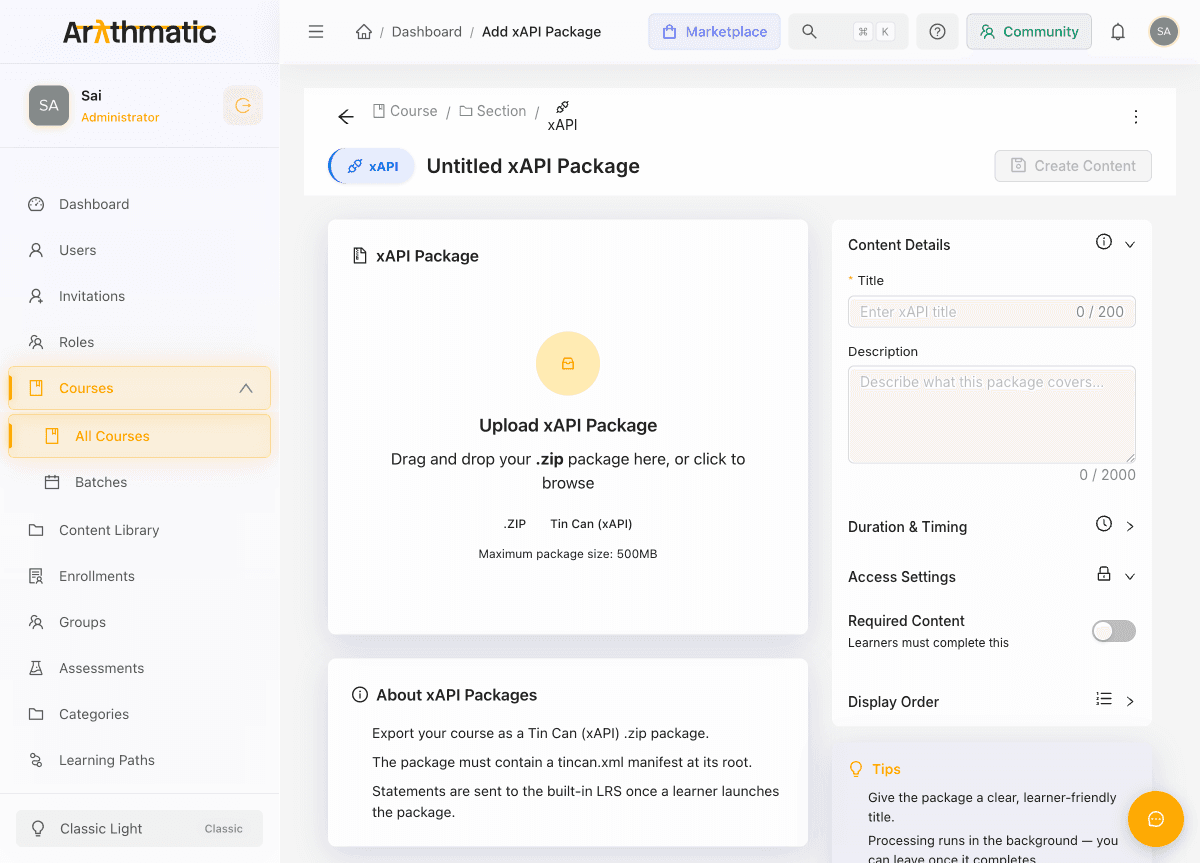
The flow is identical — in Add Lesson, choose xAPI ("Tin Can (xAPI) package"). The editor accepts a .zip containing a tincan.xml manifest. Once a learner launches an xAPI package, the statements it emits (launched, completed, passed, and so on) are recorded in Arythmatic's built-in LRS (Learning Record Store).
What the learner sees
Enrolled learners open the course from My Courses and click into the section. The SCORM or xAPI lesson opens in the built-in player — the content runs exactly as it would in any conformant LMS.
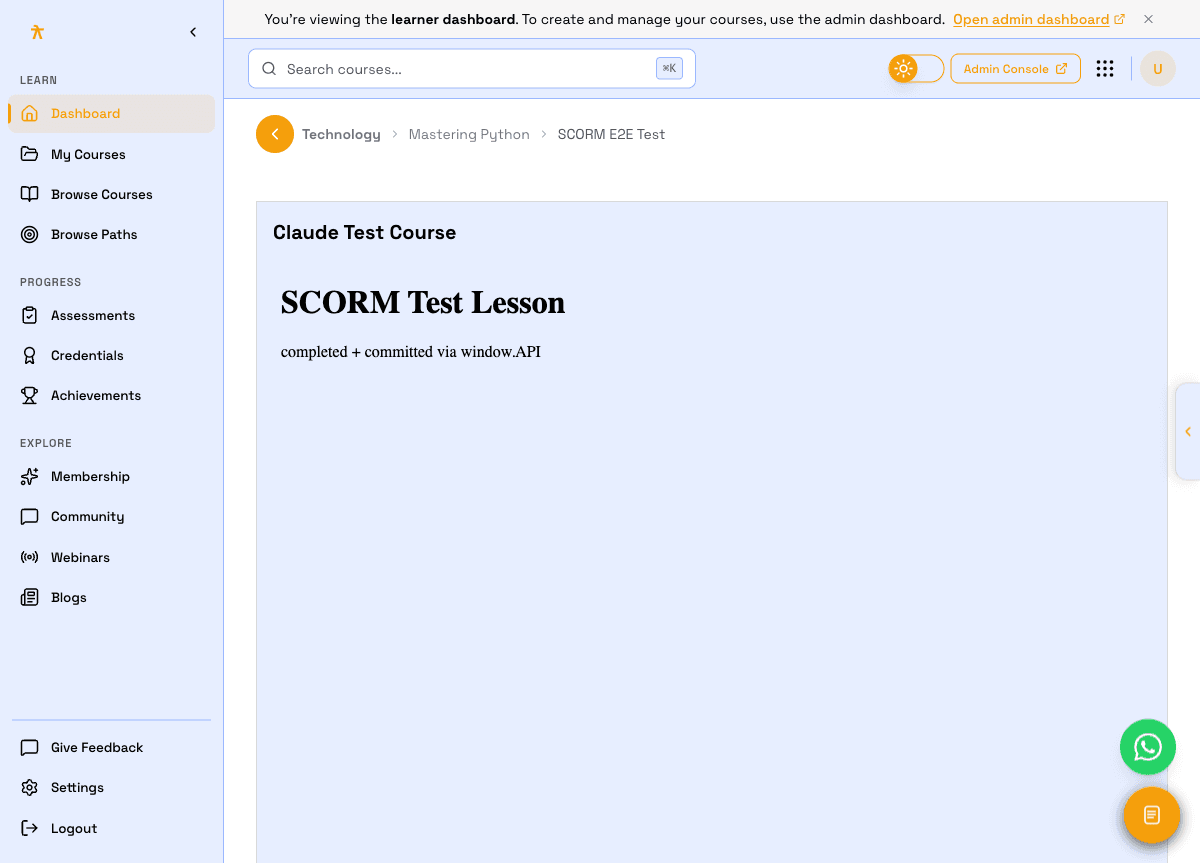
As the learner works through the package:
- SCORM — the runtime records
lesson_status(completed / incomplete / passed / failed), score, and suspend data, so the learner can resume where they left off. - xAPI — the content sends statements to the LRS describing what the learner did.
When the package reports completion, Arythmatic marks the lesson complete, updates the learner's course progress, and — if the course awards one — issues a certificate.
Supported formats & limits
- SCORM 1.2 and SCORM 2004 (2nd–4th edition). Multi-SCO packages play with linear navigation (Next / Previous); completion rolls up across all SCOs.
- xAPI / Tin Can packages with a
tincan.xmlmanifest. - Maximum package size: 500 MB.
- The manifest must be at the root of the
.zip.
Not yet supported: cmi5 packages, and advanced SCORM 2004 IMS Simple Sequencing (choice / flow / rollup rules). SCORM 2004 navigation is limited to linear flow — which covers the vast majority of published content.
Troubleshooting
"Processing failed." The .zip is missing its manifest, or the manifest is at the wrong level. Make sure imsmanifest.xml (SCORM) or tincan.xml (xAPI) sits at the root of the zip. Re-export from your authoring tool as a web / LMS package and re-upload. For SCORM you can also use Reprocess on the package to re-run processing.
The SCORM/xAPI options are missing in Add Lesson. These are Professional-plan content types — confirm your workspace plan under Monetization & plans.
A learner sees "You must be enrolled in this course." The learner needs an active enrollment. Enroll them from the course's Enrollments tab. Learners who have already completed the course can still re-open and review the content.
The content area shows an error and won't load. The package processed but the content couldn't be served. Confirm the package shows completed, then have the learner refresh. If it persists, delete and re-upload the lesson.
The package uploaded and processed, but the lesson plays blank — or shows "Not implemented yet". You most likely uploaded a content-packaging sample package. Sample / skeleton packages ship a stub launch page with no real course logic, so they load to an empty screen even though processing succeeded. Use a real course package exported from your authoring tool (Storyline, Captivate, iSpring, Rise, …) — one whose manifest entry point actually loads content. Always Preview the package before assigning it (see below) to confirm it shows real content, not a placeholder.
"Processing failed: duplicate title." This no longer blocks you — Arythmatic auto-resolves duplicate package titles by appending a suffix (e.g. My Course (2)), so a second package with the same title still processes and is saved under the de-duplicated name. If you saw this on an older attempt, just Reprocess (SCORM) or re-upload (xAPI).
How do I check a package plays before assigning it? Open the lesson in the curriculum builder; once it shows completed, use Preview to launch it in an in-dashboard player — no enrollment needed. Preview runs sandboxed and records nothing, so you can safely verify the content loads real material (not a blank / stub screen) before publishing to learners.
Content Types
A complete reference for every lesson content type in Arythmatic — video, audio, document, text/article, external link, live meeting, assignment, quiz, image, and reusing a Content Library asset.
Quiz Builder
Create a graded quiz lesson inside a course — add questions, choose question types, set passing score, attempts, time limit, and shuffle behavior, then save.
