

Assignments
Create assignment lessons with instructions, due dates, submission types and points, then review and grade learner submissions.
Assignments
Assignments are a lesson type that ask learners to hand in work — an uploaded file, a written answer, or either — which you then review and score. This page covers building an assignment in the editor, how learners submit, and grading every submission from the submissions page. Everything below is drawn directly from the assignment editor and submissions views.
Creating an assignment
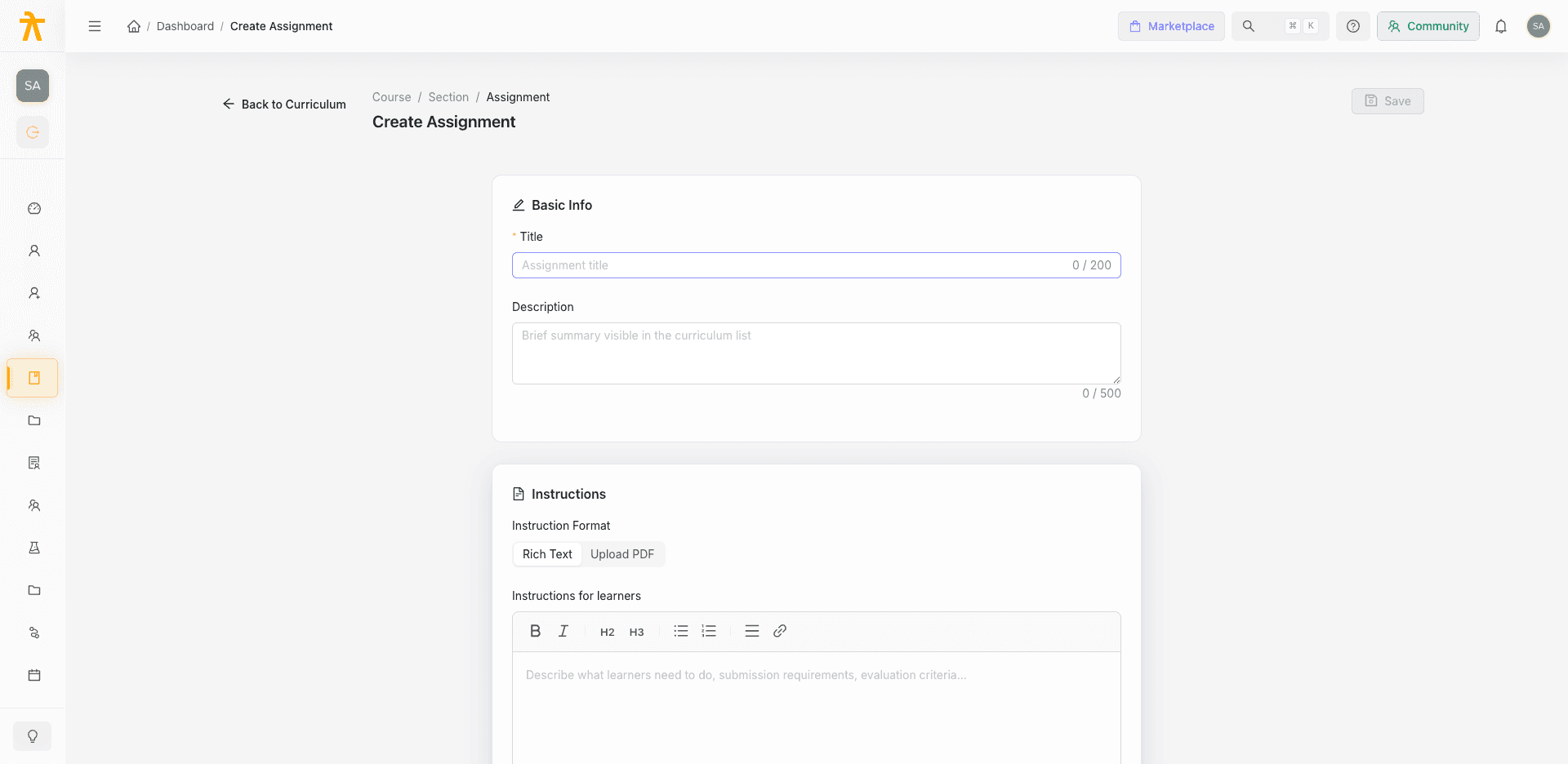
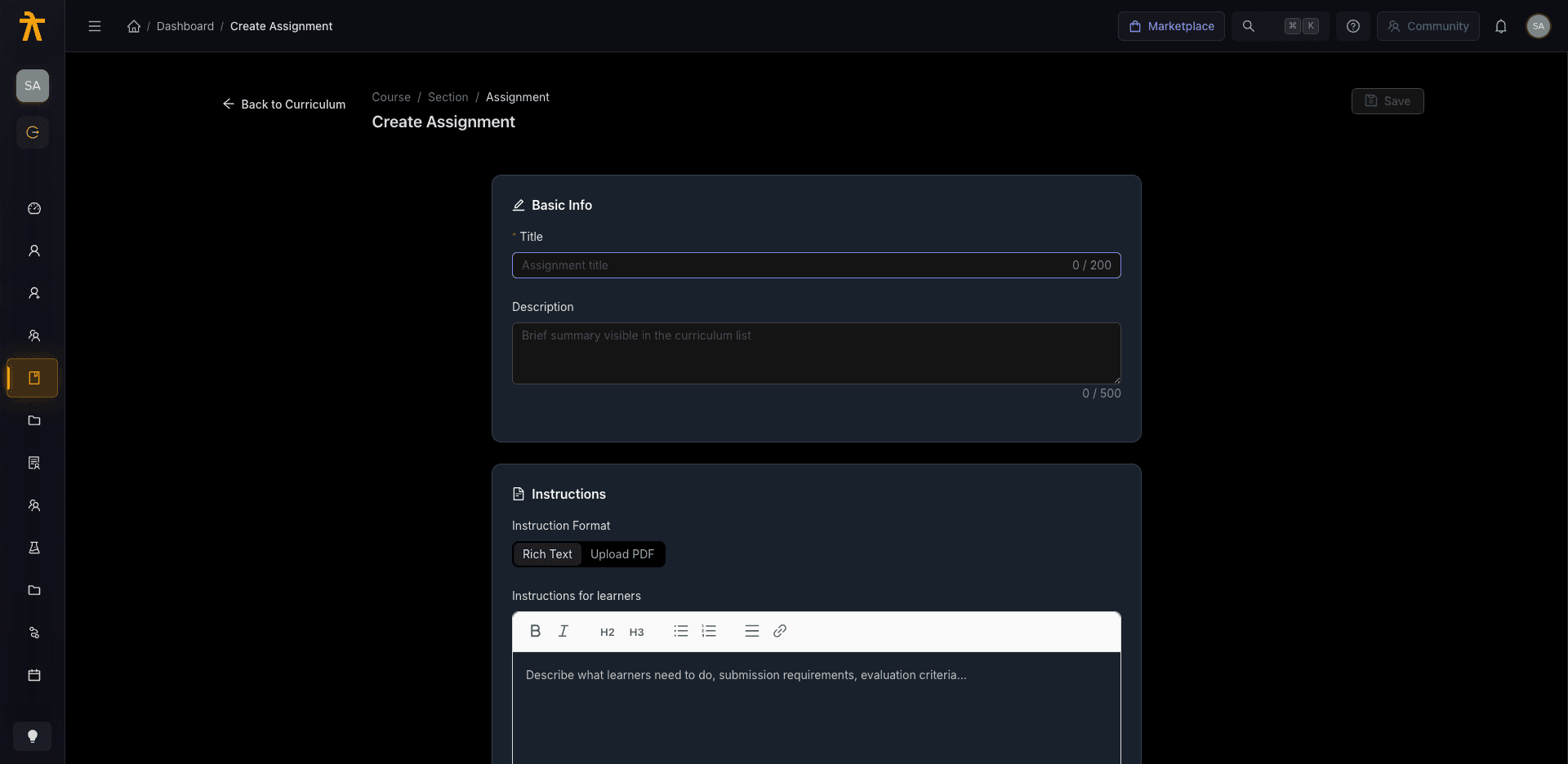
Add an assignment the same way you add any lesson — from a section in the course curriculum, choose the assignment content type. That opens the Create Assignment editor, which is organised into four cards: Basic Info, Instructions, Settings, and Reference Attachments. The header shows a breadcrumb (course, section, "Assignment") and a Save button. Save stays disabled until the assignment has a Title; you can also save with Cmd/Ctrl + S.
Basic info
| Field | Notes |
|---|---|
| Title | Required. Up to 200 characters, with a live character count. |
| Description | Optional, up to 500 characters. Shown as a brief summary in the curriculum list. |
Instructions
The Instruction Format toggle picks how you deliver the brief:
- Rich Text — write instructions inline with the rich text editor. Use it to describe what learners need to do, submission requirements, and evaluation criteria.
- Upload PDF — attach a Question Paper (PDF) instead. Click the dropzone to upload; it accepts PDF only, max 20 MB. Once saved you can Preview the current question paper or Replace it.
Settings
| Setting | Control | Details |
|---|---|---|
| Due Date | Date picker | Optional. Leave empty for "No deadline". |
| Due Time | Time picker (HH:mm) | Only enabled once a Due Date is set. |
| Max Points | Number input | The score ceiling. Ranges from 1 to 10000. |
| Allowed Submission Types | Segmented toggle | File Upload, Written Answer, or Both. |
| Accepted File Types | Checkboxes | PDF and/or DOCX. Hidden when the submission type is Written Answer only. |
| Allow resubmission | Checkbox | On by default. Lets learners submit again. |
Reference attachments
Under Reference Attachments you can upload files learners can download — rubrics, templates, or reference material. Click Upload File, and each uploaded file appears in a list with its name (a download link), size, and a remove action. This section is separate from the PDF question paper; it is supplementary material, not the brief itself.
Saving and publishing
Once the required Title is present, Save persists the assignment. New assignments are created in Draft — the header shows a Draft tag until you publish. Use Publish to make the assignment available to learners; the tag flips to Published.
If you try to publish with no due date set, a Publish without due date? confirmation appears warning that learners will have no deadline. You can Publish anyway or cancel and add a due date first — a missing deadline does not hard-block publishing. Publishing may also surface warnings returned by the backend (shown as a warning message rather than an error).
How learners submit
Published assignments appear as a lesson in the learner's course. What the learner can submit is driven by the Allowed Submission Types you set:
- File Upload — the learner uploads a file matching your Accepted File Types (PDF and/or DOCX).
- Written Answer — the learner types a response. A written answer must be at least 10 characters.
- Both — the learner picks either a file or a written answer for that submission.
Each submission records the submission type, the file (with original filename and size) or the written text, and a timestamp. If you enabled Allow resubmission, learners can submit again; otherwise their first submission stands. New submissions start in a pending state awaiting your review.
Grading submissions
From the editor header, Submissions (N) opens the submissions page for that assignment. It lists every submission in a table and provides a grading drawer.
The submissions table
| Column | Shows |
|---|---|
| Learner | Learner name and email. |
| Submitted At | Date and time of the submission. |
| Type | Written or File. |
| Submission | For files, a link (filename) opening the file in a new tab; for text, "Written answer". |
| Status | pending, reviewed, or graded. |
| Score | The awarded score out of Max Points, or a dash if not yet scored. |
| (actions) | A Grade button that opens the grading drawer. |
The table paginates at 20 rows and shows "No submissions yet" when empty.
Grading a submission
Click Grade on a row to open the Grade Submission drawer. It shows the learner's name, email, and submission time, followed by the submission itself:
- File submissions show a View File link that opens the uploaded file in a new tab.
- Written submissions render the learner's answer inline. (Learner text is sanitised before display.)
Below the preview, the grading form has two fields:
| Field | Notes |
|---|---|
| Score | Number from 0 up to the assignment's Max Points. An out-of-range score shows an error and blocks saving. |
| Feedback | Optional free-text feedback for the learner. |
Click Save Grade to record the grade. Saving requires a score and sets the submission's status to graded; the row updates in place with the new score and status. Grading a submission for the first time notifies the learner that their work has been graded, so they can see their score and feedback.
Related
Quiz Builder
Create a graded quiz lesson inside a course — add questions, choose question types, set passing score, attempts, time limit, and shuffle behavior, then save.
AI-Assisted Authoring
Where AI helps across Arythmatic — generating quiz and assessment questions, drafting course structure and lessons in the curriculum, and summarizing course analytics — and exactly what each tool does.
