

Course Pricing
Set a course as free or paid, configure multi-currency prices with optional compare-at amounts, cap enrollments, and control how prices are localized for learners.
Course Pricing
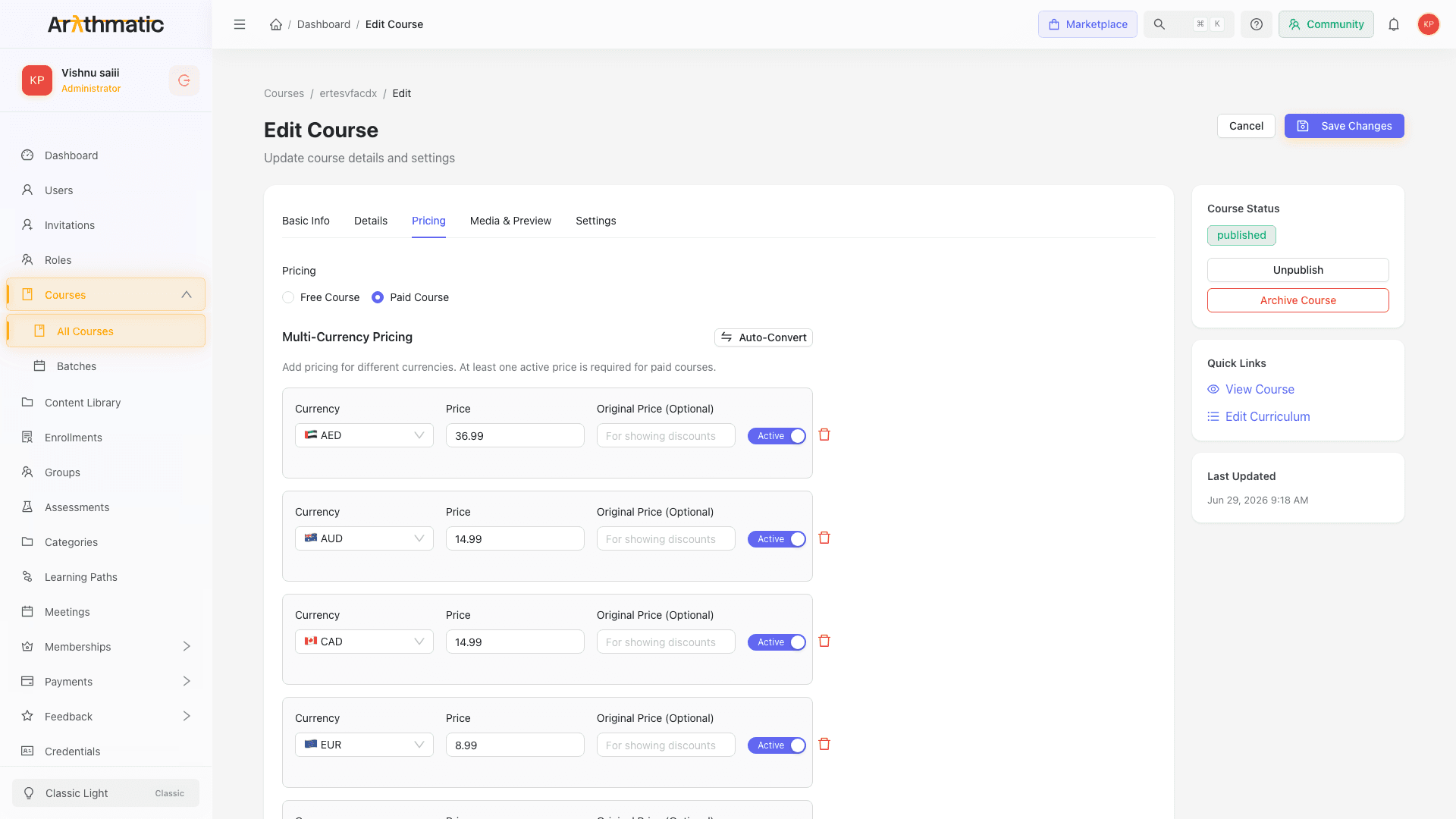
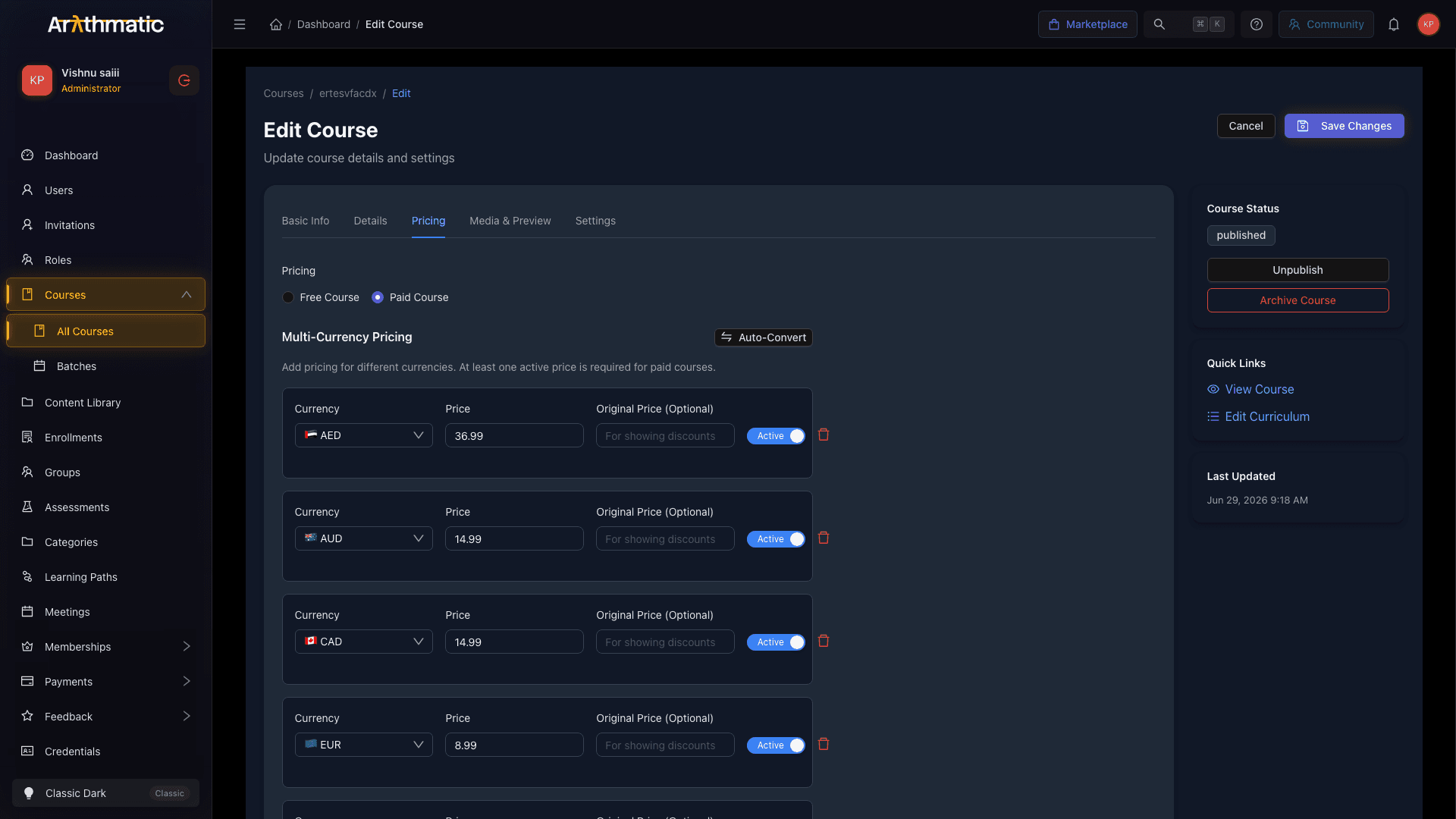
Course pricing controls whether a course is free or paid, what learners are charged, and in which currency. It is managed on the Pricing tab of the Course Edit page (and on the Pricing step of the create-a-course wizard). You can make a course free or paid, define prices in up to nine currencies, add an optional compare-at amount for discounts, auto-fill every currency from live exchange rates, and cap how many learners can enroll.
Who can set pricing
The Pricing tab is admin-only. Instructors do not see it — the tab renders only when the signed-in user is an administrator. Instructors can build and manage curriculum, but a course's price and enrollment cap are reserved for admins.
If you are an instructor and the Pricing tab is missing from your Course Edit page, that is expected. Ask an administrator on your team to configure the price, then focus on the Curriculum, Media, and Settings tabs.
Opening the Pricing tab
- Navigate to Courses in the sidebar.
- Click the course title to open the detail page.
- Click Edit (top-right), then select the Pricing tab.
When you create a new course through the wizard, the same controls appear as the dedicated Pricing step before you reach Settings.
Free vs. Paid
The first control is a Pricing radio group. Choose one:
| Option | Backend flag | What happens |
|---|---|---|
| Free Course | is_free: true | Learners enroll directly, at no cost. No price rows are required, and the currency section is hidden. |
| Paid Course | is_free: false | Learners must purchase the course before they can enroll. The Multi-Currency Pricing section appears and at least one active price row is required to save. |
While you are editing, toggling Paid → Free keeps the price rows visible on screen so you can switch back without re-entering them. However, if you save the course while it is set to Free, the stored prices are cleared on the backend — a free course is persisted with no active prices.
Multi-Currency Pricing
When the course is set to Paid, a Multi-Currency Pricing section appears. Add one row per currency. The currency dropdown offers these nine options:
| Code | Symbol | Currency |
|---|---|---|
| USD | $ | US Dollar |
| EUR | € | Euro |
| GBP | £ | British Pound |
| INR | ₹ | Indian Rupee |
| AUD | A$ | Australian Dollar |
| CAD | C$ | Canadian Dollar |
| JPY | ¥ | Japanese Yen |
| SGD | S$ | Singapore Dollar |
| AED | د.إ | UAE Dirham |
Each currency can be used only once per course — once a currency is added, it is disabled in the other rows' dropdowns. Because there are nine currencies, a course can hold at most nine price rows; the Add Currency Price button is disabled once all nine are in use.
You do not need to enter every currency. Most tenants set two or three (for example USD, EUR, and INR) that match where their learners are. Learners only ever see one price — the one closest to their region — so extra currencies are about coverage, not clutter.
Price row fields
Each row has the following fields:
| Field | Required? | Allowed values | Default | Notes |
|---|---|---|---|---|
| Currency | Yes | One of the nine codes above, unused by another row | Next unused currency | Stored as an ISO 4217 code on the CoursePrice model. |
| Price | Yes (for active rows) | A number greater than 0 | 0 | The amount learners pay in that currency. Two decimal places. |
| Original Price | Optional | A number greater than the Price | empty | Stored as compare_at_price. Used to communicate a discount and to derive a discount percentage. |
| Active | — | On / Off | On | Toggle off to keep a price on file without offering it. Inactive rows are ignored at checkout. |
Rows also have a delete (trash) button. You cannot delete the last remaining row — the button is disabled when only one row exists, so a paid course always keeps at least one price on the form.
A paid course must have at least one Active price with an amount greater than 0 before it can be saved. Saving is blocked with a validation message if there are no rows, if no row is marked Active, or if any active row has a price of 0 or less.
Original Price and discounts
The optional Original Price field maps to the compare_at_price field on the backend CoursePrice model. When set, it represents the pre-discount amount. The model derives a discount_percentage from the difference between compare_at_price and the active price, which the management API surfaces for admin views.
If you set an Original Price, it must be strictly greater than the Price — the payments API rejects a compare-at value that is less than or equal to the regular price ("Compare at price must be greater than regular price"). Leave it empty if there is no discount.
Auto-Convert
Instead of typing each currency by hand, use Auto-Convert to fill every row from a single base price:
- Click Auto-Convert (the swap icon) next to the Multi-Currency Pricing heading to open the panel.
- Choose the base currency and enter the base price.
- Click Get Rates & Fill (or press Enter).
- Arythmatic fetches live rates from
open.er-api.comand rebuilds every currency row from the base amount. - Review and adjust individual rows, then save.
Amounts are rounded for psychological pricing:
| Currency | Rounding rule | Example |
|---|---|---|
| JPY | Nearest whole number (no decimals) | ¥7,412 → ¥7,412 |
| All others | Floor to the whole unit, then add .99 | $48.30 → $48.99 |
The date of the exchange rates is shown under the input for reference.
Auto-Convert replaces all existing price rows with a freshly generated set for every currency and marks them all Active. If you had carefully tuned individual prices or toggled some rows Inactive, run Auto-Convert first and fine-tune afterward — not the other way around.
Max Enrollments
Below the pricing rows is a Max Enrollments field:
- Leave it at 0 (the default) for unlimited enrollments.
- Enter a positive number to cap enrollments. Enforcement is server-side: once the count of learners with an
enrolledstatus reaches the cap, the enrollment permission check fails and further enrollments are blocked until a seat frees up.
The cap applies alongside any enrollment start/end dates — a course must be within its enrollment window and under its cap for a new learner to enroll.
How pricing ties to enrollment and checkout
- Free courses enroll the learner immediately when they click enroll (subject to self-enrollment settings and the enrollment window).
- Paid courses require a completed purchase before enrollment. At checkout the amount is charged in the currency selected for that learner, converted to the payment gateway's smallest unit (for example, cents for USD).
- Inactive price rows never participate in checkout — only active rows are offered and charged.
How prices appear to learners
Learners never see the full multi-currency table. The catalog returns a single, geo-localized price per course, chosen from your active rows based on the learner's detected country.
Country detection reads request headers in order — an explicit X-User-Country header, then CDN headers (Cloudflare, Google, AWS CloudFront, and others) — and falls back to IP-based geolocation. The detected country maps to a currency:
| Learner region | Currency shown |
|---|---|
| United Kingdom | GBP |
| India | INR |
| Australia | AUD |
| Canada | CAD |
| Singapore | SGD |
| United Arab Emirates | AED |
| Japan | JPY |
| Eurozone / EEA countries | EUR |
| Everywhere else | USD |
If a course has no active row in the learner's currency, the system falls back gracefully:
- If the course has only one price, that price is shown regardless of currency.
- Otherwise, if the learner's currency exists, it is used.
- If not, it falls back to USD.
- If USD is also missing, the first active price on the course is shown.
Always include a USD row on paid courses. It is the universal fallback for learners whose region does not match one of your other currencies, so it guarantees everyone sees a sensible price rather than an unexpected one.
The learner-facing price payload carries the localized currency and a formatted amount. The compare-at/original price and discount percentage are management-side fields; do not rely on the learner catalog to render a strikethrough automatically.
Saving pricing changes
Click Save (or Update Course) at the bottom of the Pricing tab. Saving replaces the course's stored prices with the current set of rows, so the table you see is the table that goes live. Pricing changes take effect immediately — learners who attempt to purchase after the change see the new price.
Pricing and the Path Builder
When a paid course is added to a Learning Path, the Path Builder shows a pricing warning if the learning path itself has no path-level price configured. Learners will be able to enroll in the path for free even though individual courses are paid — until you set a path-level price.
See Learning Path Pricing for how to configure path-level prices.
Related
- Create a Course — initial setup including the Pricing step
- Learning Path Pricing — bundle pricing for learning paths
- Preview and Publish — publishing a paid course
AI-Assisted Authoring
Where AI helps across Arythmatic — generating quiz and assessment questions, drafting course structure and lessons in the curriculum, and summarizing course analytics — and exactly what each tool does.
Preview and Publish
Review your course from the manage dashboard, then publish it to make it available for enrollment.
