

Content Types
A complete reference for every lesson content type in Arythmatic — video, audio, document, text/article, external link, live meeting, assignment, quiz, image, and reusing a Content Library asset.
Content Types
Every lesson you add to a course has a content type that determines how learners experience it and what you configure in the editor. When you add content to a section, the Add Content picker opens with a card for each type. You pick one, give the lesson a title, and Arythmatic opens the matching editor.
This page is the reference for all of them. Start with the picker overview, then jump to the section for the type you are building.
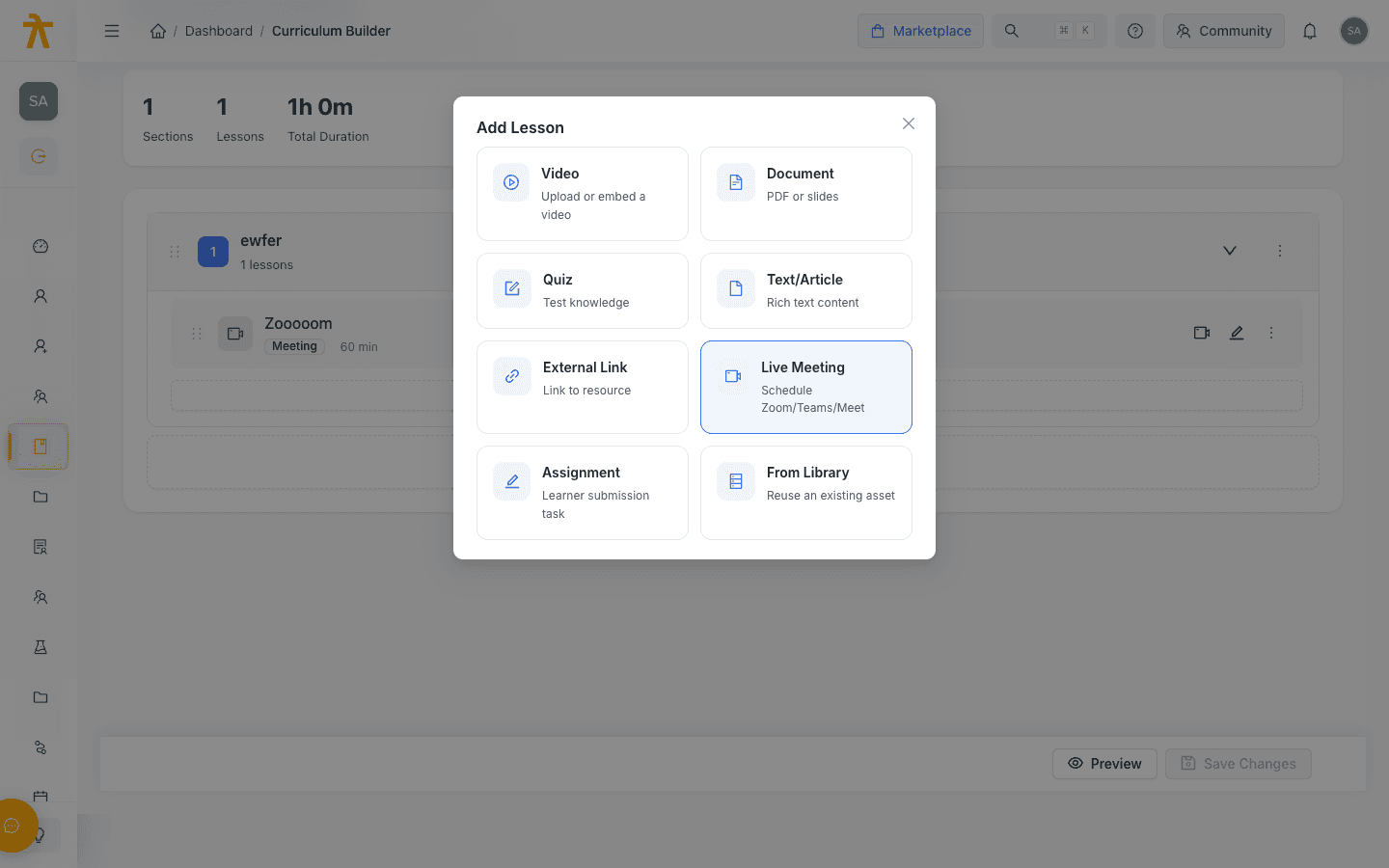
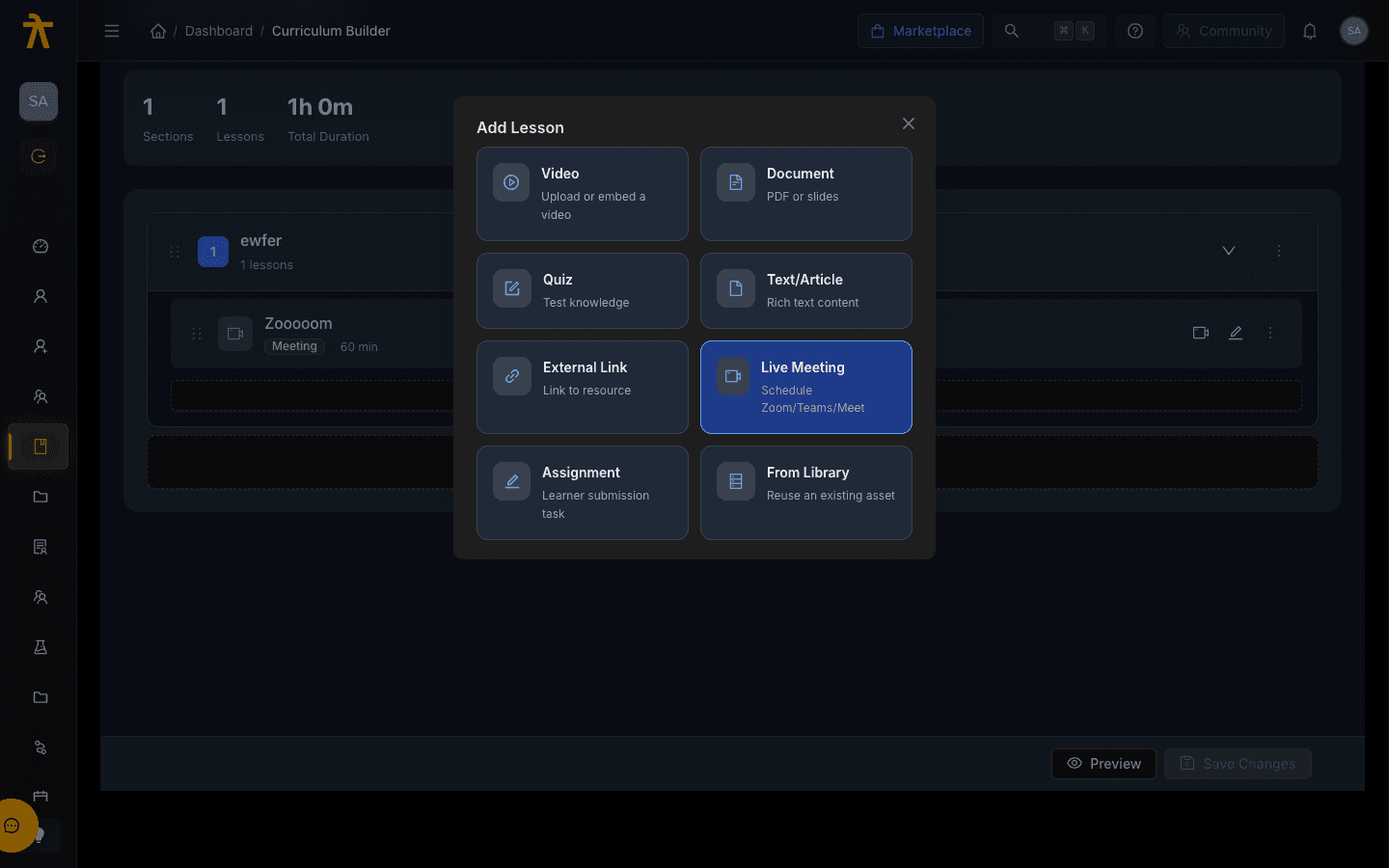
The Add Content picker
The picker shows twelve cards in a two-column grid. Eleven of them create a new lesson; From Library instead reuses an asset you have already uploaded.
| Card | Type | What it is |
|---|---|---|
| Video | video | Upload video content with HLS streaming |
| Document | document | PDF, Word, Excel, or PowerPoint files |
| Text/HTML | text | Rich text content with formatting |
| External Link | url | Link to external resources |
| Audio | audio | MP3, WAV, or other audio files |
| Image | image | Images and graphics |
| Quiz | quiz | Interactive assessment |
| Assignment | assignment | Student submission task |
| Live Meeting | meeting | Schedule a Zoom, Teams, or Meet session |
| SCORM | scorm | SCORM 1.2 / 2004 package (Professional plan) |
| xAPI | xapi | Tin Can (xAPI) package (Professional plan) |
| From Library | — | Reuse an existing library asset |
After you choose a type (except Live Meeting and From Library, which have their own flows) the picker asks for a Title (required), an optional Description, and two checkboxes: Required content (on by default) and Available as preview. It then opens the type-specific editor where you upload files or author the lesson.
Preview lessons are free to sample. Ticking Available as preview lets prospective learners open that lesson without enrolling — a good way to show off your best video or a strong first article on the course landing page.
The Required content checkbox (on by default) marks the lesson as mandatory within its section. You can also change it later in the curriculum builder, including via bulk edit across several lessons at once. It is an authoring signal that flags a lesson as required — it does not by itself hard-block a learner from moving past the lesson.
Video
Learners watch a recorded video inside the built-in player. Upload a file and Arythmatic transcodes it into multiple quality levels for adaptive HLS streaming, so playback stays smooth across connection speeds. Playback position is tracked so learners resume where they left off.
| Field / option | Notes |
|---|---|
| Video file | Uploaded directly; max 5 GB. MP4 recommended. |
| Processing | Transcoding runs after upload with live progress (download → encode → upload). A Processing state shows until the video is ready. |
| Thumbnail | Generate from Video (captures the current frame) or Upload Custom (any image). |
| Duration | Auto-calculated from the video; the duration field is read-only. |
| Description, Required, Sort order | Set in the sidebar settings panel. |
When to use it: demonstrations, walkthroughs, talking-head lectures, or screencasts.
Wait for processing to finish before publishing. Large files take a few minutes to transcode. The lesson is not playable until the "Processing" indicator clears and the player shows a Ready tag.
The editor suggests keeping videos under 10 minutes for engagement, adding a custom thumbnail to lift click-through, and including captions for accessibility.
Audio
Learners listen to a recorded track in the built-in audio player, with playback position tracked for resume.
| Field / option | Notes |
|---|---|
| Audio file | Uploaded directly; max 100 MB. |
| Supported formats | MP3, WAV, OGG, M4A, AAC. |
| Duration | Auto-detected from the file. |
| Title, Description | Title is required; description optional. |
When to use it: podcasts, narrated explanations, language-listening exercises, or interviews. MP3 gives the widest compatibility, and a transcript improves accessibility.
Document
Presents a file that learners can view and, optionally, download. PDFs render in an in-browser preview with zoom and fullscreen; other formats open in a new tab.
| Field / option | Notes |
|---|---|
| Document file | Uploaded directly; max 50 MB. |
| Supported formats | PDF, DOC, DOCX, XLS, XLSX, PPT, PPTX, TXT. |
| Downloadable | Toggle the downloadable setting to allow or block downloads. |
| Preview | PDFs preview inline; non-PDF formats show an "Open in New Tab" placeholder. |
When to use it: worksheets, templates, slide decks, reading material, or reference sheets. PDFs render most consistently across devices.
Text / Article
A rich-text lesson written and rendered inside the course — no file upload. You author with a formatting toolbar (headings, bold, italic, lists, links, tables, code blocks) and learners read it directly in the player.
| Field / option | Notes |
|---|---|
| Body | Authored in the rich-text editor. |
| Word count & reading time | Shown live; reading time is estimated at ~200 words per minute. |
| Duration | Auto-calculated from the reading-time estimate. |
When to use it: written guides, conceptual overviews, step-by-step instructions, or anything that reads well as a web article. Keep articles focused — split large topics into separate lessons. Text lessons are indexed for in-platform search.
External Link
Links to a web page, tool, or third-party resource. Learners open it from the lesson; you choose whether it opens in a new or the same tab.
| Field / option | Required? | Notes |
|---|---|---|
| Resource URL | Yes | Must be a valid URL. |
| Title | Yes | Auto-filled from the hostname if left blank. |
| Description | No | What learners will find at the link. |
| Open in | — | New Tab (default) or Same Tab. |
| Estimated time | — | Defaults to 10 minutes. |
The editor auto-detects a resource type from the URL — Video (YouTube, Vimeo), Document (Google Docs, .pdf), Code (GitHub, GitLab), Article (Medium, dev.to, blogs), or Website — and shows a preview card.
You do not control external pages. If the third-party site changes or goes down, the lesson breaks. For content you own, prefer Video, Document, or Text lessons so you keep full control.
Live Meeting
Schedules a synchronous session as part of the curriculum. Unlike on-demand lessons, a meeting has a date, time, and platform.
| Field | Required? | Notes |
|---|---|---|
| Meeting Title | Yes | — |
| Description | No | What the session covers. |
| Date & Time | Yes | Date-time picker. |
| Duration | Yes | 30, 45, 60 (default), 90, or 120 minutes. |
| Meeting Platform | Yes | See below. |
Platforms: Zoom, Microsoft Teams, Google Meet, Arythmatic (built-in meetings), or Custom Link.
- For Zoom, Teams, and Google Meet, the join link is generated automatically. Zoom and Google Meet require the matching integration to be connected — if it is not, the editor redirects you to Settings → Integrations.
- For Arythmatic, the link and meeting ID are generated automatically, and you can pick a host (defaults to you).
- For Custom Link, you enter the Meeting Link and Meeting ID manually (both required); a Passcode is optional.
Connect Zoom or Google Meet before scheduling. Choosing one of those platforms without a connected account sends you to the Integrations page rather than creating the meeting.
Assignment
Gives learners a task to complete and submit for manual review. Assignments have their own draft/published lifecycle and a submissions view.
| Field / option | Allowed values | Default |
|---|---|---|
| Instruction format | Rich Text, or Upload PDF (question paper) | Rich Text |
| Instruction PDF | PDF only, max 20 MB (PDF mode) | — |
| Due Date / Due Time | Date, plus optional time (time needs a date) | None |
| Max Points | 1–10,000 | 100 |
| Allowed submission types | File Upload, Written Answer, or Both | File Upload |
| Accepted file types | PDF, DOCX (when submissions allow files) | PDF + DOCX |
| Allow resubmission | On / Off | On |
| Reference attachments | Files learners can download (rubrics, templates) | — |
You save an assignment as a Draft, then Publish it. Publishing with no due date prompts a confirmation ("Publish without due date?") rather than blocking you. Submissions are not auto-graded — an instructor reviews them from the Submissions view.
Use Reference Attachments to share a rubric or a starter template, and set Accepted File Types to keep every submission in a format you can open.
Quiz
An interactive, auto-scored question set built through a five-step wizard: Quiz Info → Import Template → Questions → Settings → Review.
| Setting | Allowed values | Notes |
|---|---|---|
| Passing Score | 0–100% | — |
| Time Limit | 0–180 minutes | Blank = no limit. |
| Max Attempts | 1–10 | — |
| Shuffle questions / options | On / Off | Randomize order per attempt. |
| Show Correct Answers | Immediately, After all attempts used, After deadline, Never | — |
| Show score immediately | On / Off | — |
| Allow review | On / Off | Let learners revisit answers. |
| Require all questions | On / Off | — |
| Auto-submit on time limit | On / Off | — |
Question types: Single Choice, Multiple Choice, True/False, Fill in the Blank, Matching, and Ordering. Each question carries points and an optional explanation. From More Actions you can Import template (from the Marketplace) or AI Generate questions.
Course quizzes are lighter than standalone Assessments. They do not offer proctoring or section-level exam configuration. For high-stakes, timed, or proctored exams, use the Assessments module instead.
From Library
Instead of uploading again, From Library opens the Add from Library picker so you can attach an asset you have already added to your Content Library. Search and filter by asset type, then select a completed asset (assets still processing cannot be selected). The lesson is linked to the library asset rather than holding its own copy.
Reusing a library asset means one upload can appear in many courses — and updating the asset once keeps every linked lesson in sync.
SCORM & xAPI
SCORM (1.2 / 2004) and xAPI (Tin Can) are first-class content types with dedicated Add Content cards on the Professional plan. Upload a package as a .zip and Arythmatic hosts it, plays it in the built-in player, and tracks completion and score automatically — SCORM through its runtime, xAPI through the built-in LRS.
Because they have their own upload flow, background processing, and runtime, they are documented separately — see SCORM & xAPI packages for the full walkthrough.
Choosing the right type
| Situation | Recommended type |
|---|---|
| Narration or screen recording | Video |
| Podcast or listening exercise | Audio |
| Written guide or reference | Text / Article |
| Worksheet, slide deck, or take-home file | Document |
| External tool or supplementary page | External Link |
| A still graphic or diagram | Image |
| Knowledge check or self-assessment | Quiz |
| Project, essay, or file-upload task | Assignment |
| Scheduled synchronous session | Live Meeting |
| A pre-built SCORM or xAPI e-learning package | SCORM / xAPI |
| Content you already uploaded | From Library |
| High-stakes, proctored exam | Assessments module (not a course lesson) |
You can freely mix types within one section — many courses pair a video with a text summary and close the section with a quiz.
