

Content Library
Upload and manage reusable media assets — videos, documents, audio files, and images — that can be attached to lessons across multiple courses.
Content Library
The Content Library is a central repository for media files that can be reused across multiple courses. Instead of re-uploading the same video to five different lessons, upload it once to the library and attach it wherever you need it.
Before you start
- You need the Admin or Instructor role.
- Supported asset types: Video, Document, Audio, Image.
- Check the Storage Used gauge (top of the page) to confirm you have available space before uploading large files.
Stats panel
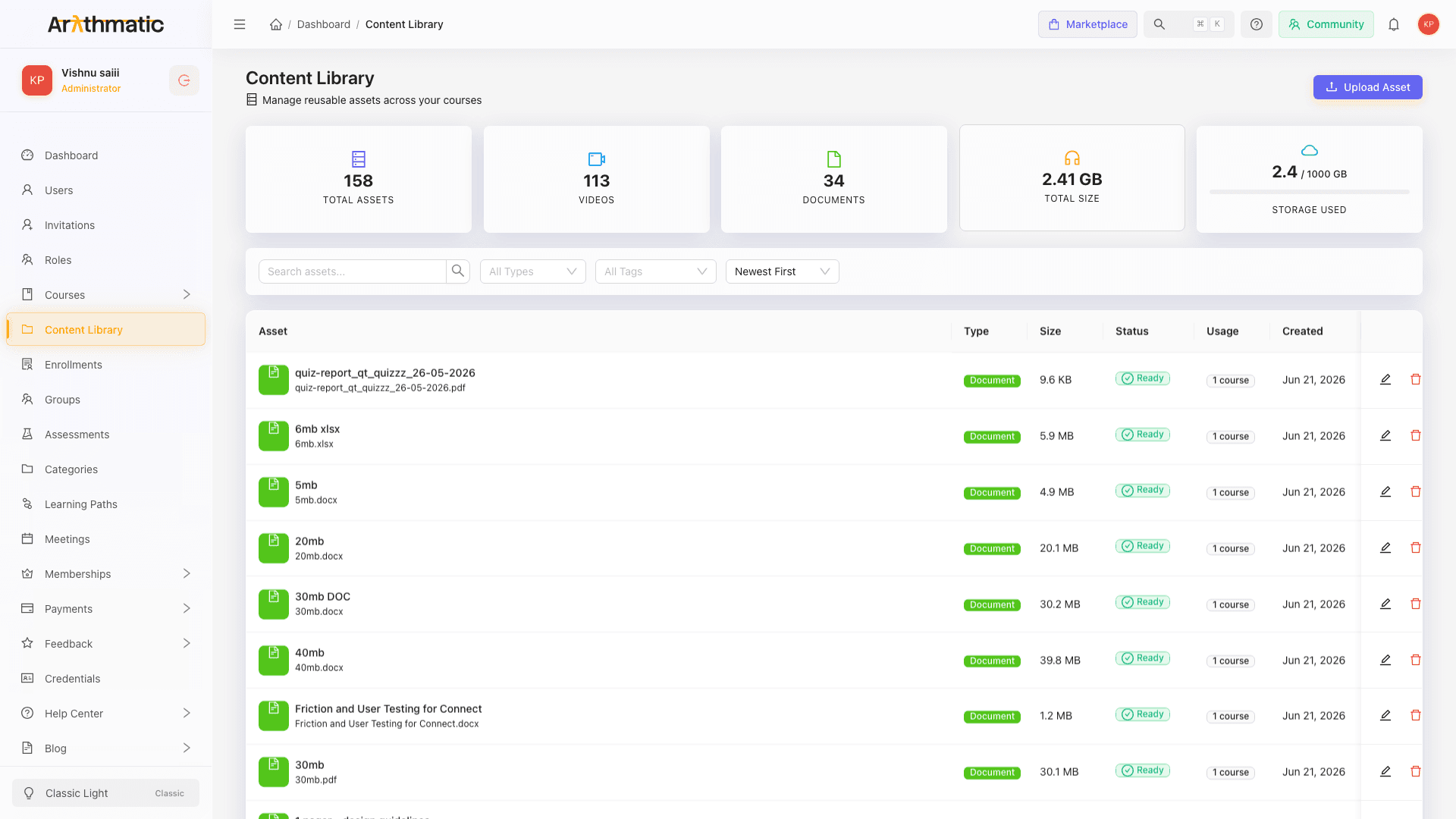
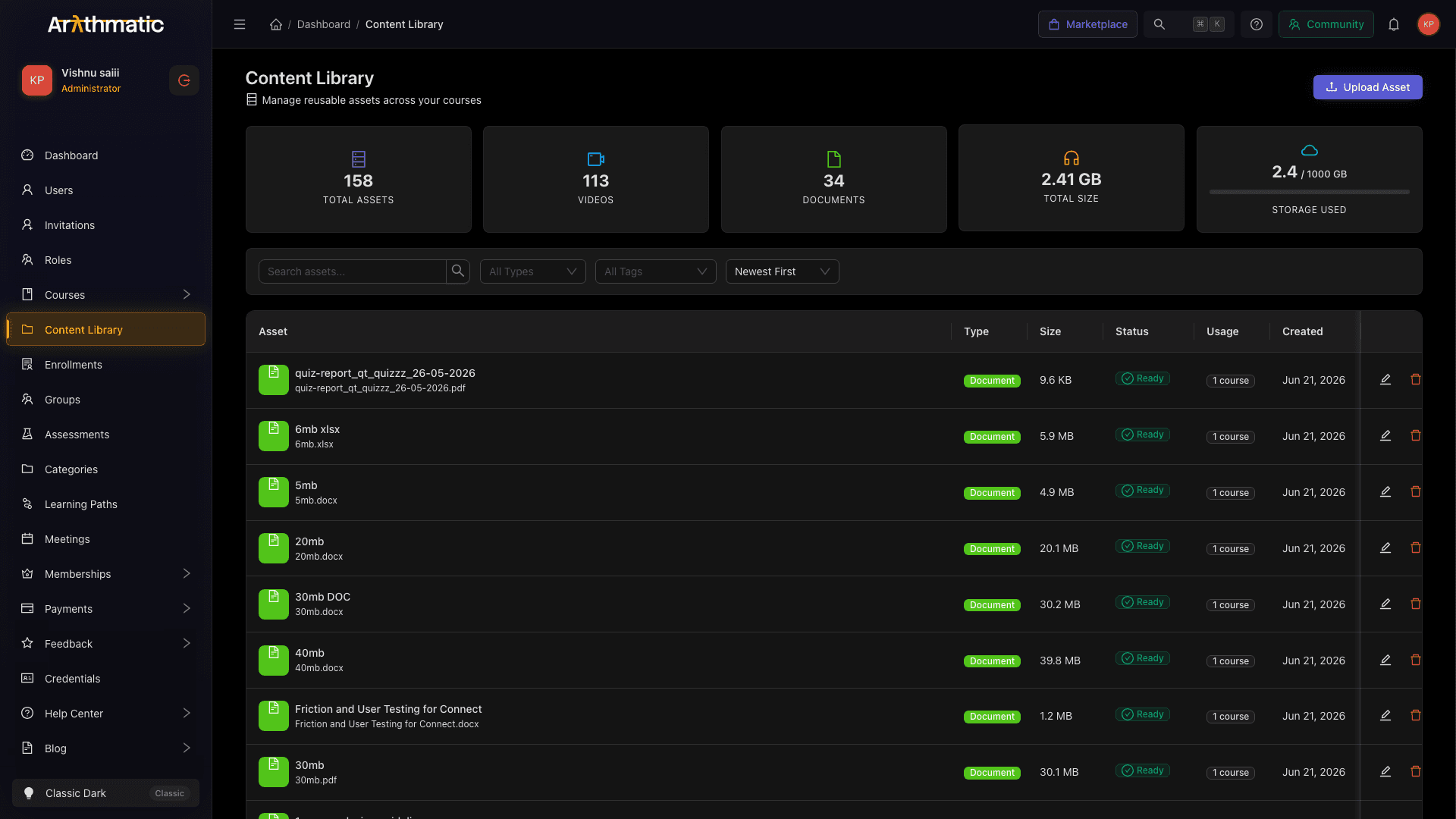
At the top of the page, five stat cards give you a quick view of your library:
| Card | What it shows |
|---|---|
| Total Assets | Count of all uploaded files |
| Videos | Count of video assets |
| Documents | Count of document assets |
| Total Size | Combined file size of all assets |
| Storage Used | GB used vs. your plan limit, with a progress bar |
The progress bar color changes from green → amber → red as you approach your storage limit.
Searching and filtering assets
Use the toolbar beneath the stats panel to narrow the asset list:
| Control | What it does |
|---|---|
| Search box | Real-time search by asset name |
| All Types dropdown | Filter by Video, Document, Audio, or Image |
| All Tags dropdown | Filter by any tag assigned to an asset |
| Sort dropdown | Order by Newest First, Title A–Z, Largest First, or Type |
Uploading an asset
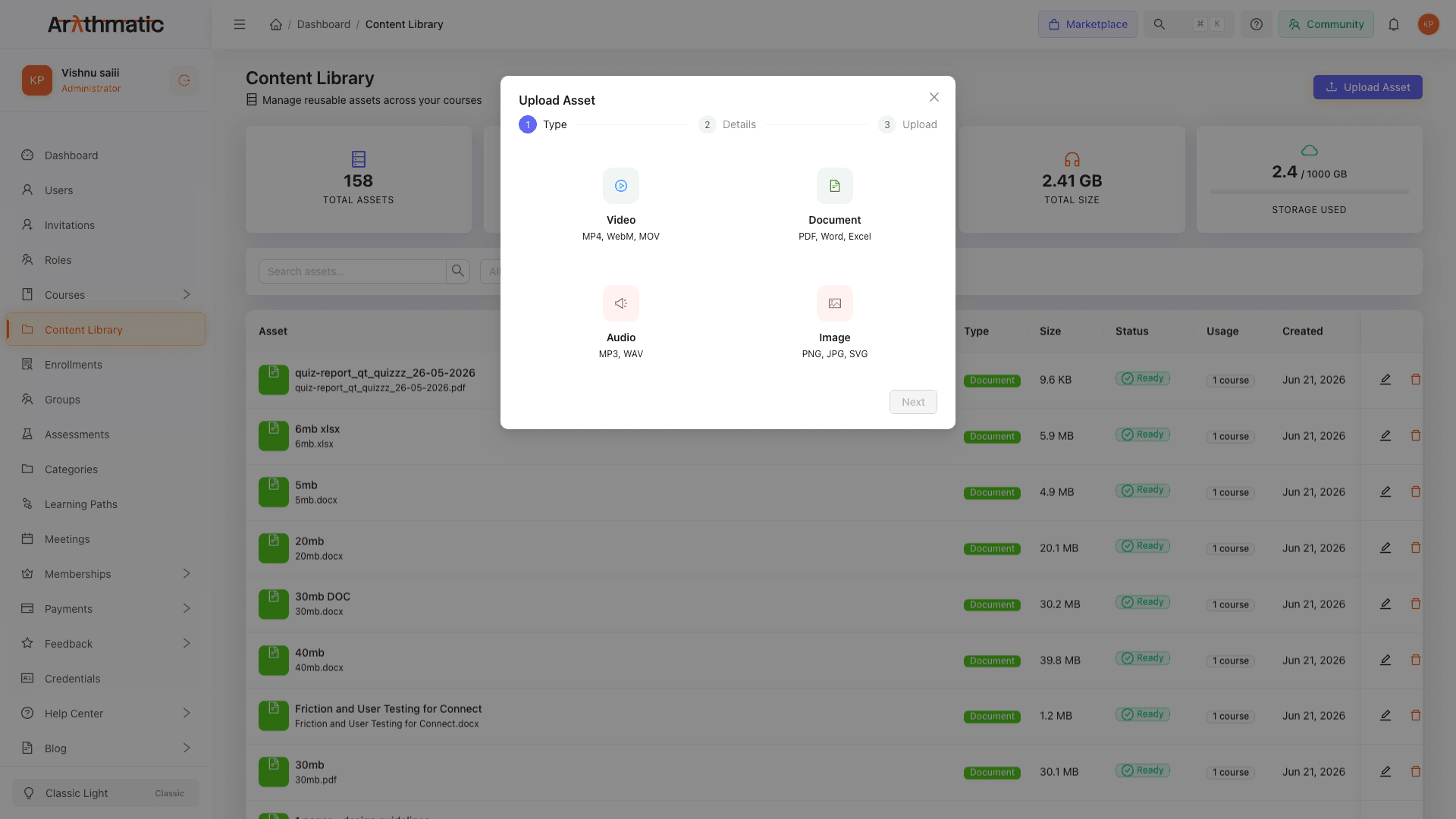
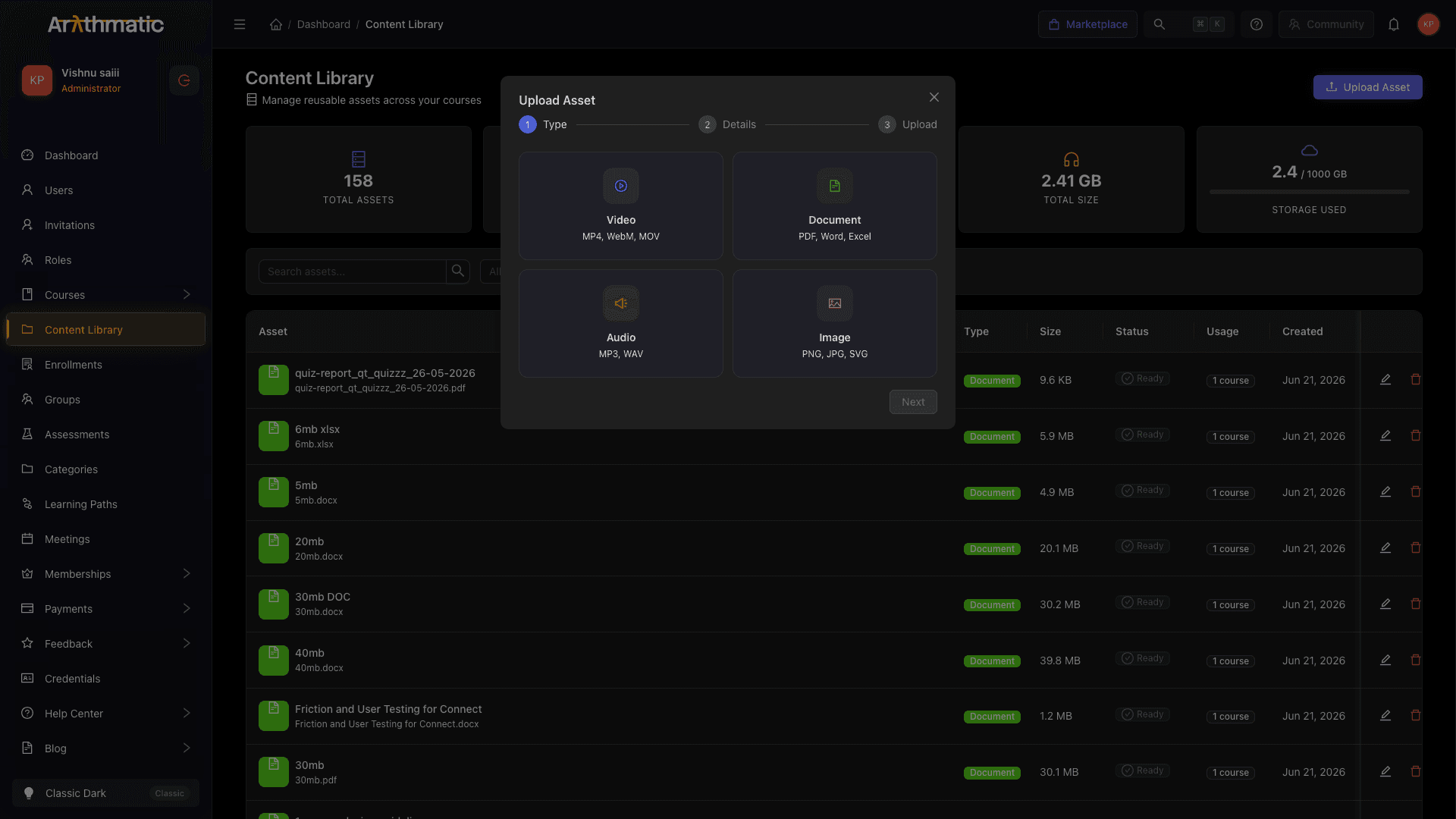
- Click Upload Asset (top-right corner).
- Drag a file onto the upload area, or click Browse to select one.
- Fill in the optional metadata:
- Title — defaults to the file name; change it to something descriptive.
- Tags — comma-separated labels (e.g.
python,intro,2026) to make the asset easier to find later.
- Click Upload.
The asset appears in the list immediately. Video files enter a Processing state while Arythmatic transcodes them — the status badge updates to Ready once processing is complete. You can leave the page; processing continues in the background.
Name assets with the course or topic upfront (e.g. "Python Basics — Intro Video") so they are easy to identify when browsing the library from the Curriculum Builder.
Asset status badges
| Badge | Meaning |
|---|---|
| Pending | Upload queued, not yet started |
| Uploading | File is being uploaded |
| Processing | File uploaded; transcoding or indexing in progress |
| Ready | Asset is fully processed and available to attach to lessons |
| Retrying | A previous attempt failed and is being retried |
| Failed | Processing failed — hover the badge for the error reason; try re-uploading |
Viewing asset details
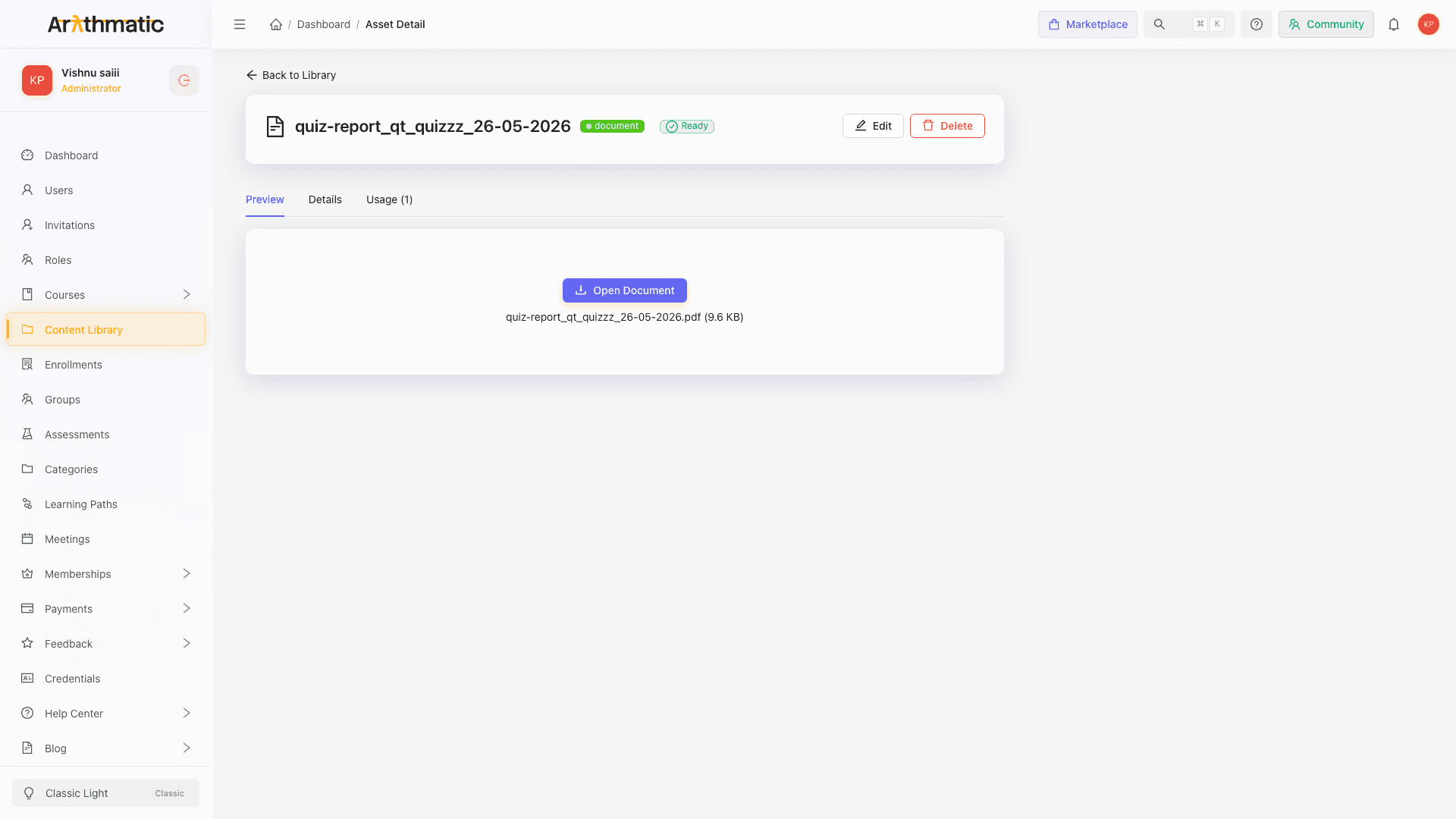
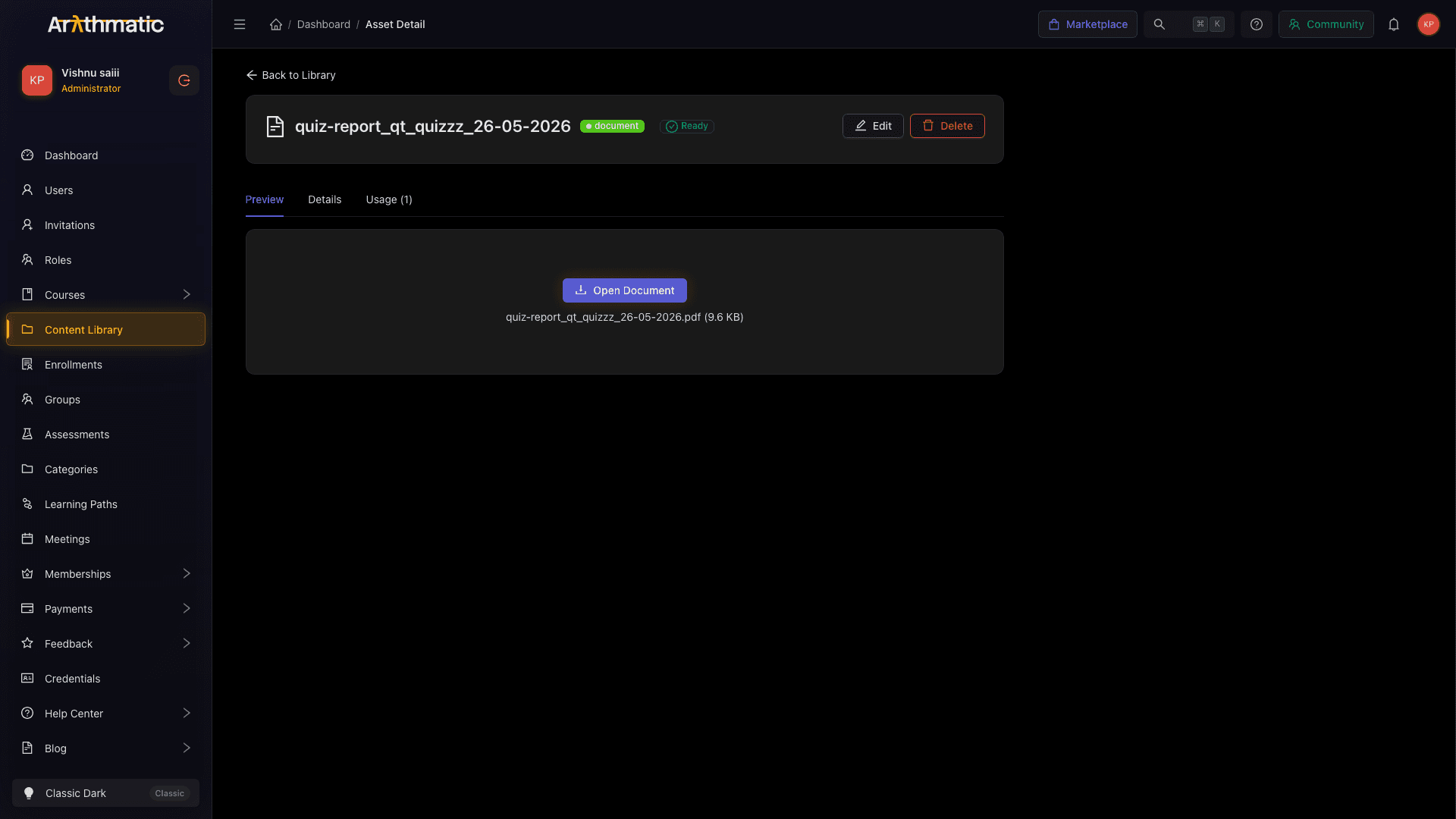
Click any asset row to open the detail page. Here you can:
- Preview the file (video playback, document preview, image display).
- See how many courses use this asset (X course badge).
- Edit the Title and Tags.
- See the upload date and file size.
- Delete the asset (only available if no courses are actively using it).
Using library assets in the Curriculum Builder
When adding a lesson to a course, the Content Library picker lets you attach an existing library asset instead of uploading a new file. This means updates to the library asset are reflected everywhere it is used.
See Curriculum Builder for the full lesson-creation workflow.
Deleting an asset
- Open the asset detail page.
- Click Delete.
- Confirm the deletion.
If the asset is attached to one or more lessons, you must detach it from all lessons first. Arythmatic will block the deletion and show the list of courses that still reference the asset.
Tips & best practices
- Upload first, build later. Upload your video library before you start building course curricula so the assets are ready to pick.
- Use tags consistently. Agree on a tag taxonomy (e.g. by module name or topic) and apply it at upload time. Filtering by tag later is much faster than scanning long lists.
- Avoid duplicate uploads. Search before uploading — someone else on your team may have already added the file.
- Keep file names descriptive. Even though you can set a separate Title, the original file name shows in some views and error logs.
Related
- Curriculum Builder — attach library assets to lessons
- Content Types — video, document, audio, and URL lesson types explained
