

AI-Assisted Authoring
Where AI helps across Arythmatic — generating quiz and assessment questions, drafting course structure and lessons in the curriculum, and summarizing course analytics — and exactly what each tool does.
AI-Assisted Authoring
AI shows up in a few focused places across Arythmatic: generating questions for an assessment, drafting course structure and lesson ideas in the curriculum builder, and summarizing your analytics. Each surface is a helper that produces a draft or a summary — you stay in control of what gets saved. This page walks through each one and is honest about where a tool suggests versus where it actually writes to your content.
Generating assessment questions
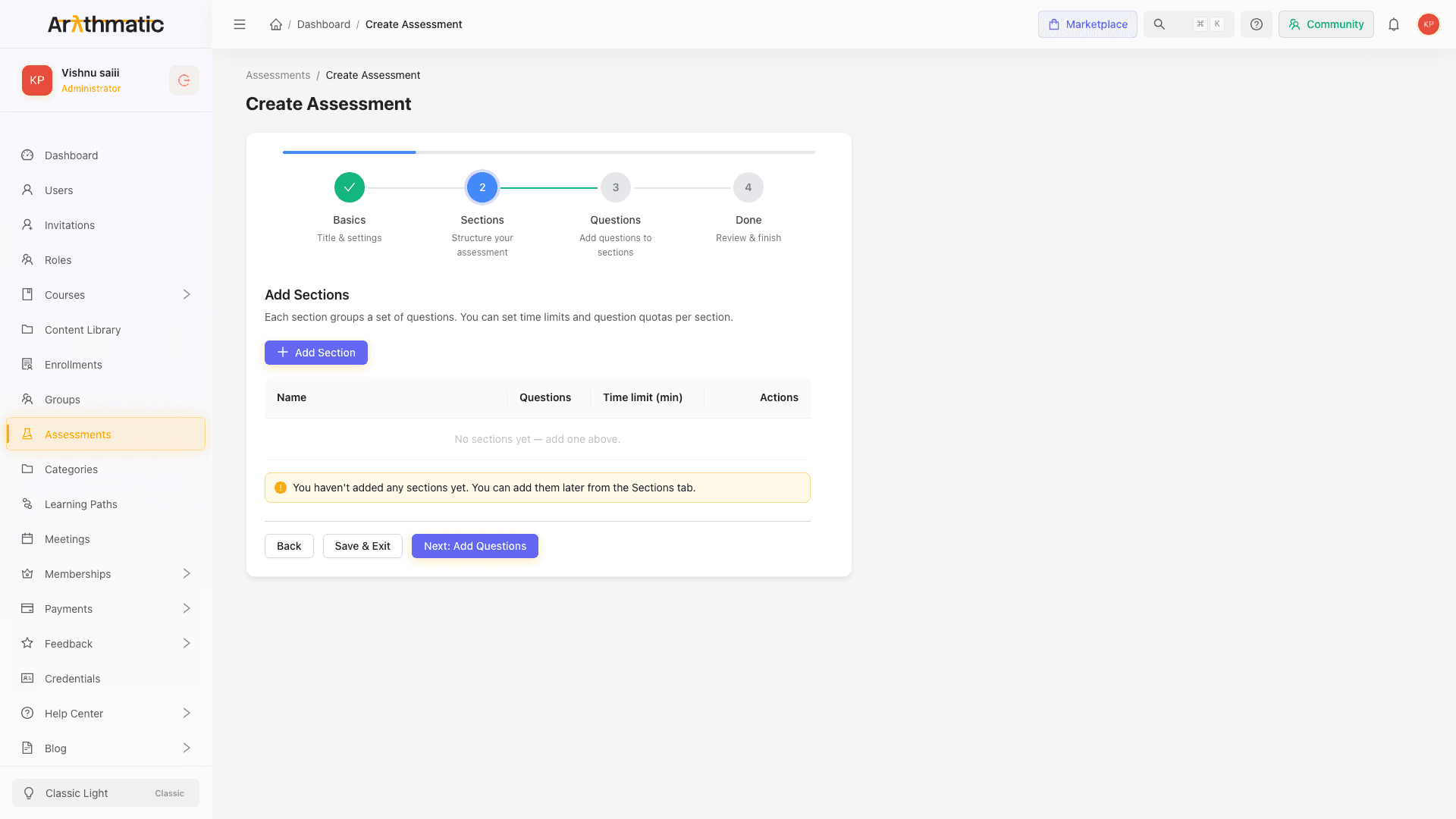
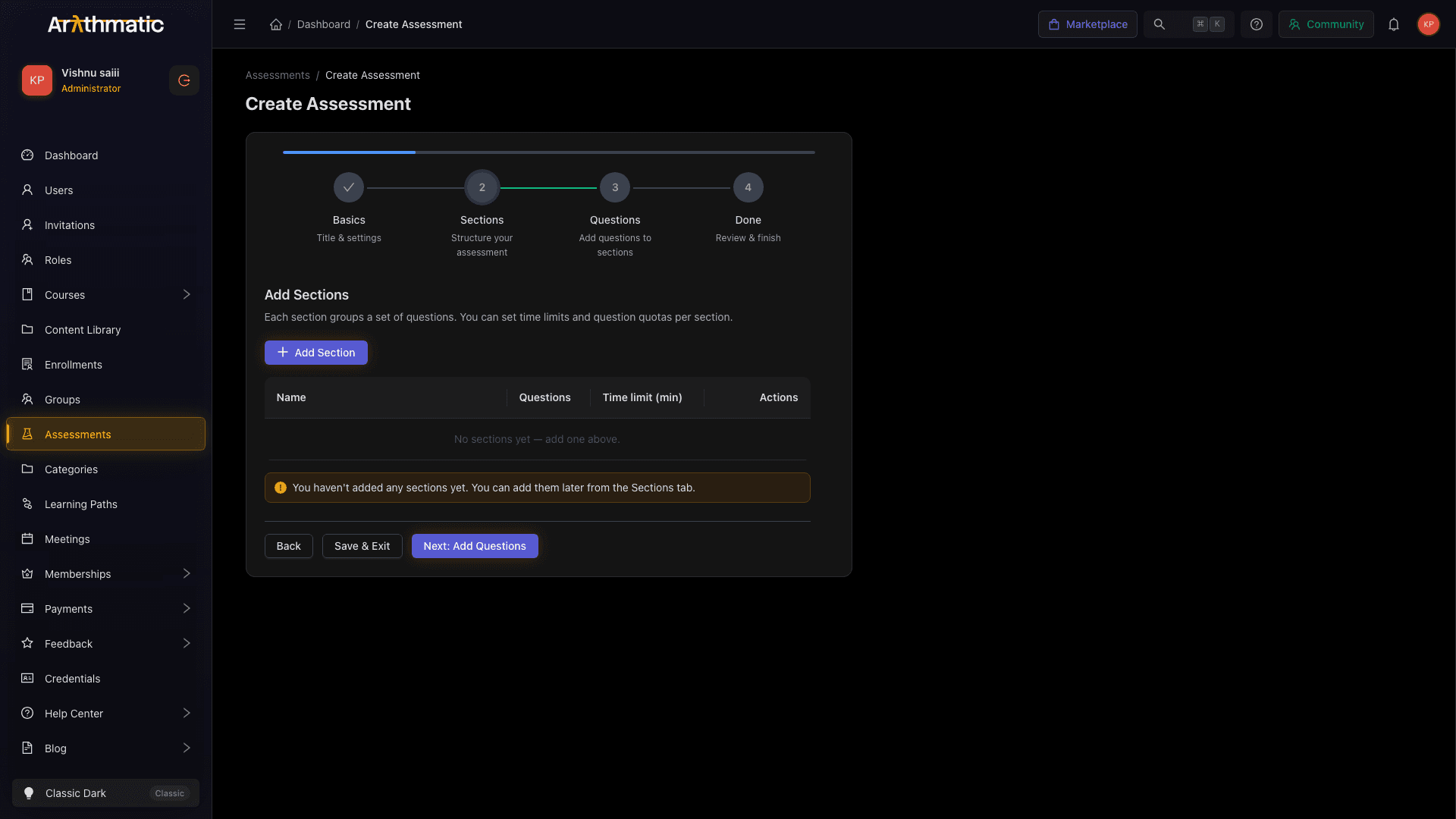
When you build an assessment, the questions step lets you add questions three ways: manually, by CSV import, or with AI Generate. The AI Generate option opens a small dialog titled AI Generate Questions that writes questions straight into the section you are editing.
The dialog has exactly three inputs:
| Field | Notes |
|---|---|
| Topic (optional — defaults to section name) | Free text, e.g. Quadratic equations. Leave it blank and the generator uses the section's name as the topic. |
| Number of questions | Whole number from 1 to 20. Defaults to 5. |
| Difficulty | Easy, Medium, or Hard. Defaults to Medium. |
There is deliberately no question-type picker and no manual review step here — you press Generate and the questions are created directly on the section. Because generation runs as a background job, the dialog shows a spinner with Generating questions… and polls for status every couple of seconds. When the job finishes you get a Generated N questions confirmation and the dialog closes; if it fails, an inline error explains why.
Generate a batch, then edit or delete individual questions afterward. AI Generate is an accelerator to get a first draft of questions onto the section — treat the output as a starting point and refine wording, options, and point values by hand.
Keep the dialog open while it is generating. The job is tracked by an id and polled in the background; closing or cancelling stops the poll for that run.
Generating content in the curriculum
Open a course's Curriculum Builder and you'll find an AI Generate button in the header. It opens the AI Content Generator drawer. In the curriculum context this drawer is intentionally scoped to three tabs — Quiz Description, Quiz Questions, and Question Details — rather than the full generator.
Each tab follows the same pattern: fill in a short form, press generate, then review the result inline with Discard, Regenerate, and Apply buttons.
Quiz Questions tab
The Quiz Questions form in the drawer is richer than the assessment dialog above:
| Field | Notes |
|---|---|
| Topic | Required, e.g. JavaScript Closures. |
| Difficulty Level | Beginner, Intermediate, Advanced, or Expert. Defaults to Intermediate. |
| Number of Questions | 1–20, defaults to 5. |
| Question Types | Checkboxes: Multiple Choice, True / False, Short Answer, Single Choice. Defaults to Multiple Choice + True / False. |
The generated questions render in a preview list with the question text, a type tag, points, and — for choice questions — the options with the correct answer marked.
In the curriculum drawer, Apply does not insert the questions into your curriculum. It shows a confirmation like "N quiz questions generated. Use these when creating a quiz in your section." — the drawer is a drafting aid, so copy the questions you want into a quiz you create in the section. The direct-write path for questions is the assessment AI Generate Questions dialog described above.
Quiz Description and Question Details tabs
Quiz Description drafts a quiz's title, description, instructions, a suggested time limit, and a passing score. Question Details enriches a single question with an explanation, hints, a difficulty level, an estimated time, and tags. As with Quiz Questions, applying these surfaces a confirmation toast rather than mutating your course directly — you review the draft and carry the parts you want into the real quiz.
The same AI Content Generator drawer elsewhere in the product also exposes Learning Path and Course tabs — the latter drafts a whole course outline (title, learning objectives, and sections with typed contents and durations). The curriculum builder simply restricts the drawer to the three quiz-focused tabs.
Suggest lessons with AI
Inside the curriculum builder, each section's overflow (⋯) menu has a Suggest lessons with AI action. This opens the Suggest lessons with Fireworks AI modal, pre-filled from the course and section you're on:
| Field | Notes |
|---|---|
| Course title / Module title | Required; pre-populated from the current course and section. |
| Module description | Optional context for better suggestions. |
| Number of lessons | 1–15, defaults to 5. |
| Difficulty | Beginner, Intermediate, or Advanced. |
Press Suggest Lessons and the modal lists proposed lessons — each with a title, an estimated duration, a short summary, and bullet learning outcomes. This is a brainstorming aid: it displays suggestions for you to read and act on manually; it does not add lessons to the section for you.
AI analytics insights
The Analytics overview page includes an AI summary card that turns the current metrics into readable insights. Click Generate (or Regenerate once a summary exists) and the card produces:
- a headline summarizing the period,
- a list of Key insights,
- Risks (shown only when present), and
- Recommendations (shown only when present).
The summary is built from the metrics already on screen for the selected time range — total enrollments, completion rate, average time spent, active learners, revenue, your top courses, the funnel stages, and the progress distribution. Summaries can be cached: when a cached result is served the card shows a cached tag, and Regenerate forces a fresh pass. Switching the time range (7D / 30D / 90D / Year) clears any previous summary so you never read stale commentary against new numbers.
Generate the AI summary after you've picked the range you care about. It reads whatever is currently on the page, so the narrative always matches the metrics you're looking at.
What AI does — and doesn't — write
To keep expectations straight:
| Surface | Inputs | Writes to your content? |
|---|---|---|
| Assessment AI Generate Questions dialog | Topic, count, difficulty | Yes — creates questions on the section directly (async). |
| Curriculum AI Content Generator drawer | Per-tab forms | No — drafts a preview; you copy results into a real quiz. |
| Suggest lessons with Fireworks AI | Course/module + count + difficulty | No — displays lesson suggestions to act on manually. |
| Analytics AI summary | On-screen metrics | No — read-only narrative of existing data. |
Related
Assignments
Create assignment lessons with instructions, due dates, submission types and points, then review and grade learner submissions.
Course Pricing
Set a course as free or paid, configure multi-currency prices with optional compare-at amounts, cap enrollments, and control how prices are localized for learners.
