

Your Arythmatic Billing
View your Arythmatic subscription plan, track resource usage against your limits, upgrade or downgrade, and manage payment methods and invoices.
Your Arythmatic Billing
The Billing & Subscription page is where you manage the subscription your organization pays to Arythmatic for the platform itself. It shows your current plan, how much of each plan limit you are using, and gives you the controls to change plans, update your payment method, and download invoices. Admins use this page to keep the workspace in good standing and to plan for growth.
This page is about your organization's own Arythmatic subscription — what you pay Arythmatic to run your LMS. It is completely separate from the money your learners pay you for courses and memberships. For learner-facing pricing, checkout, coupons, and payouts, see Course Pricing and the other Monetization pages.
Finding the Billing Page
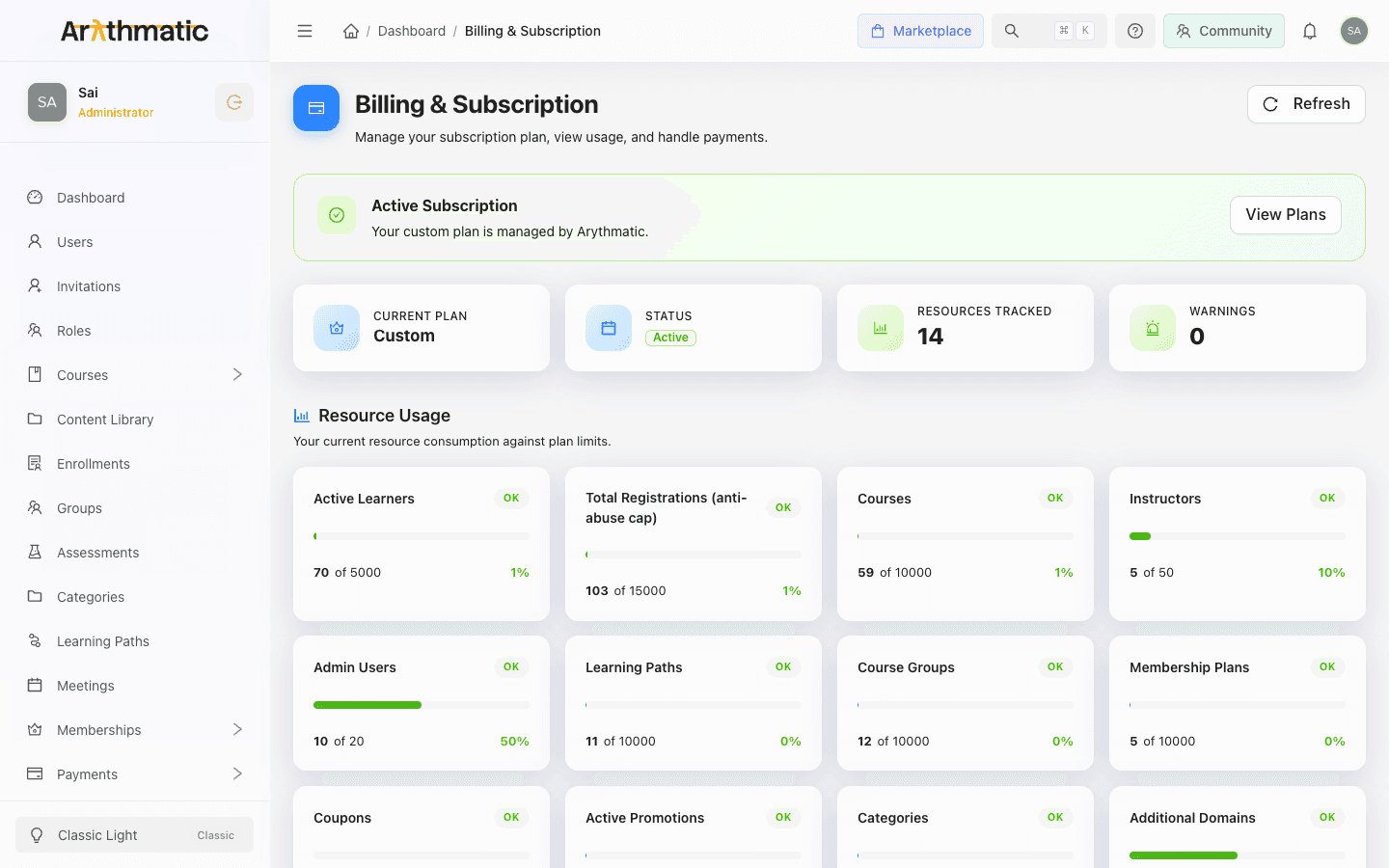
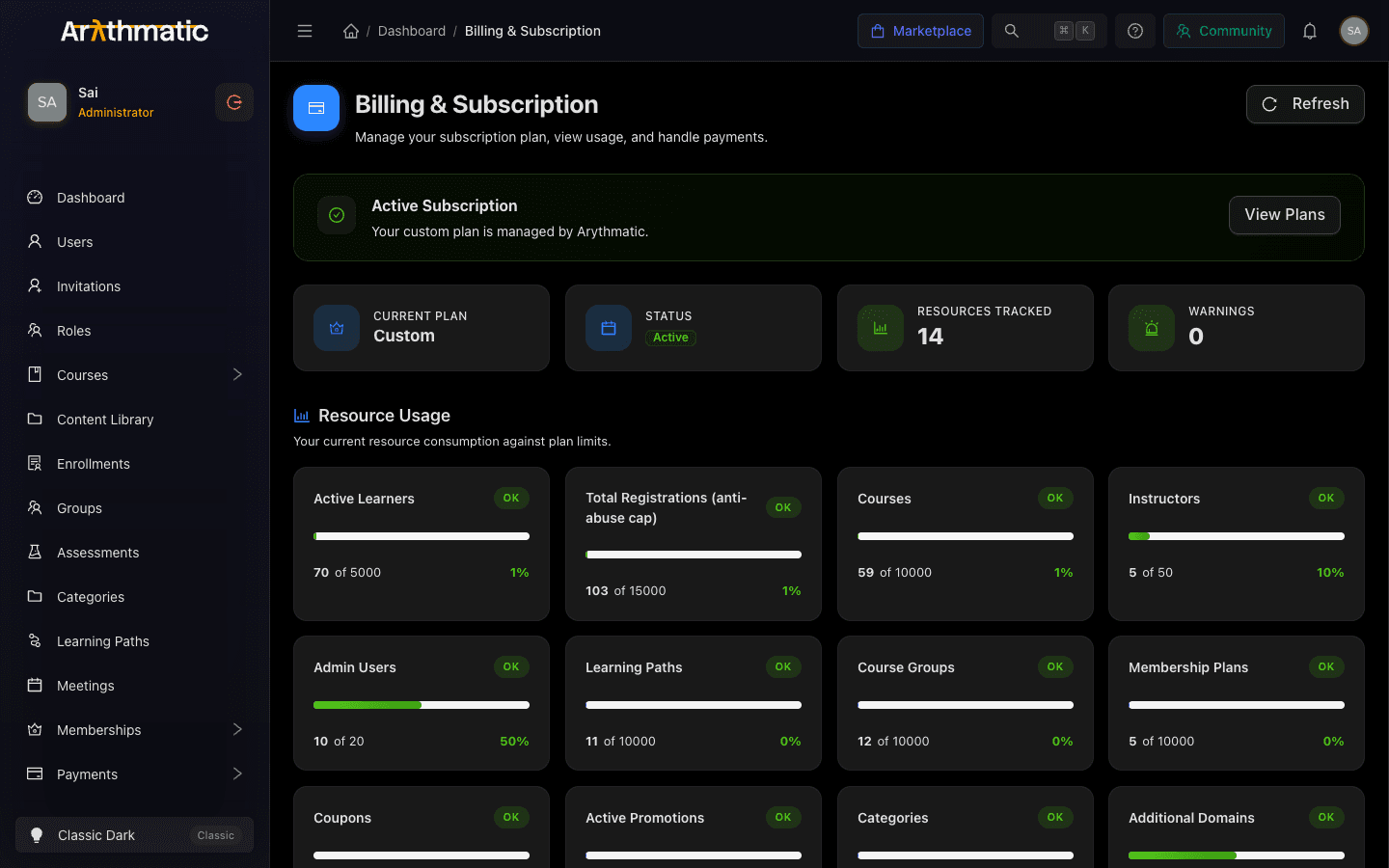
In the manage dashboard, open Billing & Subscription from the left sidebar. Only Admins can view and manage billing — Instructors and GroupAdmins do not see this page. Use the Refresh button in the top-right at any time to reload live usage and subscription data.
The Status Banner
At the top of the page a status banner summarizes where your subscription stands and offers the most relevant next action. Its color and message depend on your current state:
| State | What it means | Typical action |
|---|---|---|
| Free Trial | You are evaluating Arythmatic on a trial | Upgrade Now (go to checkout) |
| Active | Your subscription is current | Manage Billing |
| Cancellation pending | Auto-renew is off; access continues until the period ends | Reactivate (or Start New Subscription) |
| Past Due | A payment failed and needs attention | Update Payment Method |
| Blocked | Access is restricted until you subscribe or resolve billing | Choose a Plan |
If you are in a downgrade grace period, the banner also shows the date the grace period ends and reminds you to reduce over-limit resources before then.
Reading Your Stats
A row of stat cards gives you an at-a-glance summary:
- Current Plan — the name of your active plan.
- Status — a colored tag reflecting the states above (Active, Free Trial, Past Due, Canceled, Suspended, Inactive, or Pending).
- Trial Remaining — shown only during a trial, counting down the days left.
- Resources Tracked — how many resource categories are being metered against your plan.
- Warnings — how many resources are at or near their limit. A non-zero number here is your cue to review usage.
Resource Usage vs Plan Limits
The Resource Usage section is the heart of the page. Each card shows one metered resource, a progress bar, your current count, and the plan limit — for example 18 of 25 seats. Cards are grounded in the limits your plan defines, which can include:
- Active Learners, Total Registrations (an anti-abuse cap), Instructors, and Admin Users
- Courses, Learning Paths, and Course Groups
- Categories, Coupons, and active Promotions
- Membership Plans
- Storage (GB) and Video Processing Hours
- Additional Domains
Each card is labeled with a status:
| Badge | Meaning |
|---|---|
| OK | Below 80% of the limit — plenty of headroom |
| Warning | 80% or more used — plan ahead |
| At Limit | You have reached the limit for this resource |
When a resource is At Limit, you cannot create more of that item (for example, invite another user once you hit your seat limit) until you either free some up or move to a plan with a higher limit. Watch the Warning badges so you can upgrade before a limit blocks your team's work.
Changing Your Plan
Compare and choose a plan
- In the Quick Actions section, click Compare Plans (this opens the Choose Your Plan page).
- Toggle between Monthly and Annually — annual billing shows a Save 20% badge.
- Review each plan's price, key limits (Users, Courses, Instructors, Admins, Storage, Learning Paths, Video Hours, Bandwidth), and included features.
- Your existing plan is marked Current and cannot be re-selected. Plans above it show a Recommended badge with Upgrade to [plan]; plans below it show Downgrade to [plan].
- Click the button for the plan you want.
What happens next
- Upgrading while on a trial — the current plan shows Start Subscription, which takes you through secure checkout to begin paying.
- Upgrading without an active subscription — you are sent to checkout to enter payment and start the new plan.
- Upgrading with an active subscription — the change is handled through the billing portal, where the price difference is applied to your subscription.
- Downgrading — moving to a smaller plan may start a grace period if you are currently over the new plan's limits. During the grace period your existing data is not deleted, but you cannot create new resources in any over-limit category until you are back within the new limits.
Enterprise or custom-tier plans are not self-service. Those plans show Contact Sales and open an email to Arythmatic's sales team instead of an instant checkout.
Payment Methods and Invoices
Use Manage Billing in the Quick Actions section (or the primary action in the status banner) to open the secure billing portal. From the portal you can:
- Update or replace your payment method
- View and download invoices and receipts
- Review billing history and change billing settings
Because payments and invoices are handled in the dedicated billing portal, Arythmatic never stores your full card details in the manage dashboard.
Subscription Details
The Subscription Details panel at the bottom of the page lists the specifics of your current subscription:
| Field | What it shows |
|---|---|
| Plan | Your current plan name |
| Status | The subscription status tag |
| Renewal Date | When the subscription renews (if applicable) |
| Trial Ends | The trial end date and days remaining, during a trial |
| Custom Plan | Whether you are on a tailored/custom plan |
| Auto-Renew | On, or Off (canceling) if you have turned off renewal |
If Auto-Renew shows Off (canceling), your access continues until the renewal date and then stops. Open Manage Billing to turn renewal back on before that date if you want to keep the subscription.
Related
- Course Pricing — set what your learners pay for courses
- Memberships — recurring learner subscriptions and coverage
- Coupons & Promotions — discounts for your learners
- Inviting Users — adding seats counts against your plan's user limit
- Roles and Permissions — only Admins can manage billing
