

Roles and Permissions
The three built-in Arythmatic roles — Admin, Instructor, and Learner — plus the Manager and Content Creator permission presets, custom roles, and the school-scoped Group Admin capability.
Roles and Permissions
Arythmatic uses roles to control what users can see and do. Roles apply at the workspace level and are enforced by the backend — the manage dashboard hides menu items based on role, but the API independently verifies permissions on every request.
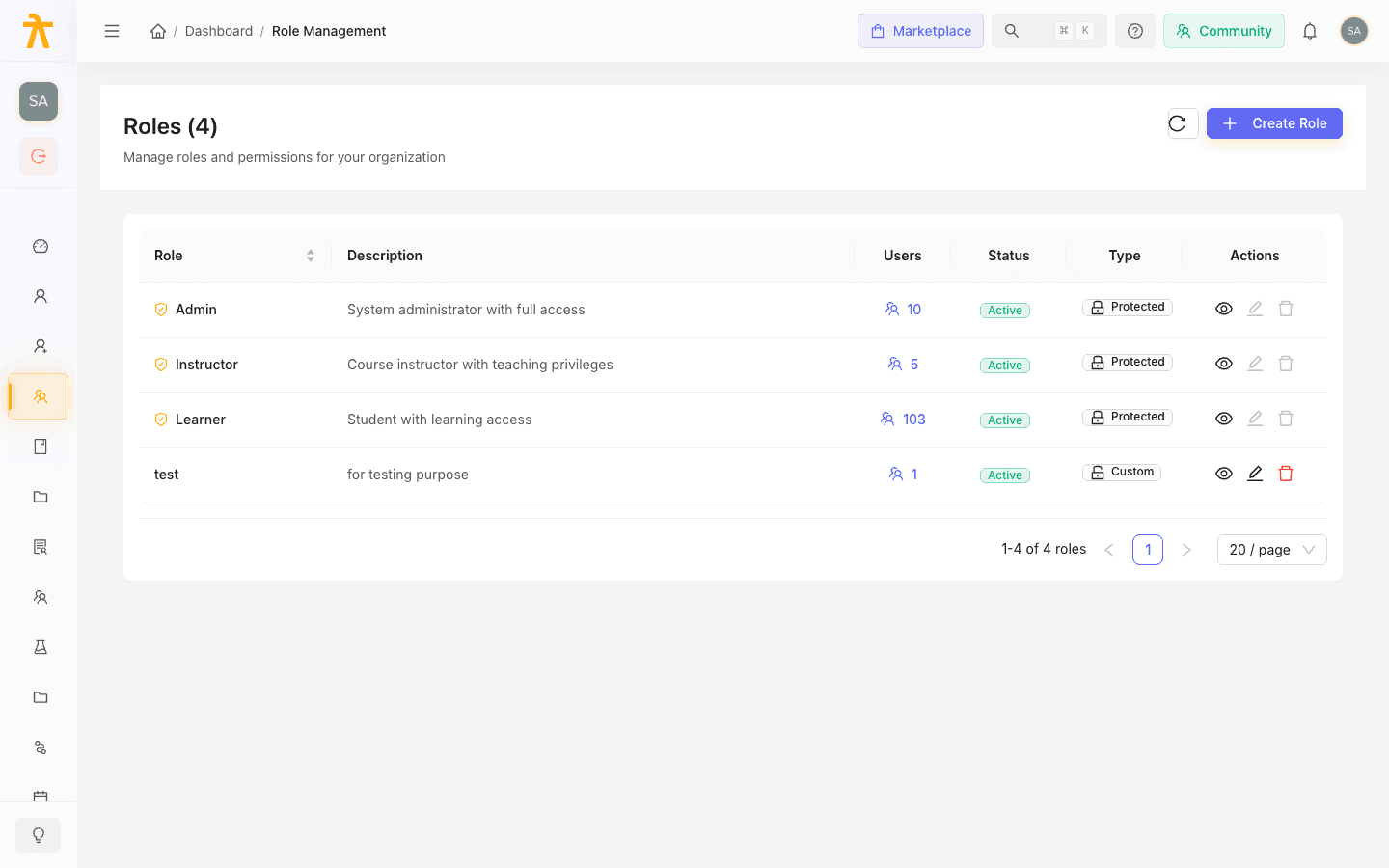
Every workspace is seeded with three built-in roles: Admin, Instructor, and Learner. Two more roles — Manager and Content Creator — are available as ready-made permission presets you can apply when you create a role. You can also create your own custom roles with a tailored permission set. Separately, a user can be given a school-scoped Group Admin capability, which is described at the end of this page — it is not one of the roles you pick from the Roles field.
A single user can hold more than one role. When a user has multiple roles, the manage dashboard shows a Role Switcher in the header so they can change their active context without logging out.
The Built-in Roles
Admin
The Admin role has full access to the workspace. Admins can configure all settings, manage all users and roles, create and publish all content, and access all analytics, payments, and billing information.
Assign the Admin role to:
- Workspace owners and L&D managers
- Operations staff who manage the platform day-to-day
- Anyone who needs to configure workspace-level settings, billing, or branding
Some workspaces are also seeded with elevated Owner and System Admin roles. The backend treats Owner as Admin-equivalent across content, library, and enrollment actions, so an Owner has the same full workspace control as an Admin. Both Owner and System Admin are protected roles that can never be deleted — they join the always-locked built-in Admin, Instructor, and Learner roles on the Roles page.
Manager
The Manager role is a broad operational role just below Admin. It is a permission preset rather than a seeded, protected built-in — apply it when you create a role. Managers can manage users, courses, content, enrollments, batches, groups, and categories, and can view payments and analytics — but they do not get destructive or workspace-configuration powers. Managers cannot delete users or courses, manage roles beyond assigning them, refund payments, or change tenant settings, branding, security, or billing.
Assign the Manager role to:
- Program managers who run day-to-day operations across teams
- Staff who onboard users and manage enrollments at scale
- Leads who need broad content and enrollment control without settings or billing access
Instructor
The Instructor role is for course facilitators. Instructors can create and edit their own courses, build assessments, manage their own batches, upload content, and view analytics for their courses. They work on the courses and content they own — they cannot edit other instructors' courses, manage users or roles, or access payments, billing, or workspace settings.
Assign the Instructor role to:
- Subject-matter experts who build and maintain their own course content
- Facilitators who run live sessions or batch cohorts
- Staff who manage learner progress and completions for their own courses
Content Creator
The Content Creator role is a focused authoring role, offered as a permission preset rather than a seeded, protected built-in. Content Creators can create and edit their own courses and content, upload media, and manage sections — but they cannot publish courses, manage enrollments, run batches, or access analytics, payments, or settings. Use it when you want someone to build material that an Admin, Manager, or Instructor then reviews and publishes.
Assign the Content Creator role to:
- Instructional designers and writers who produce course material
- Contractors who author content that someone else publishes
Learner
The Learner role is for end users who consume content. Learners access the learner portal (not the manage dashboard), can enroll in courses, complete assessments, earn badges and certificates, leave reviews, and track their own progress. They have no administrative access.
Assign the Learner role to:
- Employees, customers, or students who take courses
- Anyone who should only consume content, not manage it
Permissions Reference
The table below shows which actions each built-in role can perform. "Yes" means access; "Own" means the role can only act on resources they created or are assigned to; "—" means no access. Permissions are defined per role in the platform's RBAC configuration and enforced by the backend.
Workspace and Settings
| Action | Admin | Manager | Instructor | Content Creator | Learner |
|---|---|---|---|---|---|
| View workspace settings | Yes | — | — | — | — |
| Edit workspace settings | Yes | — | — | — | — |
| Manage branding and themes | Yes | — | — | — | — |
| View audit log | Yes | — | — | — | — |
| Manage billing and subscription | Yes | — | — | — | — |
| Manage integrations | Yes | — | — | — | — |
| Edit own profile | Yes | Yes | Yes | Yes | Yes |
Users and Roles
| Action | Admin | Manager | Instructor | Content Creator | Learner |
|---|---|---|---|---|---|
| Invite and create users | Yes | Yes | — | — | — |
| Edit users | Yes | Yes | — | — | — |
| Delete users | Yes | — | — | — | — |
| Create, edit, and delete roles | Yes | — | — | — | — |
| Assign roles to users | Yes | Yes | — | — | — |
| View users | Yes | Yes | — | — | — |
Courses and Content
| Action | Admin | Manager | Instructor | Content Creator | Learner |
|---|---|---|---|---|---|
| Create courses | Yes | Yes | Yes | Yes | — |
| Edit any course | Yes | Yes | — | — | — |
| Edit own courses | Yes | Yes | Yes | Yes | — |
| Delete courses | Yes | — | Own | — | — |
| Publish courses | Yes | Yes | Yes | — | — |
| Manage course categories | Yes | Yes (create/edit) | View | View | — |
| Build learning paths | Yes | Yes | Own | — | — |
| Upload media / manage content | Yes | Yes | Own | Own | — |
| Create and edit assessments | Yes | Yes | Yes | Own | — |
Enrollments and Batches
| Action | Admin | Manager | Instructor | Content Creator | Learner |
|---|---|---|---|---|---|
| Enroll learners | Yes | Yes | — | — | — |
| Bulk enroll via CSV | Yes | Yes | — | — | — |
| View enrollments | Yes | Yes | Own | — | Own |
| Create and manage batches | Yes | Yes | Own | — | — |
| Manage groups | Yes | Yes | — | — | — |
The "—" for Instructor on Manage groups means they cannot create or change groups. Instructors do, however, get read-only visibility of the full group list; learners see only their own groups (through the learner portal's My Groups / My Courses views). Only Admins can add, edit, or delete groups.
Payments and Analytics
| Action | Admin | Manager | Instructor | Content Creator | Learner |
|---|---|---|---|---|---|
| View payments and transactions | Yes | Yes | Own | — | — |
| Refund payments | Yes | — | — | — | — |
| Manage coupons | Yes | Create / edit | — | — | — |
| Manage memberships and promotions | Yes | — | — | — | — |
| View workspace-wide analytics | Yes | Yes | — | — | — |
| View own course analytics | Yes | Yes | Own | — | — |
| Export analytics | Yes | Yes | — | — | — |
Assigning and Changing Roles
Roles are set per user from the Users section of the manage dashboard.
To assign a role:
- Go to Users in the left sidebar.
- Find the user and click their name or the Edit icon.
- In the Roles field, select the role or roles to assign. Both built-in and custom roles appear here.
- Click Save.
To remove a role, follow the same steps and deselect the role. If you remove all roles from a user, they lose access to the manage dashboard entirely. Learners who lose their Learner role lose access to the learner portal.
A user can hold both Admin and Instructor roles. This is useful for an L&D manager who also authors content — they can switch between admin context and instructor context using the Role Switcher in the header.
Custom Roles
If the built-in roles do not match how your organization is structured, you can create your own custom roles from the Roles page in the manage dashboard.
- Go to Roles in the left sidebar.
- Click Create Role.
- Give the role a name and description.
- Select the permissions the role should grant.
- Save.
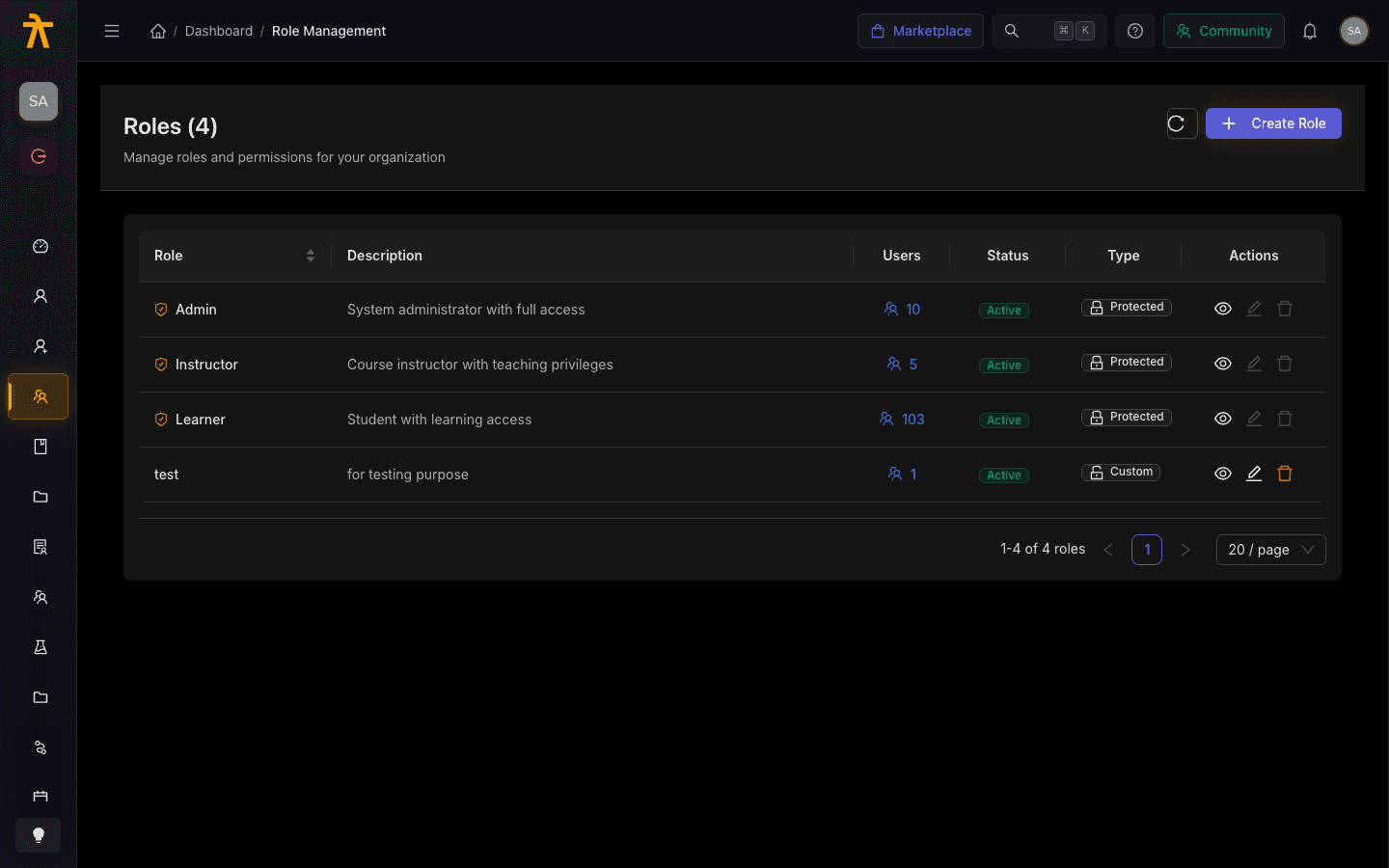
The custom role then appears in the Roles field wherever you assign roles to users. Custom roles can be edited or deleted at any time. The three seeded built-in roles — Admin, Instructor, and Learner — are protected: they are marked with a lock icon on the Roles page and cannot be edited or deleted. Manager and Content Creator are permission presets rather than protected built-ins, so they are not locked.
The Group Admin Capability
Group Admin is not a role you assign from the Roles field. It is a school-scoped capability that appears when a user is designated as the administrator of a group (a School-Aggregator feature). When the backend marks a user as a group administrator, the manage dashboard treats them as a Group Admin — surfacing a My School area and school-scoped navigation — even though "Group Admin" never appears in the list of assignable roles.
A Group Admin manages their own school or group: they can add and remove learners in their group, view courses assigned to their group, and view analytics scoped to their group. They cannot access workspace-wide settings, billing, roles, or content outside their group. A user is made a Group Admin by being assigned as the admin of a group, not by picking a role — see Users & Groups for how schools, groups, and group administration work.
A Group Admin's write access is deliberately narrow: they may manage their group's members (add, remove, bulk-CSV import) and create or cancel non-admin invites. Assigning or removing courses to the group, bulk-assigning courses, promoting or demoting other group admins, and viewing group statistics are all reserved to tenant admins — a Group Admin who attempts them is denied by the API.
Role Switching
Users with multiple roles see a Role Switcher in the manage dashboard header. Switching roles changes the active context — the sidebar menu, accessible routes, and some UI labels update to reflect the active role. The switch is instant and does not require logging out.
If you notice the dashboard looks different from what you expect, check the Role Switcher to confirm which role is active.
Related
- Inviting Users — how to add users and assign their initial roles
- Login and SSO — how authentication and workspace membership work
- Users & Groups — managing schools, groups, and learner cohorts
