

Subscriptions
View, filter, and manage learner subscriptions to membership plans, including assigning, extending, suspending, and cancelling memberships.
Subscriptions
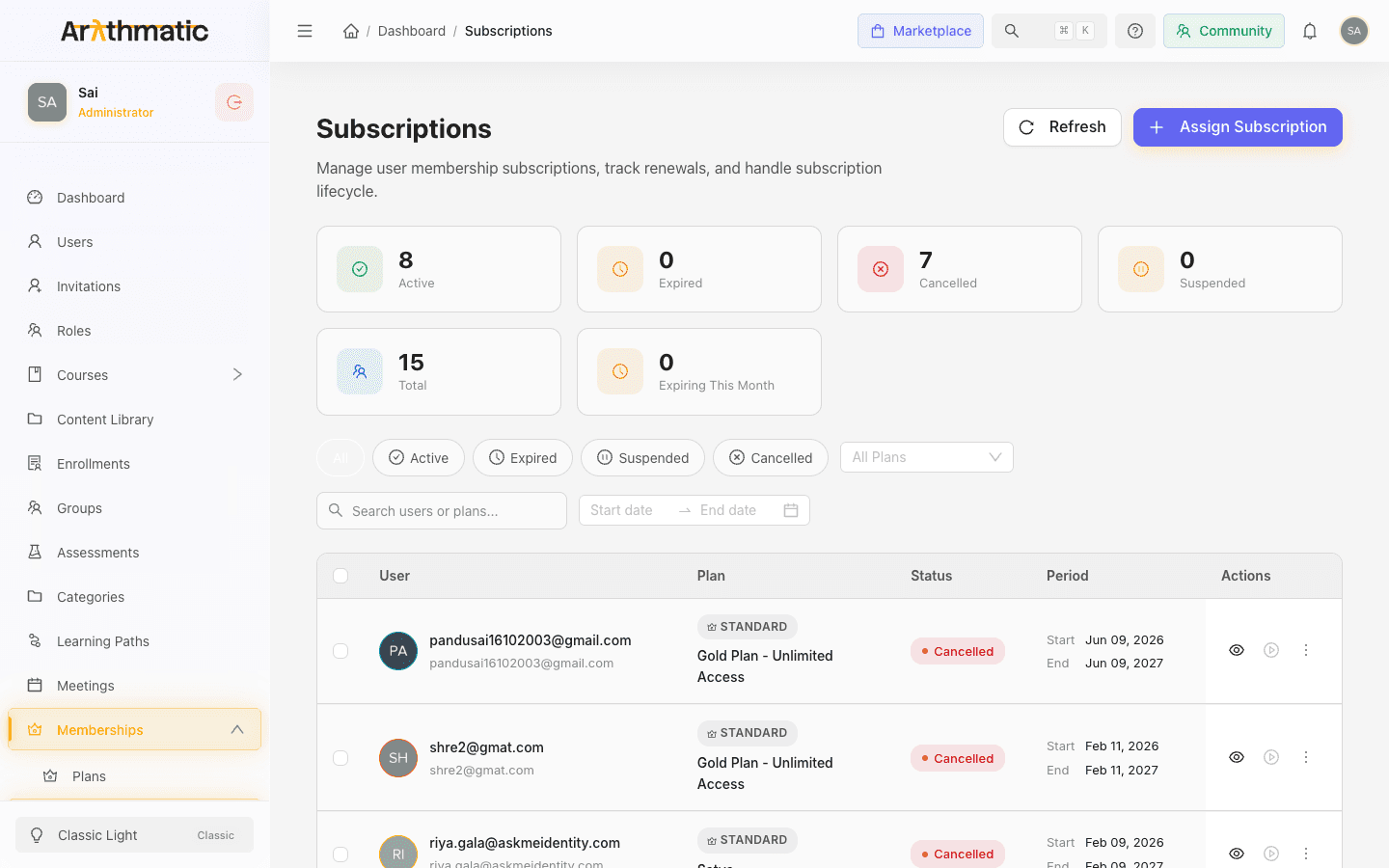
The Subscriptions page is where Admins manage every learner's membership subscription in one place. Each row represents one user's subscription to a membership plan — its current status, plan tier, and active period. From this screen you can assign new subscriptions, extend or suspend them, process cancellations with refunds, and track which subscriptions are expiring soon. It is the operational home for the lifecycle of paid and complimentary memberships.
Reading the page
Statistics cards
A row of stat cards at the top summarizes your subscription base:
| Card | What it counts |
|---|---|
| Active | Subscriptions currently in good standing |
| Expired | Subscriptions whose end date has passed |
| Cancelled | Subscriptions that were cancelled |
| Suspended | Subscriptions temporarily paused by an Admin |
| Total | All subscriptions regardless of status |
| Expiring This Month | Active subscriptions with an end date in the current month |
When one or more subscriptions are expiring this month, a warning banner appears directly below the cards so you can act before they lapse.
The subscriptions table
Each row shows five columns:
| Column | Contents |
|---|---|
| User | The subscriber's avatar, name, and email |
| Plan | The plan's tier badge (e.g. Standard, Pro, Premium, Enterprise) and the plan name |
| Status | A colored status badge: Active, Expired, Suspended, or Cancelled |
| Period | The subscription's Start and End dates |
| Actions | Per-row controls (see below) |
An end date shown in amber with a warning icon means the subscription is expiring soon — within the next seven days for an active subscription. Clicking a plan badge filters the table to show only subscribers on that plan.
Filtering and searching
Use the controls above the table to narrow the list:
- Status pills — Click All, Active, Expired, Suspended, or Cancelled to filter by status.
- Plan dropdown — Select a plan to show only its subscribers. Clear it to show all plans.
- Search — Type a name, email, or plan into the Search users or plans… box. Results update as you type.
- Date range — Pick a start and end date to filter subscriptions by their membership start date.
You can deep-link to a plan's subscribers. Clicking a plan badge in the table sets the plan filter and updates the page URL, so the filtered view can be bookmarked or shared.
Assigning a subscription
To grant a membership directly (for example, a manually sold plan or a complimentary membership):
- Click Assign Subscription in the top-right.
- Search for and select the User.
- Select the Membership Plan — its validity period is shown beside each option.
- Optionally set a Start Date (defaults to today) and an End Date (leave blank to use the plan's duration).
- Toggle Complimentary to Yes to grant the membership at no charge.
- Add internal Notes if needed.
- Confirm to assign.
Both a user and a plan are required. The new subscription appears in the table immediately.
Per-row actions
Each row exposes quick actions, with more under the overflow (⋯) menu:
- View Details — Opens a drawer with the full plan information, tier, start/end dates, and created/updated timestamps, plus quick action buttons.
- Suspend / Reactivate — Suspends an active subscription or reactivates a suspended one. This control is disabled for cancelled or expired subscriptions.
- Extend — Available for active subscriptions (see below).
- View History — Opens an activity timeline of every change made to the subscription.
- Cancel — Cancels the subscription (see below).
Extending a subscription
From an active subscription's Extend action:
- Choose By Duration to add a set number of days (7, 14, 30, 60, or 90, or a custom value up to 365), or To a Date to set a specific new end date.
- Optionally enter a Reason for Extension.
- When extending by duration, a New Expiry Date preview shows the resulting end date.
- Confirm to apply.
Cancelling a subscription
Cancelling opens a form where you can:
- Enter a Reason (optional).
- Set a Refund Amount (optional).
- Toggle Effective Immediately to end access now versus at the end of the current period.
- Toggle Notify User to email the subscriber about the cancellation.
Cancelling a subscription cannot be undone. If you only need to pause access temporarily, use Suspend instead — a suspended subscription can be reactivated later, but a cancelled one cannot.
When cancellation takes effect depends on the plan's billing type. For a recurring membership, cancelling schedules the Stripe subscription to stop at the end of the current period — the member keeps access until their end date, and no further charges occur. For a one-time membership, cancellation ends access immediately. The Effective Immediately toggle lets you override the recurring default and cut access off now.
How subscriptions expire
Subscriptions do not expire the instant the clock passes their end date — expiry is processed by a scheduled background task:
- One-time (non-recurring) memberships are marked Expired by the task once their end date has passed.
- Recurring memberships are never expired by this task; their lifecycle follows Stripe (renewal, or cancel-at-period-end), so access continues until Stripe stops the subscription.
- Lifetime plans have no end date and never expire.
Because expiry is batch-processed rather than instantaneous, a subscription may briefly show as Active just past its end date until the next run of the task.
Bulk actions
Select multiple rows using the checkboxes to reveal a bulk actions bar. From there you can Suspend, Reactivate, or Cancel all selected subscriptions at once. You can act on at most 100 subscriptions in a single bulk operation. Each bulk action asks for confirmation before it runs.
Refreshing the data
Click Refresh in the top-right at any time to reload the table and the statistics cards with the latest data.
Related
- Membership Plans — create and configure the plans learners subscribe to
- Course Pricing — set per-course prices for one-off purchases
- Inviting Users — add the learners you can then assign subscriptions to
Membership Plans
Create and manage membership plans that grant learners free or discounted access to courses and learning paths over a fixed validity period.
Your Arythmatic Billing
View your Arythmatic subscription plan, track resource usage against your limits, upgrade or downgrade, and manage payment methods and invoices.
