

User Detail & Management
Open a single learner's profile to review their courses, learning paths, certificates, memberships, and payments, then assign roles, edit details, or activate and deactivate the account.
User Detail & Management
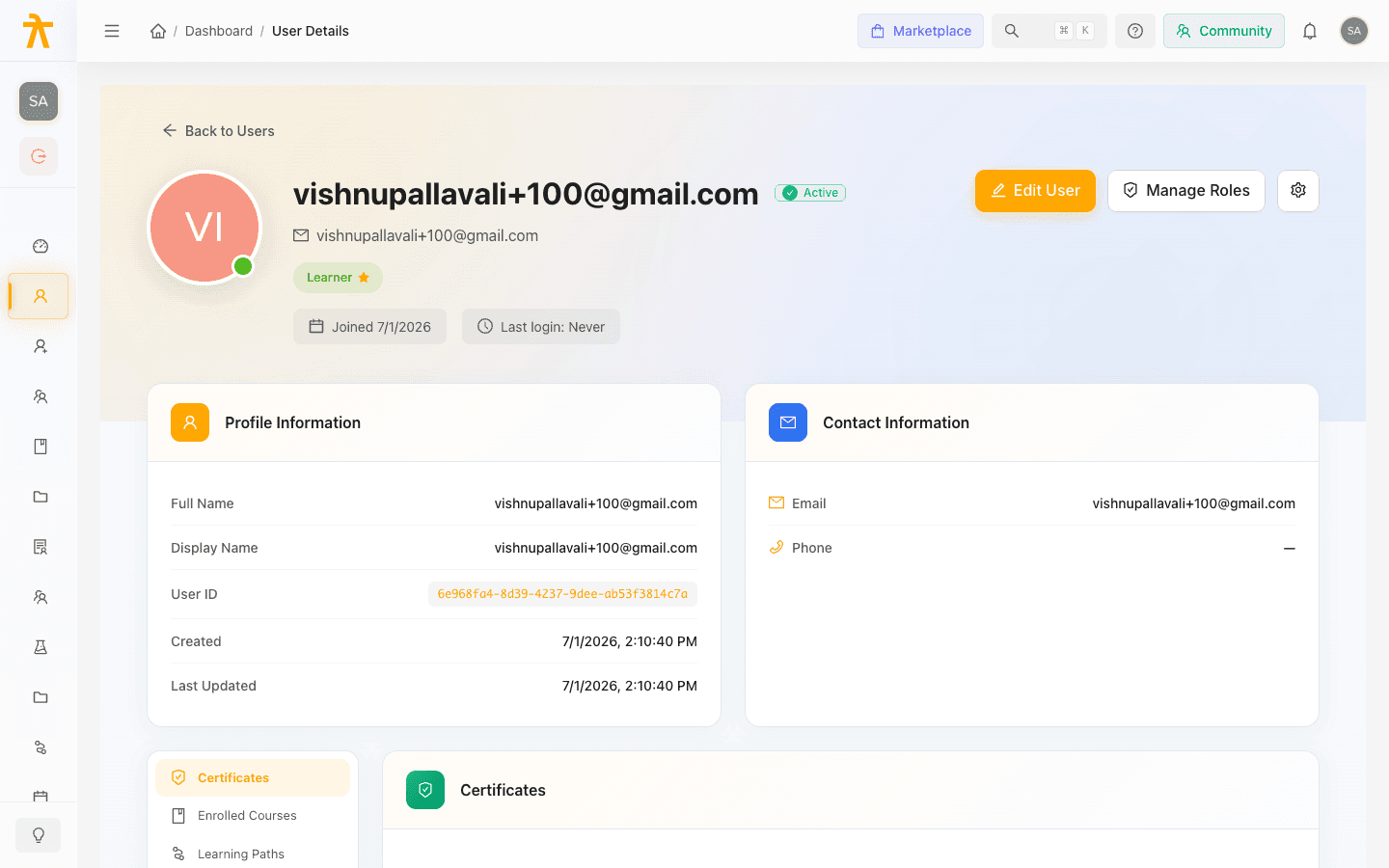
The user detail page is the full record for one person in your workspace. From the hero header you can edit their profile, manage the roles that control what they can do, and activate or deactivate the account. Below the header, a sticky sidebar links to sections covering their certificates, enrolled courses, learning paths, memberships, payment history, security, and preferences. Everything here is read from live data, so it always reflects the learner's current standing.
Opening a user
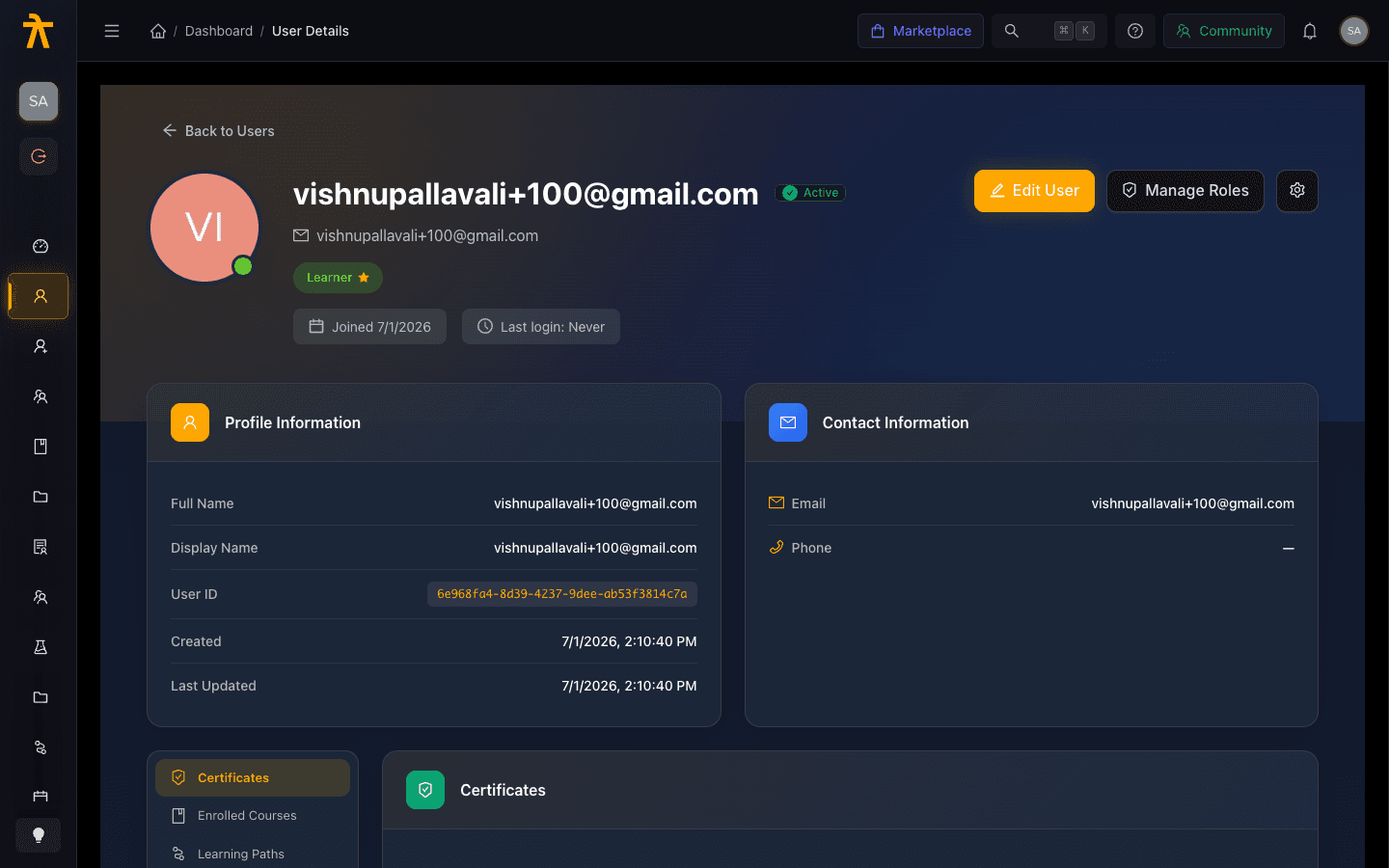
From the Users list, select any person to open their detail page. The hero header shows their avatar, name, email, an Active or Inactive status tag, their assigned role pills (the primary role carries a star), and quick stats for Joined date and Last login. Use Back to Users at the top to return to the list.
Reviewing learning activity
Use the sidebar to jump between the content sections. Each loads independently and shows a friendly empty state when there is nothing to display.
| Section | What it shows |
|---|---|
| Certificates | Issued credentials for the learner, each with a status tag, issue date, and a link to open the public credential. |
| Enrolled Courses | Course enrollments with Status, Progress, Enrolled date, and Completed date. |
| Learning Paths | Learning path enrollments, with the same status, progress, and date columns as courses. |
| Memberships | Membership plans with Status, Discount, Starts, Expires, and Amount Paid. |
| Payment History | Transactions with ID, item, type, amount, gateway, status, and date. |
| Security & Verification | Email verification state, account status, and last login. |
| Preferences | The learner's timezone and language. |
Courses and learning paths are listed separately even though both are enrollments. If a learner is missing an item you expected, check your enrollment records rather than editing the profile here.
Assigning and removing roles
Roles determine what a user can do across the workspace. To change them:
- Select Manage Roles in the hero header to open the Manage Roles modal.
- Click a role row to select or deselect it. A checkmark appears on selected roles.
- Click the star on a selected role to make it the primary role. The first role you select becomes primary automatically; removing the primary role clears the primary marker.
- Review the Selected roles summary at the bottom, which counts your selections and names the current primary.
- Select Save Changes to apply. The button stays disabled until you actually change something.
Roles flagged System are protected. Every active role in your workspace appears in the list, and each row can show the role's description and the date it was originally assigned.
Saving replaces the user's entire set of roles with your current selection — it does not merely add the ones you ticked. Make sure every role the user should keep is still selected before you save.
Editing, activating, and deactivating
- Edit User opens the profile form where you can update the user's details. If you change roles from within the edit form, those role assignments are applied alongside the profile save.
- The gear menu in the hero header holds account actions. Activate User / Deactivate User toggles the account on or off — deactivating blocks sign-in without removing any of the learner's history. The status tag and indicator update immediately.
- The same menu contains Delete User, which asks for confirmation and cannot be undone.
Prefer deactivating over deleting when someone leaves. Deactivation preserves their certificates, enrollments, and payment records for reporting, while still preventing access.
