

Skills & Competencies
Build a skills taxonomy, attach skills to courses and learning paths so completion awards them automatically, and see what every learner holds — with proficiency levels you define yourself.
Skills & Competencies
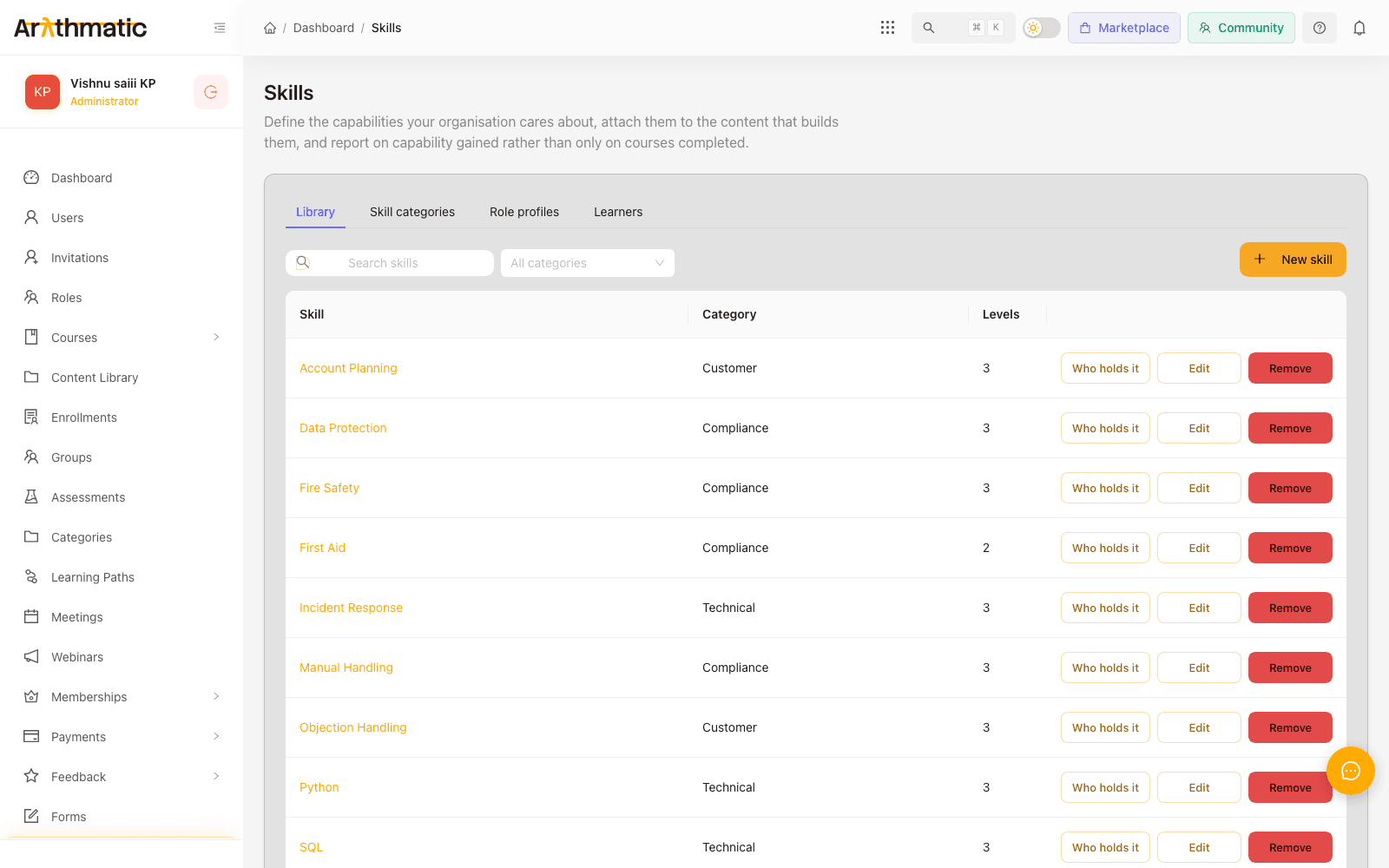
A skill is a named capability your organisation cares about — Fire Safety, Python, Objection Handling. Arythmatic keeps a library of them, lets you attach them to the content that teaches them, and then records them on a learner's profile the moment they finish that content. Nobody has to tick a box.
Once learners hold skills, you can describe what a job needs and compare the two. That side is covered in Role profiles & skill gaps.
The four moving parts
Skills are worth understanding as a chain, because each link is configured in a different place:
| Part | What it is | Where you set it |
|---|---|---|
| Skill | The capability itself, in a category | Skills → Library |
| Proficiency level | How well someone holds it — your own scale | Skills → Library, on the skill |
| Content mapping | Which course or path teaches it, and to what level | On the course or learning path |
| Award | The record that a learner holds it | Created automatically on completion |
Reading that chain backwards is the fastest way to debug a missing skill: a learner has no award because no content is mapped, or the content is mapped but they have not completed it.
Where to find it
Skills is a top-level item in the left-hand navigation. What you can do there depends on your role:
| Action | Admin | Instructor |
|---|---|---|
| View the library and who holds what | Yes | Yes |
| Create, edit or remove skills and categories | Yes | No |
| Attach skills to a course | Yes | On courses they teach |
| Attach skills to a learning path | Yes | No |
| Create role profiles and assign people to them | Yes | No |
| Award or revoke a skill by hand | Yes | No — they can see what a learner holds |
The taxonomy is deliberately admin-only. Left open to everyone who authors a course, a library reliably grows SQL, sql and SQL within a month, and three spellings of one skill defeat every report built on it.
Skill categories
Categories group the library so it stays navigable past the first twenty skills — Compliance, Engineering, Sales. Open the Skill categories tab to add, rename or remove one.
A category is organisational only. It does not affect awarding, and removing a category does not remove the skills inside it.
Creating a skill
- Go to Skills → Library and click New skill.
- Give it a name — the wording learners will see on their profile, so prefer Fire Safety over FS-101.
- Pick a category.
- Define its proficiency levels (below).
- Save.
Name skills after the capability, not the course that teaches it. Manual Handling can be taught by three different courses over five years; Manual Handling 2024 v2 cannot.
Proficiency levels are yours to define
A skill is not simply held or not held — it is held at a level. You define that scale per skill, and you choose both how many rungs it has and what they are called. A two-rung Aware / Competent works as well as a five-rung ladder.
Each level has:
- an ordinal — a whole number where 1 is the lowest, and
- a label — the words shown to people.
Every comparison in the product is made on the ordinal, never the label. That is what lets the gap report decide whether Competent clears a requirement of Aware without knowing what either word means. Two consequences worth knowing:
- Keep the ordinals in the order you actually mean. A scale where Expert is 2 and Beginner is 4 will report expert learners as under-qualified.
- Renaming a level is safe and immediate. Renumbering one changes what clears a requirement, so re-read any role profile that uses the skill afterwards.
An award stores a snapshot of the level and its label as they were when it was earned, not a live reference. Relabelling Proficient to Advanced tomorrow leaves yesterday's awards reading Proficient — deliberately, so a learner's history says what they were actually assessed as at the time. Only new awards use the new wording.
Attaching skills to content
A skill is awarded by completing content that carries it. You attach skills in two places:
- On a course — while creating it, or later from the course's settings. See Create a course.
- On a learning path — see Create a learning path.
For each attachment you pick the skill and the level that completion awards. A beginner course might award Fire Safety at level 1; the advanced course awards the same skill at level 3.
One course can carry several skills, and one skill can be carried by any number of courses. That is the normal shape: several courses all contributing to Customer Service, at rising levels.
How an award happens
When a learner completes a course or learning path, every skill that content carries is recorded against them, at the mapped level. There is nothing to approve and no job to run.
Two layers sit behind this, and the difference matters when you are reading a learner's record:
- The ledger — one entry per skill per source. Finish two courses that both award Python and you have two entries, each naming the course it came from.
- The rollup — the single level the learner is shown as holding, which is always the highest level across the ledger.
So a learner who holds Python at level 3 from an advanced course does not lose it by later completing a beginner course that awards level 1. The rollup keeps the highest.
Awarding is idempotent — a learner cannot collect the same skill twice from the same course, and re-saving a completed enrolment awards nothing new. You can safely re-run a completion without inflating anyone's record.
Attaching a skill catches up the people who already finished
When you attach a skill to a course, it is not recorded only from today onwards. Everybody who has already completed that course is awarded it retroactively.
This is the difference between a skills record that reflects what your people can actually do and one that starts empty and understates them for a year. Map Fire Safety to a course 200 people completed last year and those 200 hold it immediately.
You are told how many learners an attachment will affect before it runs, so a mapping made on the wrong course is caught before it reaches anybody.
For a learning path, "already completed" means the learner has completed every required course in the path. Optional courses do not hold the award back.
Correcting a mapping corrects the learners
If you mapped a course at the wrong level, fix the mapping. The rollup is recomputed from scratch whenever it changes, not nudged upwards, so lowering a mapping's level lowers the learners who earned it there — not just raising it. A mistake is genuinely reversible.
Awarding and revoking by hand
Some skills are earned outside the LMS — a prior qualification, an assessment done on the shop floor. An Admin opens Skills → Learners, finds the person, and uses Award a skill by hand. Instructors can see a learner's skills here but cannot award or revoke them. Pick the skill, the level, and record why — that note is the audit trail for a skill nobody can point at a course for.
Manual awards sit in the same ledger as automatic ones and count toward the rollup identically.
Revoking affects manual awards only. Awards earned by completing content are kept, because the completion they attest to genuinely happened — if a course is awarding the wrong skill, correct the course's mapping instead of revoking learner by learner.
Seeing who holds what
Two views answer the two common questions:
- Skills → Library → a skill → Who holds this — for one skill, everybody who has it and at what level. This is the "who can I put on this job" view.
- Skills → Learners → a person — for one person, every skill they hold and where each came from. This is the "what is this learner qualified for" view.
What learners see
Learners get a read-only view of their own skills in their dashboard: what they hold, at what level, and which course awarded each one. If they have been assigned a role profile, they also see what that role expects and where they fall short — which turns a gap into something they can act on rather than something only their manager can see.
Removing a skill
Removing a skill from the library takes it out of circulation: it can no longer be attached to content and stops appearing in pickers.
Learners keep the awards they already hold. Removal is not retroactive — it does not rewrite anyone's history or silently un-qualify a workforce. If a skill is genuinely wrong rather than retired, remove it and review the role profiles that required it, or the gap report will keep asking for something nobody can earn any more.
Next
- Role profiles & skill gaps — describe what a job needs and find who is short of it.
- Create a course — attach skills while you build.
- Analytics & reporting — where skills data surfaces alongside the rest of your reporting.
Community
Connect an Arythmatic Community workspace so learners can access discussion feeds directly inside your learning platform.
Role Profiles & Skill Gaps
Describe the skills a job requires and at what level, assign people to it, then read the gap report to see who is short of what — and assign the training that closes it without leaving the page.
