

Community
Connect an Arythmatic Community workspace so learners can access discussion feeds directly inside your learning platform.
Community
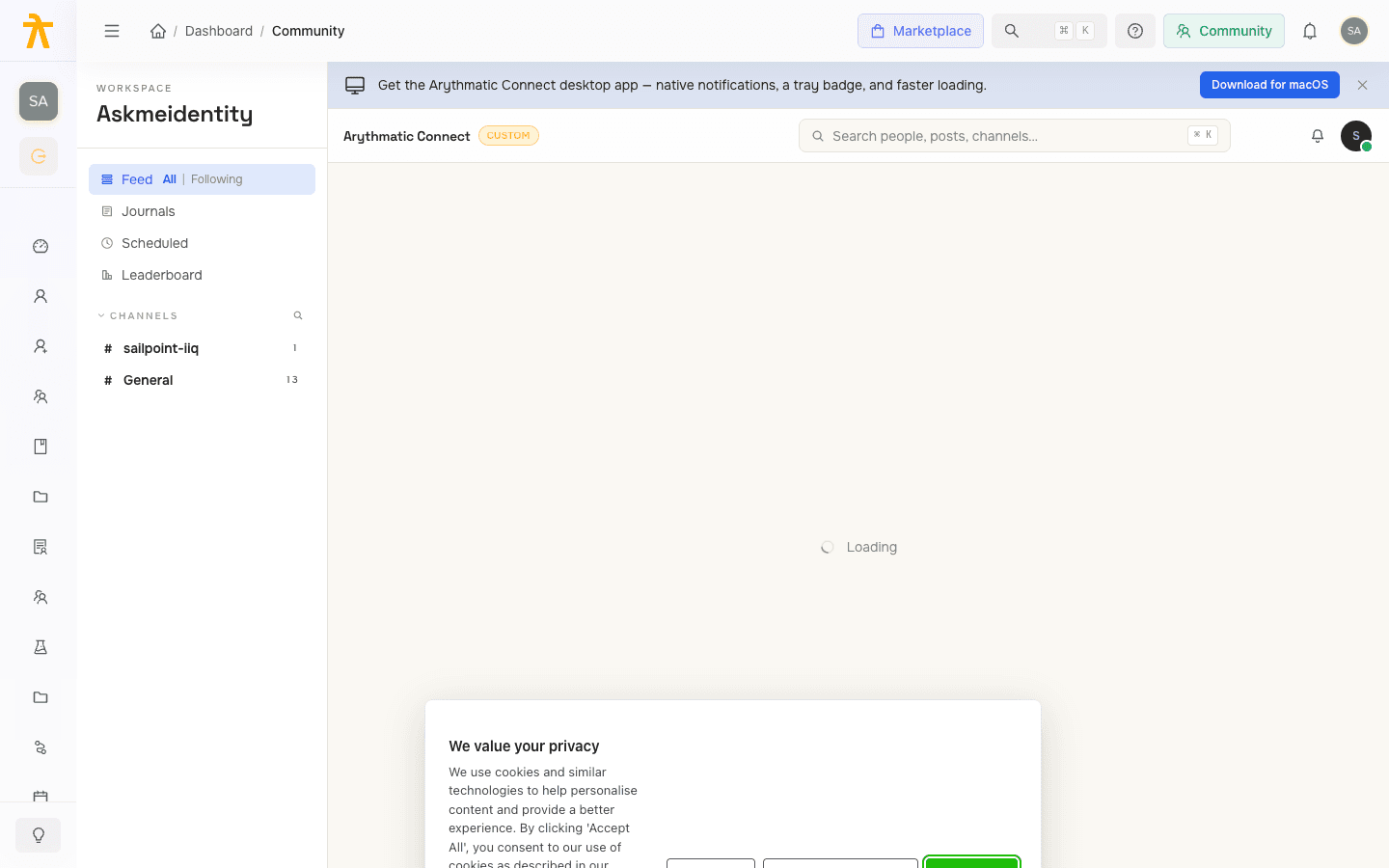
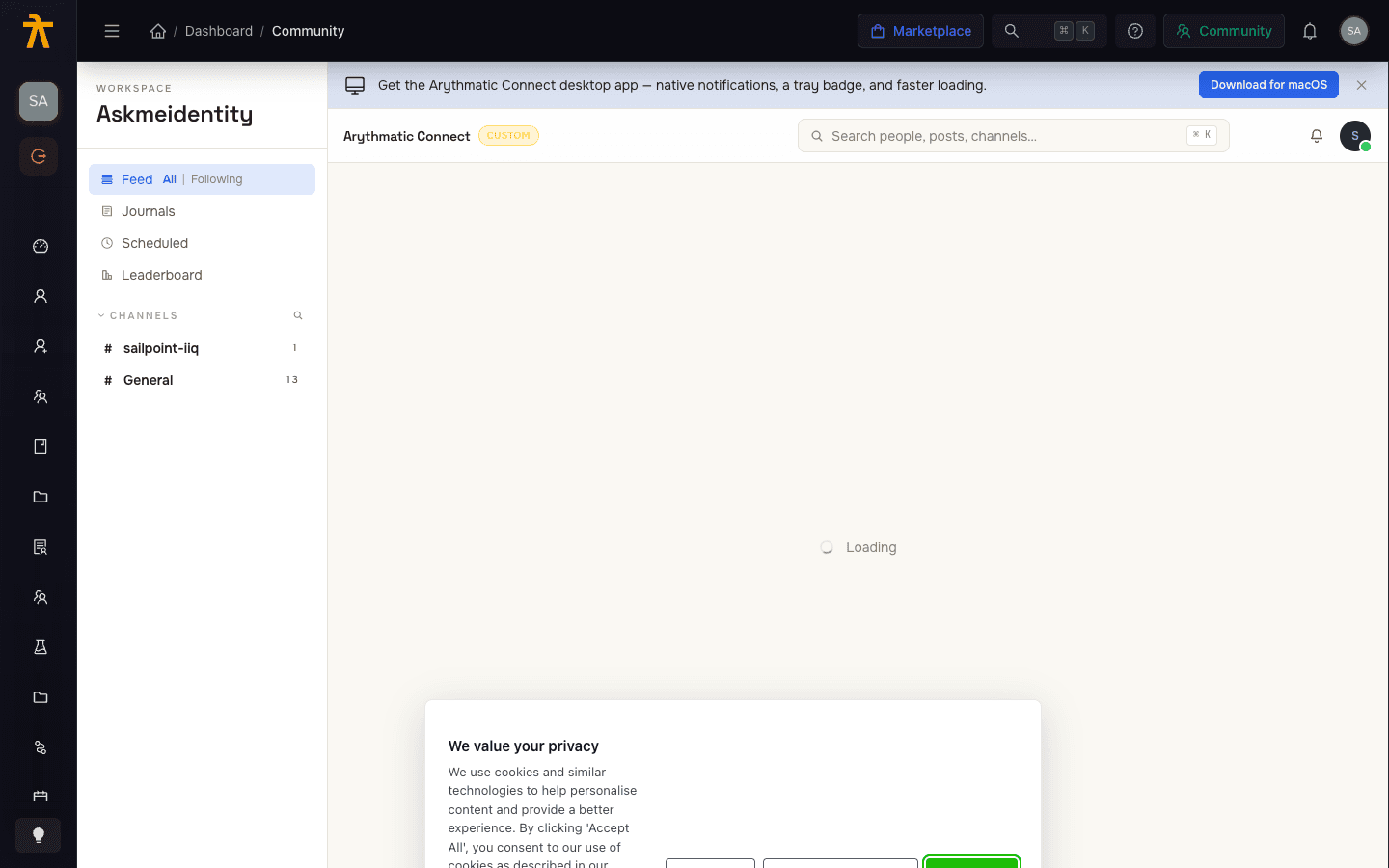
The Community surface embeds an Arythmatic Community workspace inside your platform, giving learners a discussion feed without leaving the site. It is an optional, integration-gated feature: until you connect a workspace in Integrations settings, the page shows a Community not connected empty state. This page explains what connecting requires and how the surface behaves once it is live.
What the surface shows
The Community page has three states:
- Loading — a spinner appears while the platform checks the connector status.
- Connected — the embedded Arythmatic Community feed renders in place, filling the page.
- Not connected — an empty state titled Community not connected with the message Connect your Arythmatic Community workspace in Integrations settings and a Go to Integrations button.
When connected, the embed opens on the community feed and reuses your signed-in session, so learners do not sign in a second time. The session token is refreshed automatically if it is near expiry, and the embed re-authenticates silently if the token lapses while the page is open.
What connecting requires
Connecting is done once by an administrator from Integrations settings. You need an existing Arythmatic Community workspace and two values that identify it:
| Field | Description | Example |
|---|---|---|
| Workspace Name | The name of your Arythmatic Community workspace. | my-company |
| Tenant Slug | The slug that identifies your tenant in Community. | my-company-slug |
Connect a Community workspace
- From the Community page, select Go to Integrations — or navigate directly to Settings → Integrations.
- Find the Arythmatic Community integration card. Its tag reads Not Connected until setup is complete.
- Select Connect to open the Connect Arythmatic Community dialog.
- Enter your Workspace Name and Tenant Slug.
- Select OK to save. On success you'll see Arythmatic Community connected successfully! and the card tag changes to Connected, showing the connected workspace name.
Once connected, return to the Community page. The embedded feed loads automatically for administrators and learners who have access to the surface.
Disconnect
To remove the connection, open the Arythmatic Community card in Integrations settings and select Disconnect. The workspace details are cleared, the card returns to Not Connected, and the Community page reverts to its empty state. Reconnecting requires re-entering the Workspace Name and Tenant Slug.
Troubleshooting
- Page keeps showing "Community not connected" — confirm the connector is saved in Integrations settings and that the Workspace Name and Tenant Slug are correct.
- Feed briefly shows a spinner — this is the normal status check and token refresh; the feed renders once both complete.
- Learners are prompted to sign in inside the feed — this indicates a session or token issue; have the learner refresh the page so a new session token is issued to the embed.
