

Ratings & Reviews
Monitor and moderate the course and learning-path ratings and reviews learners leave across your academy.
Ratings & Reviews
Ratings and reviews are the feedback learners leave after taking a course or completing a learning path. This module gives you a single place to watch that feedback roll in, drill into any individual review, and remove entries that violate your content standards. Course ratings and learning-path (LP) ratings are tracked separately, each with its own list, filters, and detail view.
The Ratings Overview
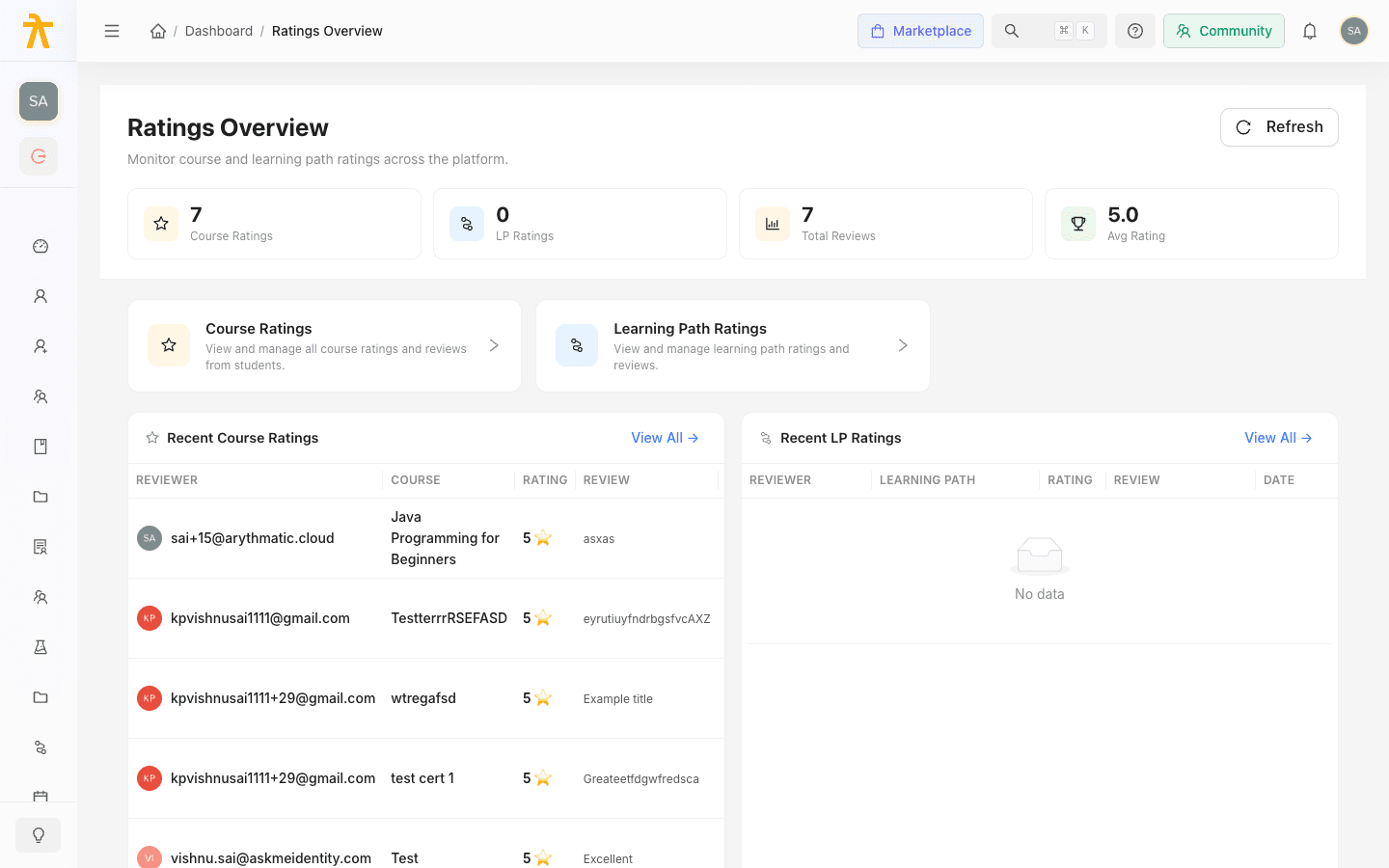
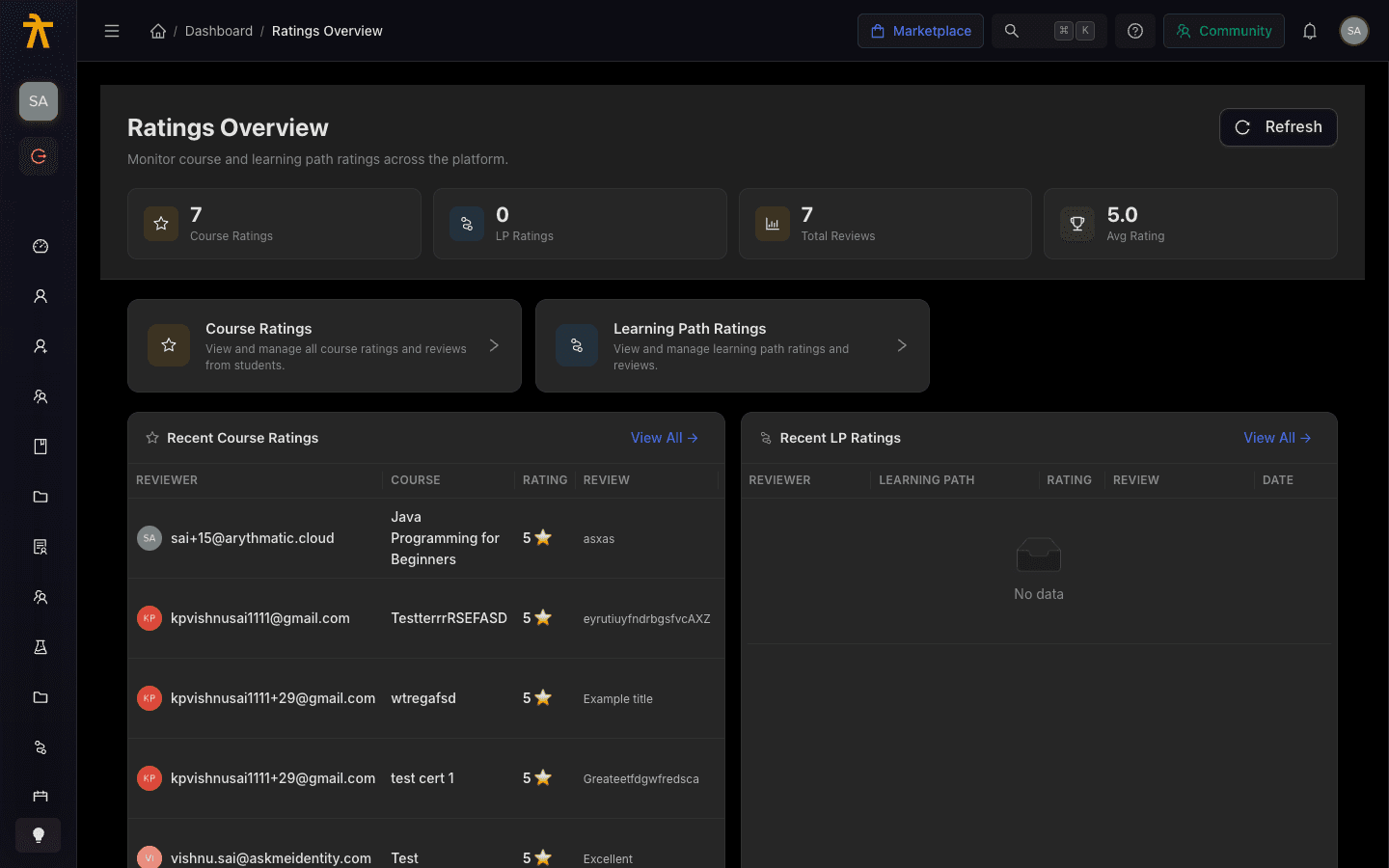
The Ratings Overview is the landing page for the module. At the top, a stats banner summarizes feedback across the whole platform:
| Stat | What it counts |
|---|---|
| Course Ratings | Total number of course ratings submitted. |
| LP Ratings | Total number of learning-path ratings submitted. |
| Total Reviews | Course ratings plus LP ratings combined. |
| Avg Rating | The average overall rating across the ratings currently loaded. |
Below the banner, two quick-link cards — Course Ratings and Learning Path Ratings — take you to the dedicated lists. Two Recent tables preview the five newest course and LP reviews, each with a View All → shortcut. Use the Refresh button in the header to pull the latest data at any time.
The Avg Rating on the overview reflects the ratings loaded on the page rather than a lifetime platform average. Open the per-course or per-learning-path lists for the fuller picture.
Course Ratings
Select Course Ratings to see every course review in one table. Each row shows the Reviewer, the Course they rated, the Rating (overall stars), a Review preview (title and text), whether it is a Verified purchase, a Helpfulness score (helpful vs. not-helpful votes), whether the learner Recommends the course, and the Date.
A review is marked Verified when the reviewer has an active enrollment in the course at the time they post; otherwise it is unverified. Enrollment is not required to leave a review — any signed-in learner can submit one, it simply won't carry the Verified badge. Each learner can leave one review per course, editing it thereafter.
Filtering and sorting
Use the toolbar above the table to narrow what you see:
- Search reviews — type keywords to match review text and titles.
- Min Rating — limit to a star floor, from 5 stars down to 1+ stars.
- Ordering — choose Newest First, Oldest First, Highest Rated, Lowest Rated, or Most Helpful.
- Clear Filters — reset the search, rating, and ordering back to defaults.
You can also sort directly by clicking the Rating, Helpfulness, or Date column headers. Pagination controls at the bottom show the total count and let you change the page size.
Learning Path Ratings
Select Learning Path Ratings for the equivalent list scoped to learning paths. The columns mirror the course list — Reviewer, Learning Path, Rating, Review, Verified, Recommend, and Date — and the same Search reviews, Min Rating, Ordering, and Clear Filters controls apply. Both lists include a Back to Overview button in the header to return to the summary.
Viewing a rating in detail
From the Course Ratings list, click the View Detail (eye) action on any row to open the full review. The detail page is laid out in two columns.
The main column shows:
- Overall rating — the star score out of 5, with the review title and a status tag (for example, approved).
- Review text — the learner's full written feedback.
- Detailed Ratings — a breakdown, when provided, across Content Quality, Instructor, Value for Money, and Difficulty, each on a 5-star scale. If none were supplied, the card reads No detailed ratings provided.
- Helpfulness Votes — the tally of Helpful and Not Helpful votes the review received.
- Badges for Verified Purchase, Would Recommend / Would Not Recommend, and Anonymous submissions.
The sidebar carries a Reviewer card, a Course card (with the instructor when available), and a Metadata card listing when the rating was Created and Updated and whether it is Active.
When a learner submits anonymously, the reviewer name is masked as Anonymous and their avatar is hidden, both in the detail view and where it surfaces elsewhere. Moderate the content on its merits rather than the author.
Moderating a rating
Course and learning-path reviews are published immediately — there is no approval queue. The moment a learner submits, their review is live and counts toward the public course rating, so a one-star or abusive review appears before you ever see it. Deletion is your only moderation tool here, and it is reactive. This is the opposite of Testimonials, which stay hidden until you approve them.
Moderation in this module means removing a review that breaks your standards — abusive language, spam, or off-topic content. To delete a rating:
- In the Course Ratings or Learning Path Ratings list, click the Delete (trash) action on the row. Alternatively, open the rating's detail page and use Delete Rating.
- Confirm in the Delete this rating? prompt.
The review is removed and the totals on the Overview update on the next refresh.
The average rating shown on the public course page is built only from approved, active, and non-deleted ratings. Because reviews are approved on submission, deleting one is what removes it from that average — so moderating a review directly moves the storefront rating learners see.
Deletion is permanent and cannot be undone. If a review is borderline, capture its content before removing it. Which team members can delete ratings depends on their role — see Roles & permissions.
