

Testimonials
Review, approve, and feature learner testimonials so your best social proof reaches the public storefront.
Testimonials
Testimonials are learner-submitted quotes and ratings that you curate before they appear on your public storefront. Every submission lands in a moderation queue, where you review it, approve or reject it, and optionally feature the strongest ones. This page walks through the Testimonials workspace: reading the queue, moderating entries, and promoting standout quotes to featured status.
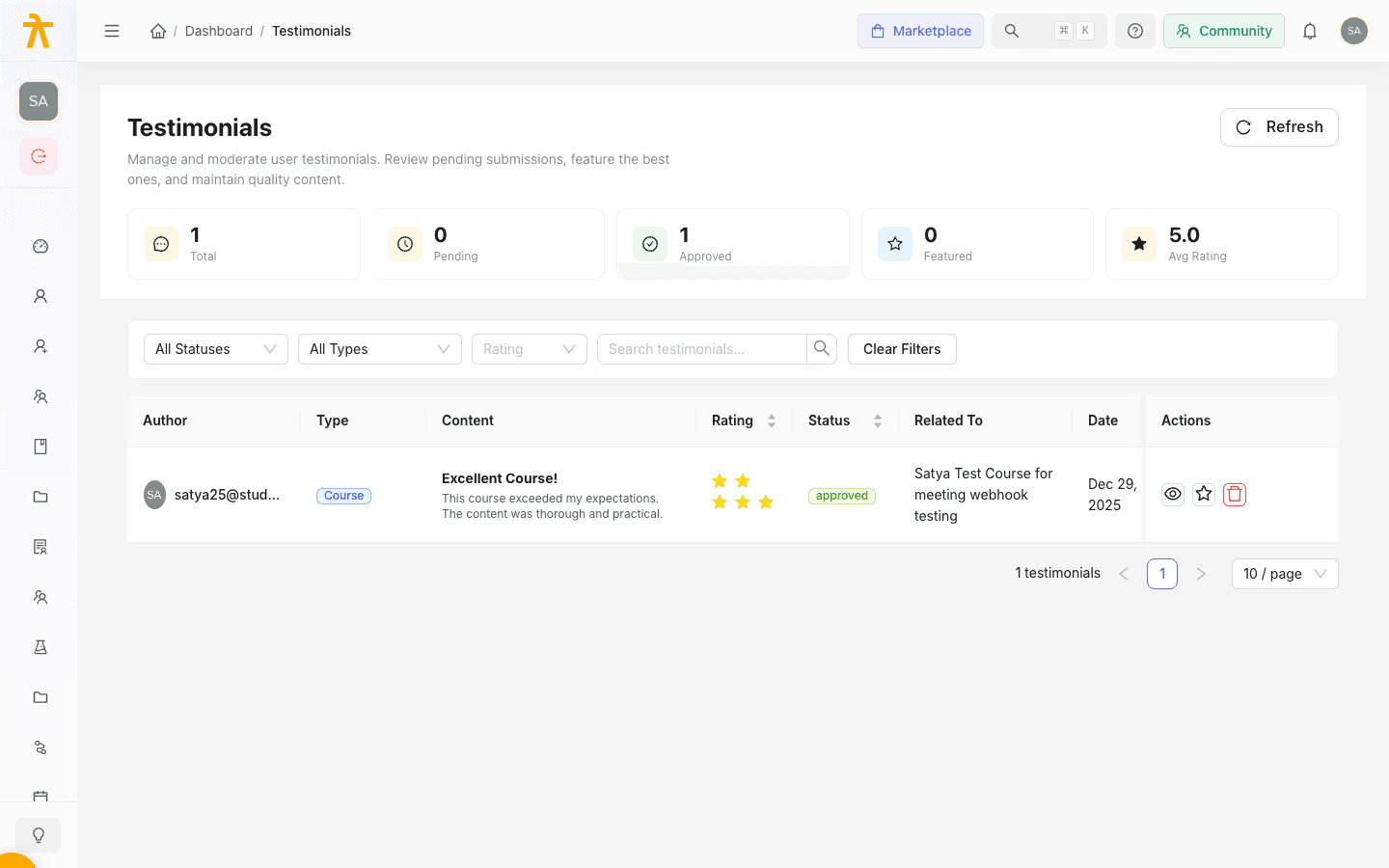
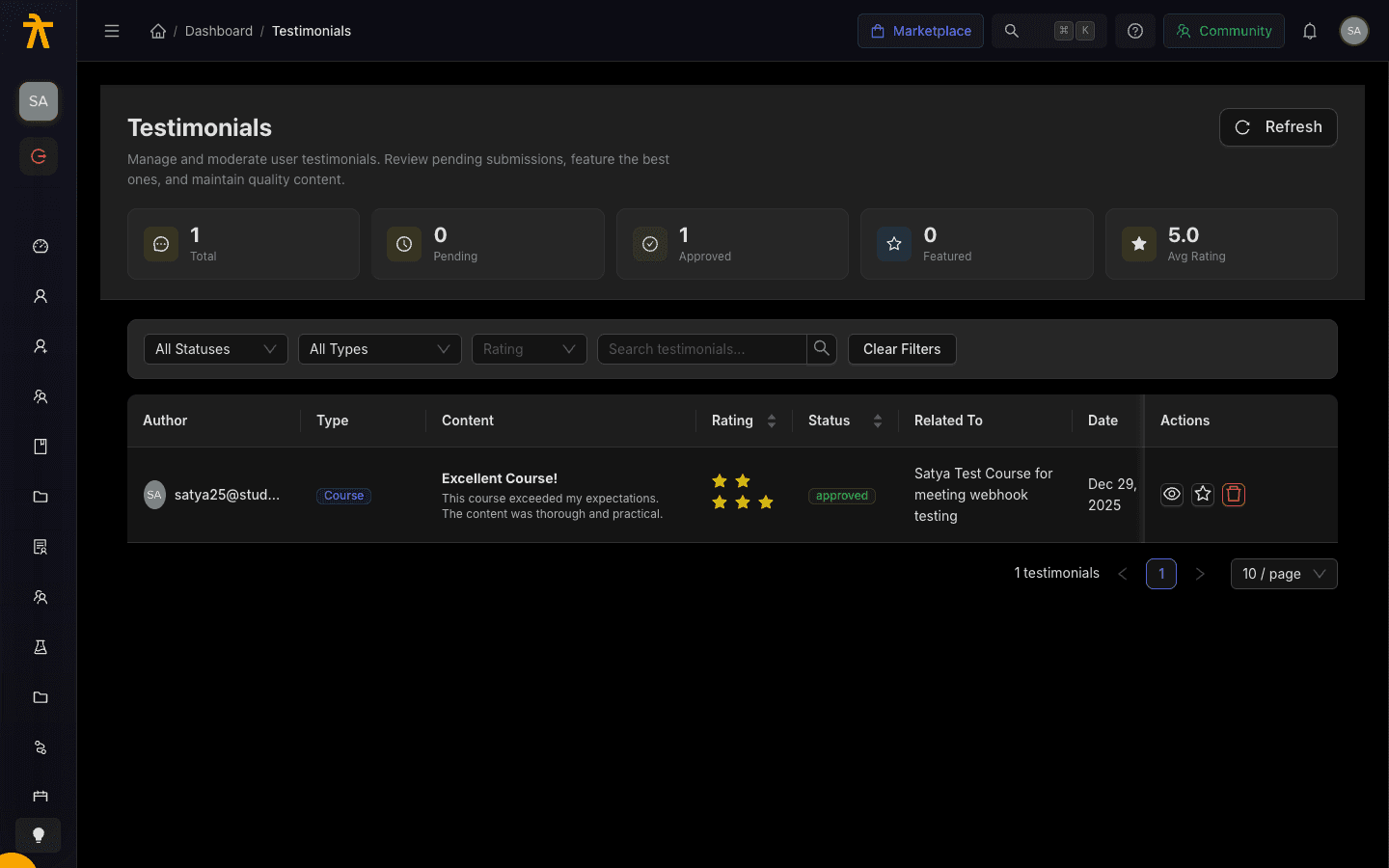
Read the stats banner
The header shows five live counters so you can gauge queue health at a glance:
| Stat | Meaning |
|---|---|
| Total | All testimonials across every status. |
| Pending | Awaiting review; a badge highlights the count when it is above zero. |
| Approved | Cleared for display but not yet featured. |
| Featured | Promoted entries prioritized on the storefront. |
| Avg Rating | Mean star rating across submissions, to one decimal place. |
Use Refresh in the top right to pull the latest counts and table rows.
Where testimonials come from
Testimonials are submitted by your learners, not created by admins on this page. A submission carries a star rating (1–5), optional title and body content, and a content type that scopes what the quote is about:
| Content type | Applies to |
|---|---|
| Platform | Your overall school or platform. |
| Course | A specific course. |
| Learning Path | A specific learning path. |
| Instructor | A specific instructor. |
Learners may also submit anonymously, and can supply a Display Name, Title, and Company to show alongside their quote on the storefront. Every new submission arrives with Pending status and stays hidden from the public until you approve it.
Filter and find submissions
The filter bar narrows the table so you can work through the queue systematically:
- Set Status to
Pending,Approved,Rejected, orFeatured(or leave it on All Statuses). - Set Content Type to focus on platform, course, learning path, or instructor quotes.
- Set Rating to isolate a star level from 5 down to 1.
- Type into Search testimonials... to match on wording.
- Use Clear Filters to reset everything at once.
You can sort the Rating, Status, and Date columns by clicking the column header. Each row shows the author (or Anonymous), content type, a content preview, rating, current status, the related course, learning path, or instructor, and the submission date.
Start each moderation session by filtering to Pending and sorting by Date. That way you clear the backlog oldest-first and never leave a learner's submission waiting.
Moderate a testimonial
Each row's Actions column exposes only the controls valid for that entry's status:
- Click the eye icon to open the full detail view before deciding.
- For a Pending entry, click the check icon to Approve it, or the X icon to Reject.
- Rejecting opens the Reject Testimonial dialog — enter a reason in the text box and confirm. The reason is stored with the entry for your records.
- Click the trash icon to Delete an entry permanently; a confirmation prompt guards against accidents.
You can also moderate from the detail page. Open a testimonial and use the Moderation card, which shows who reviewed it and when, plus the rejection reason if one was recorded. Approve, Reject, Feature, and Delete buttons appear there based on the current status.
Delete is permanent and is not the same as Reject. Reject keeps the record (with its reason) and can be revisited; delete removes the testimonial entirely.
Feature your best testimonials
Featuring promotes an already-approved quote so it takes priority on the storefront.
- Approve the testimonial first — the Feature action only appears once status is Approved.
- Click the star icon in the row's Actions (or Feature on the detail page) to promote it.
- The entry moves to Featured status and its icon switches to a filled star.
- To demote it back to plain approved, click the filled star icon to Unfeature.
Feature a small, high-quality set that covers different courses, paths, and instructors rather than every five-star quote — a focused selection reads as more credible on the storefront.
The detail view
Opening a testimonial shows the full quote, rating out of five, and content type on the left, with a sidebar summarizing:
- Author — name and email, or Anonymous, plus any display name, title, and company.
- Related To — the linked course, learning path, or instructor.
- Metadata — created and updated timestamps, active flag, featured flag, and sort order.
Use this view when a preview alone is not enough to judge tone, accuracy, or fit for public display.
