

Credentials
Design certificate templates, auto-issue credentials when learners complete courses, and let recipients publicly verify and share them.
Credentials
Credentials is where you design the certificates your platform hands out, decide which design each course uses, and manage every credential that has been issued. When a learner finishes a course, a learning path, or a graded assessment, the platform can automatically mint them a branded, publicly verifiable certificate — no manual step required.
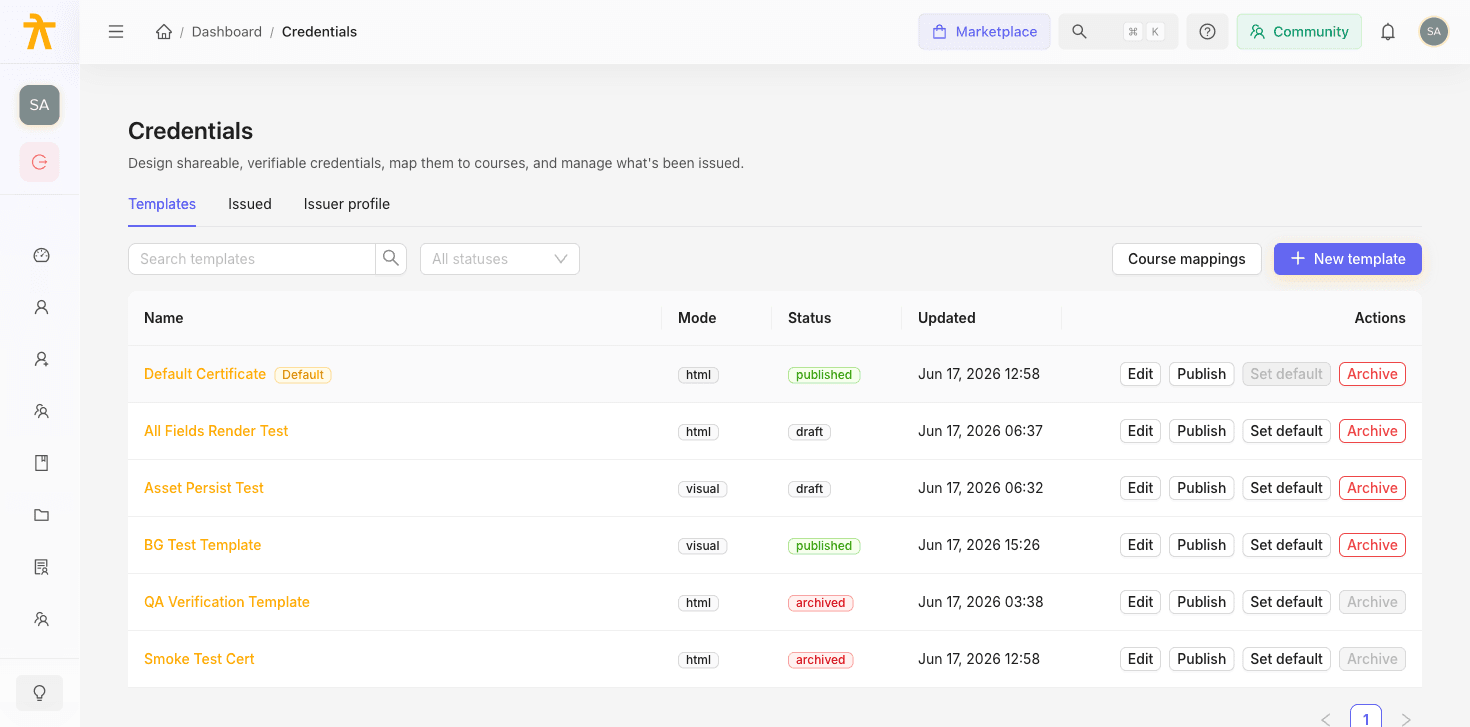
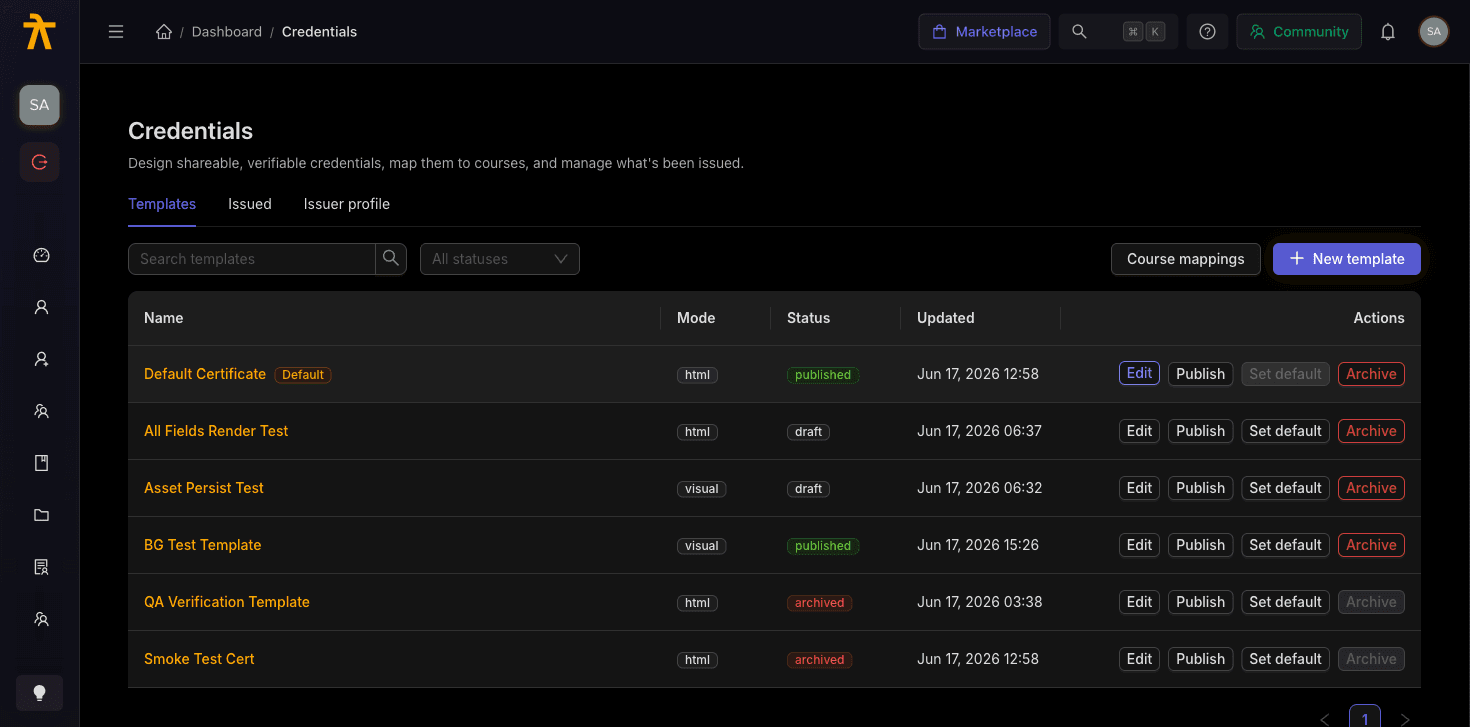
Open Credentials from the main navigation. The module is organized into three tabs — Templates, Issued, and Issuer profile — that map onto the three jobs of running certificates: designing them, tracking them, and configuring the organization identity that appears on every one.
Credential vs. certificate
The two words describe two sides of the same thing:
- A credential is the record — a unique, permanent entry that says this recipient earned this achievement on this date. Every credential carries a globally unique credential ID and a verification code.
- A certificate is the rendered artifact — the PDF, PNG, and web page produced from a template, complete with the recipient's name, the issue date, your logo, signatures, and a QR code that links to the public verification page.
One credential produces the downloadable certificate files. Throughout this section "credential" and "certificate" are often used interchangeably, but this distinction matters when you get to verification and revocation.
The three tabs
| Tab | What it is for |
|---|---|
| Templates | Design certificate layouts in a visual overlay editor or an HTML/token editor, publish them as versions, set a workspace default, and map specific templates to specific courses. |
| Issued | Browse, search, and manage every credential that has been issued. Manually issue or batch-issue credentials, revoke ones issued in error, and re-render certificates that are stuck. |
| Issuer profile | Configure the organization identity injected into every certificate — org name, logo, signatories, LinkedIn organization, default template, and the social-share message. |
Templates
A template is a reusable certificate design. You keep an editable draft, and when it is ready you publish it — which freezes an immutable version snapshot. A template must have at least one published version before it can ever issue.
Editing and re-publishing a template only affects future issuances. Certificates already handed out keep the exact version they were issued from — they do not silently change when you tweak the design. This is deliberate: a certificate someone shared with an employer should never mutate underneath them.
Issued
Every credential lands here the moment it is created. Certificates render asynchronously in the background, so a credential moves through states: it starts pending while a rendering job runs, flips to active (and emails the learner) on success, or becomes failed if rendering keeps erroring. Learners only ever see active credentials in their wallet. From this tab you can re-render an individual credential or bulk re-render everything that is pending or failed.
Issuer profile
There is exactly one issuer profile per workspace, and its fields flow onto every certificate: your org name, logo, an ordered list of signatories (name, title, and signature image), your LinkedIn organization (which unlocks the learner's one-click "Add to profile" button), the default template, and the share message used when learners post to LinkedIn, X, WhatsApp, or email. Set this up first — a blank org name falls back to the raw workspace name, and missing signatories leave empty signature boxes on the certificate.
The end-to-end flow
Here is how a credential travels from design to a verified share, and which page covers each step:
- Design a template. In the Template Builder, lay out fields visually or write HTML with tokens like
recipient_name,course_name,completion_date,credential_id,qr, andverify_url. When it looks right, publish it to create a version you can issue from. - Decide which design each course uses. Set one template as the workspace default, or map a specific template to an individual course. At issue time the platform resolves the design in strict priority: an explicitly chosen template, then a per-course mapping, then the issuer profile's default template, then the workspace default template, and finally an auto-seeded Default Certificate so a brand-new workspace still issues something that works.
- Learners auto-earn on completion. When a learner's enrollment reaches completed status with 100% progress on a course that has certificates enabled, the platform issues their credential automatically — provided one has not already been issued. See Issuing & Automation for the full prerequisites, plus manual and batch issuance.
- Manage and, if needed, revoke. From the Issued tab you can re-render stuck certificates or revoke one issued in error. Revoking is destructive: it deletes the PDF/PNG/web artifacts, purges the CDN cache, flips the public page to a red "Revoked" state, and — because a revoked credential no longer counts — frees the learner to be re-issued a corrected certificate.
- Learners verify and share. Every credential has a public page and a verification page that anyone can open without signing in. A verifier (say, a hiring manager scanning the QR code) sees the recipient, issuer, dates, and a result of valid, revoked, or expired. Learners share straight to LinkedIn using your issuer share message. See Verification & Sharing.
Certificates are a marketing asset as much as a completion record. A public, QR-verifiable credential that a learner proudly adds to their LinkedIn profile puts your organization's name in front of their whole professional network — so invest in the template design and the issuer profile.
Before you start
A few things to know before you turn certificates on:
- Enable certificates on the course. Automatic issuance only happens when the individual course (or learning path / assessment) has certificates enabled. Toggling it on a course is what opts that course into the whole flow — see Preview and Publish.
- Only one is-default template per workspace. You can have many templates, but exactly one can be the workspace default at a time.
- Certificates are per-source and de-duplicated. A learner earns one credential per course (or path, or assessment). Re-completing or re-enrolling returns the existing certificate rather than minting a duplicate — to give a corrected certificate, revoke the old one first.
- Credentials can expire. A template can carry an expiry date; after it passes, the public verification page reports the credential as expired.
Related
Community
Connect an Arythmatic Community workspace so learners can access discussion feeds directly inside your learning platform.
Certificate Templates
Design, version, and manage the certificate templates that decide how your issued credentials look — using the visual overlay editor or the HTML code editor.
