

Managing Issued Credentials
View, search, and filter every certificate your workspace has issued, and understand what revocation does — including the storage and CDN artifacts it permanently deletes.
Managing Issued Credentials
The Issued tab of the Credentials module is the record of every certificate your workspace has ever handed out — for course completions, learning paths, assessments, and manual awards. From here you can find any recipient's credential, open its public page, re-render a certificate that failed to generate, and revoke a credential you issued in error. This page explains how to read the Issued list and, most importantly, exactly what happens when you revoke.
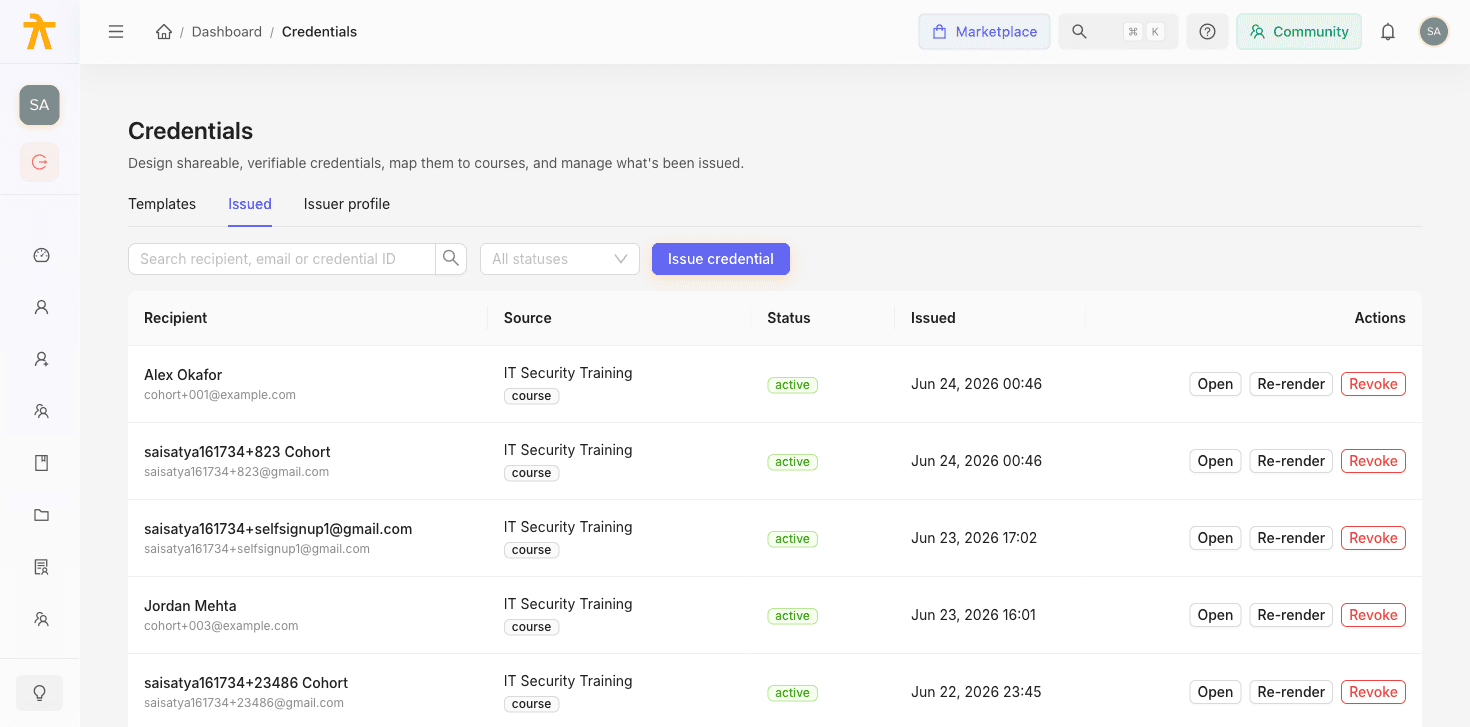
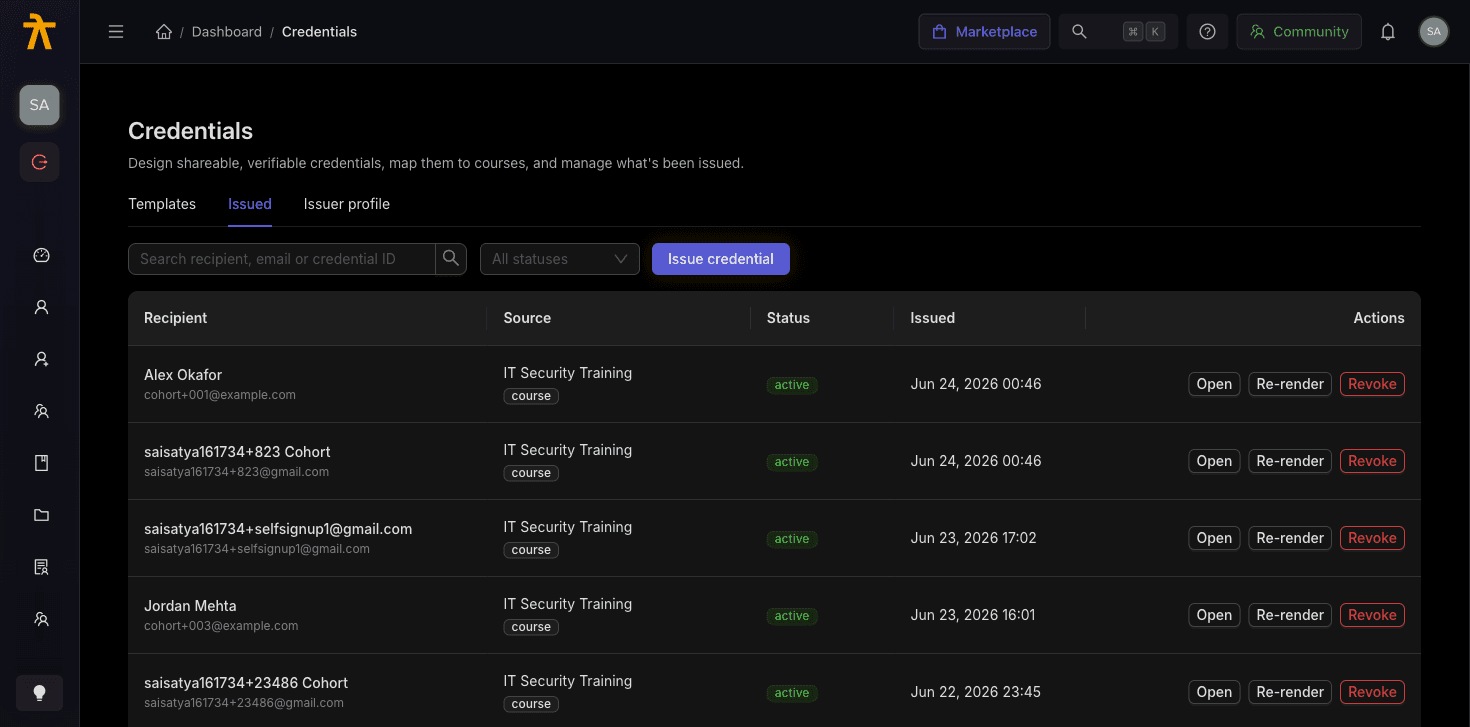
The Issued list
Open Credentials from the main navigation and select the Issued tab. Each row is one credential, sorted newest first. The table has five columns:
| Column | What it shows |
|---|---|
| Recipient | The learner's name with their email address underneath. |
| Source | The name of the course, learning path, or assessment, tagged with the source type (course, learning_path, assessment, or manual). |
| Status | A colored tag: Active, Pending, Failed, or Revoked. |
| Issued | The date and time the credential was created. |
| Actions | The Open, Re-render, and Revoke buttons for that row. |
Status meanings
Certificates render asynchronously in the background, so a credential moves through several states before a learner can download it:
- Pending (blue) — issued, but its PDF/PNG/web files are still being generated (or a migrated legacy credential whose files were never built).
- Active (green) — rendered successfully and downloadable. This is the only state a learner ever sees in their credential wallet.
- Failed (red) — rendering failed after all retries. Hover the status tag to read the render error.
- Revoked (grey) — the credential has been invalidated. Its files have been deleted and its public page reports it as revoked.
If a credential is stuck at Pending or Failed, use the Re-render button on that row, or the Re-render pending (N) button in the toolbar to re-queue every stuck credential at once. Re-rendering is the fix for certificates that never generated — it does not apply to revoked credentials.
Searching and filtering
Use the toolbar above the table to narrow the list:
- Type into the search box to match on recipient name, recipient email, or the credential ID. Results update as you type.
- Use the status dropdown to show only Active, Pending, Failed, or Revoked credentials. Clear it to see all statuses again.
If you see the notice "Credentials v2 is not enabled for this tenant yet", this workspace is still on the legacy certificate system and the Issued list will be empty until Credentials is enabled for your tenant.
Opening a credential
Select Open on any row to view the recipient's shareable public credential page in a new tab — the same page a learner or an employer scanning the certificate's QR code would see. The button is disabled for revoked credentials, because their files no longer exist.
Revoking a credential
Revocation is how you invalidate a certificate that was issued by mistake, to the wrong person, or that needs to be corrected and re-issued. To revoke:
- Find the credential in the Issued list.
- Select Revoke on its row. (The button is disabled if the credential is already revoked.)
- In the confirmation dialog, optionally enter a reason (up to 255 characters) — for example, "issued in error" or "superseded by corrected certificate."
- Confirm by selecting Revoke.
What revocation does
Revoking is far more than flipping a flag. In a single action the backend:
- Sets the credential's status to
revokedand records a revoked timestamp and your reason. - Permanently deletes the generated PDF, PNG, and web artifacts from storage (S3).
- Purges the CDN cache (CloudFront invalidation) so the files stop being served from edge caches.
- Clears the stored file URLs, so the credential is no longer viewable or downloadable — Open becomes disabled and the learner's wallet stops showing it (learners only ever see Active credentials).
- Makes the credential's public verification page report "revoked" — anyone verifying it, including an employer, now sees a clear revoked state instead of a valid certificate.
Revocation is destructive and cannot be undone. The certificate files are deleted, not just hidden — there is no "un-revoke" action to bring them back. If a learner still needs a valid certificate after you revoke, you must issue a new one (see below), which produces a fresh credential ID. Only revoke when you genuinely want to invalidate the certificate.
Revoke to re-issue a corrected certificate
The system allows only one non-revoked credential per learner per source (course, path, or assessment). That means if a learner already holds an Active certificate for a course, re-completing it will not mint a second one — they simply keep the existing certificate.
Revocation is what unlocks a fresh issuance. Because revoked credentials are excluded from that one-per-source rule, revoking the old certificate frees you to issue a new, corrected credential for the same learner and source. So the correct workflow to fix a certificate — for example after fixing a typo in the recipient's name or changing the template — is:
- Revoke the incorrect credential (its files are purged and its public page shows revoked).
- Issue a new credential for the same learner and source, which renders fresh files and gets a new credential ID.
Revoke, don't delete: revocation is the intended way to correct a mistake on a high-stakes credential. It leaves an auditable record (status, timestamp, and reason) while ensuring the bad certificate can no longer be downloaded or verified as valid.
Notes and edge cases
- If you try to revoke a credential that is already revoked, the action is rejected as already revoked and nothing changes.
- Artifact cleanup is best-effort: even if deleting a file or purging the CDN hiccups, the credential is still marked revoked and its URLs are cleared, so it can never be surfaced as valid.
- A Failed or Pending credential can also be revoked; there may be no files to delete, but the status and reason are still recorded.
Related
Issuing Certificates
How Arythmatic decides when a certificate is earned, which template design a learner receives, and how admins issue or force-issue credentials manually or in bulk.
Verifying & Sharing Credentials
Every certificate you issue is publicly verifiable with no login, and learners can share it to LinkedIn and beyond from their credential wallet.
