

Verifying & Sharing Credentials
Every certificate you issue is publicly verifiable with no login, and learners can share it to LinkedIn and beyond from their credential wallet.
Verifying & Sharing Credentials
A certificate is only as valuable as the trust a third party can place in it. When your workspace issues a credential, it does not just hand the learner a PDF — it publishes a tamper-evident, publicly verifiable record that anyone (an employer, a recruiter, a compliance auditor) can confirm without an Arythmatic account. This page explains how that verification works, what a verifier sees, and how learners share their earned credentials.
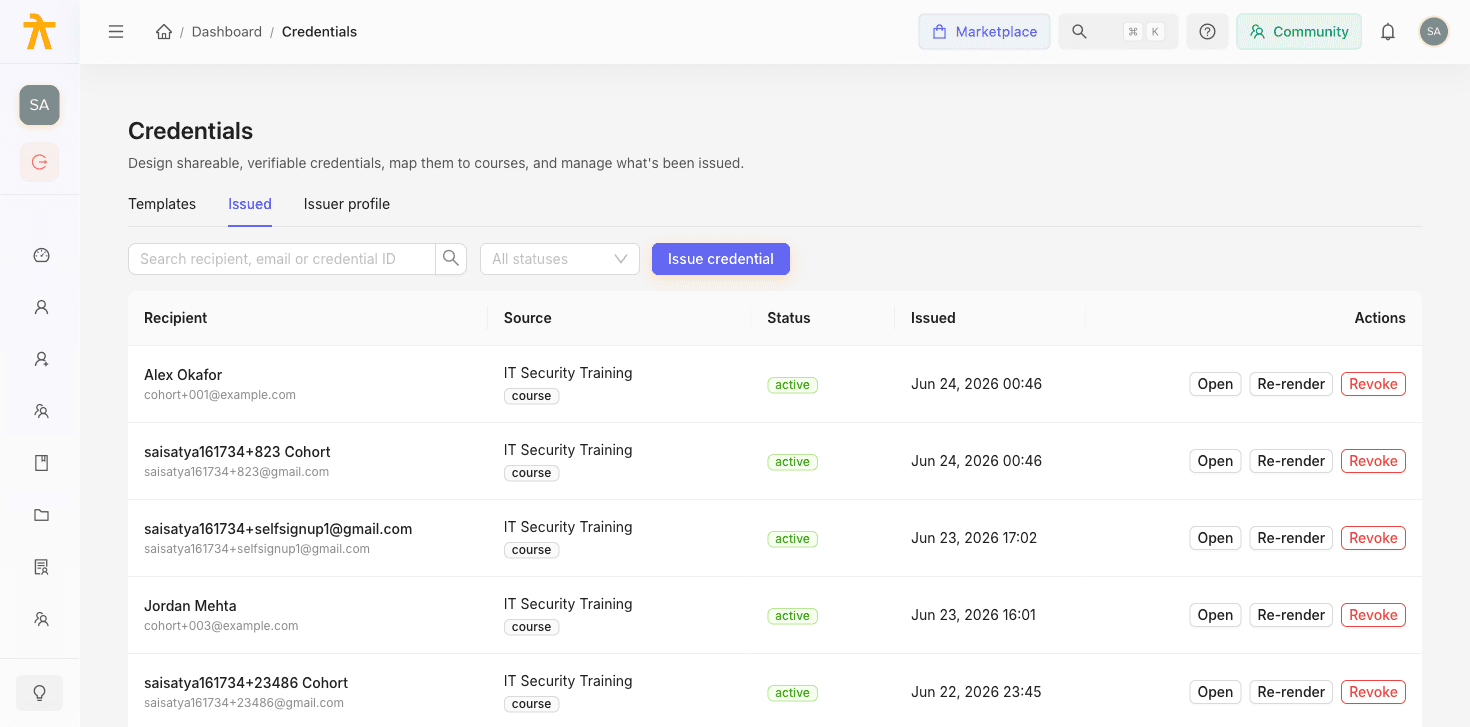
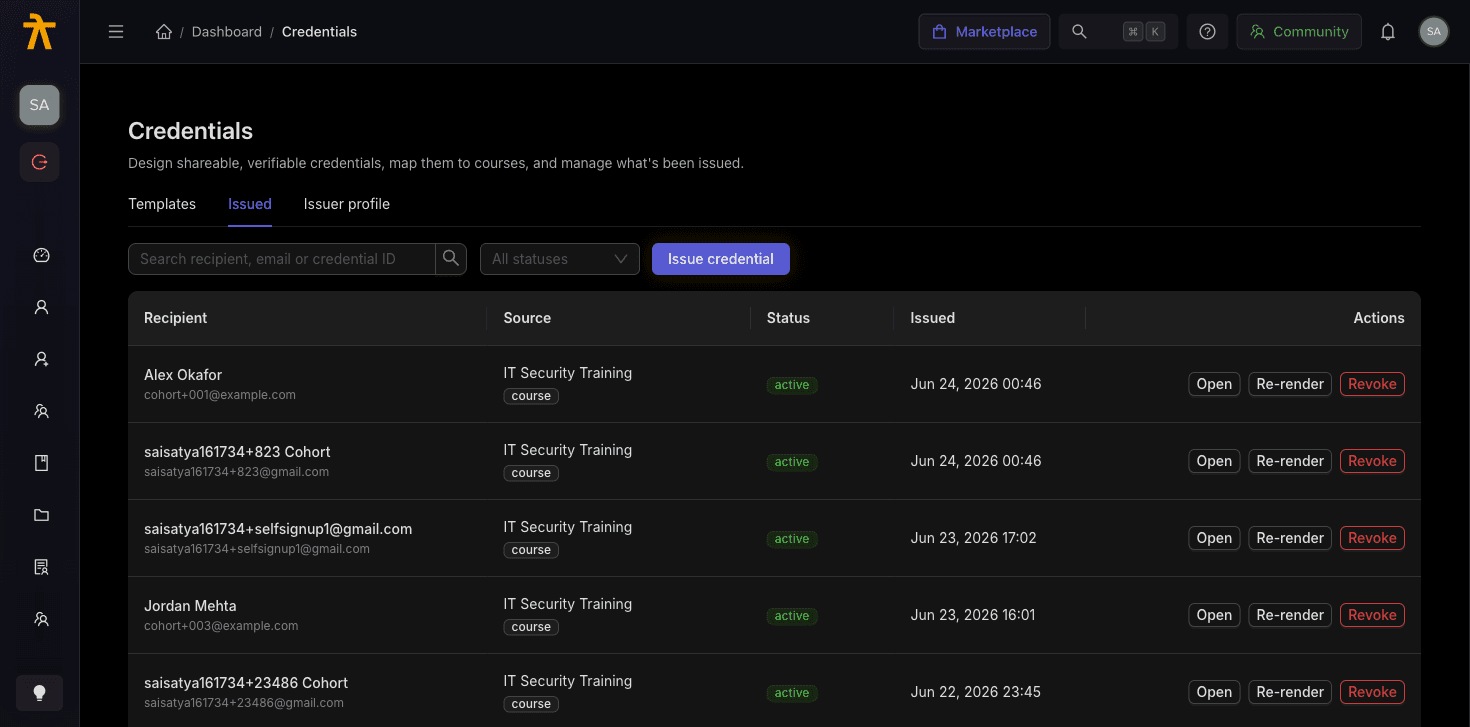
Every credential has a unique ID and verification code
When a credential is issued, the system stamps it with two identifiers:
- A Credential ID — a short, globally unique code (for example
AK7F3-Q2K9X). It is unique across your entire workspace and forms the address of the credential's public page. - A Verification code — a separate longer value shown on the verification page as a second confirming factor.
Both are printed on the certificate itself and returned by the verification endpoint, so a verifier can cross-check the ID on the document against the ID reported by the live public page.
The public verification page
Every issued credential exposes two public URLs on your tenant's learner domain — neither requires signing in:
| URL | Purpose |
|---|---|
/credential/{credentialId} | The shareable credential page — shows the certificate, recipient, issuer, and download links. |
/credential/{credentialId}/verify | The verification page — resolves the credential to a trust status and shows the confirming details. |
The certificate carries a QR code that points at the public credential page on your learner domain. An employer scanning the QR from a printed or PDF certificate lands directly on a real, branded page — not a raw API response.
The QR code and the verify_url token are populated automatically by the template renderer. You do not place a link by hand — drag the Verification QR or Verification URL field onto your template and it resolves to the live public page for each learner.
What the verification result means
The verify page resolves each credential to exactly one of four states. The state is computed live at the moment of the lookup, so it always reflects the current status of the credential:
| Result | When it shows | What a verifier should conclude |
|---|---|---|
| Valid credential | Active, not revoked, and not past its expiry date | Genuine and currently in force. |
| Revoked | An admin has revoked the credential | Was issued but has been withdrawn by the issuer; no longer trustworthy. |
| Expired | The credential has an expiry date that has passed | Was genuine but is past its validity window. |
| Not found | No credential exists for that ID | The ID is invalid, mistyped, or was never issued. |
Because revoked and expired are resolved at lookup time, a certificate a learner downloaded months ago will still report the correct current state when someone verifies it today.
What a verifier sees (and what stays private)
The public verification page deliberately shows a minimal, confirming set of fields rather than the learner's full record:
- The recipient name
- The credential / source name (the course, learning path, or assessment)
- The issuer organization (from your Issuer Profile)
- The issued date and, if set, the expiry date
- The credential ID and verification code
The recipient name shown publicly is a display name, never the learner's login email. If a learner only has an email on file, the page shows just the local part (before the @) — the full email address is never exposed on a public page. Set proper display names on your learners if you want clean certificates and verification pages.
The public page never exposes internal identifiers such as the tenant ID, enrollment records, grades of other learners, or render bookkeeping. Issuer details (org name, logo, website) come from your Issuer Profile, so keep that screen filled in — a blank org name falls back to the raw workspace name.
The learner credential wallet
Learners see everything they have earned in a dedicated Credentials page — their wallet — described to them as "View and download your earned certificates." From here a learner can:
- Browse every credential they have earned, newest first.
- Download the certificate as a PDF.
- See an expiry badge on any credential that has passed its expiry date.
- Search by verification code to find a specific credential.
- Share the credential (see below).
The wallet only ever lists active credentials. Credentials that are still rendering (pending), that failed to render, or that have been revoked are hidden — there is nothing for the learner to view or download in those states.
The learner wallet is gated by the per-tenant Credentials v2 feature. On a workspace where that feature has not been enabled, the wallet simply returns an empty list — the learner sees an empty wallet, never an error. If your learners report "I can't see my certificate," confirm Credentials v2 is enabled for your tenant.
Separately, inside the course player the certificate section is always rendered but stays locked until the learner reaches 100% course completion. Below 100% it reads "Complete course to unlock"; at 100% it becomes clickable and downloadable. A learner cannot open or download the in-course certificate before finishing the course.
Sharing a credential
From the wallet, a learner can share a credential to LinkedIn in one click. The share posts a link to the public credential page (not the raw certificate file), so anyone who clicks through lands on the verifiable, branded page.
The wording of the share is driven by the share message template on your Issuer Profile, which supports {credential} and {issuer} tokens (for example, I earned {credential} from {issuer}!). The LinkedIn Add to profile action is gated by the LinkedIn organization ID on your Issuer Profile — set that field so credentials can be added directly to a learner's LinkedIn profile under your organization.
Because the share always points at the public credential URL, a recipient of the share can immediately verify authenticity from the same link — sharing and verifying are the same page. Configure your Issuer Profile's share message and LinkedIn organization ID before you start issuing at scale so every shared credential carries your branding and links back to your organization.
When a credential is revoked or expires
Revocation and expiry both change what the public sees, but they work differently:
- Revoked — an admin action. Revoking purges the certificate's PDF, PNG, and web artifacts from storage, invalidates the CDN cache, and clears the stored URLs, so the credential can no longer be viewed or downloaded. The public verify page then reports Revoked. Revocation is the correct way to withdraw a certificate that was issued in error.
- Expired — automatic. If a credential was issued with an expiry date, the public verify page reports Expired once that date passes. No admin action is needed; the state flips based on the clock.
Revocation is destructive and irreversible for the artifacts (the files are deleted, not just flagged). See the managing-issued and revocation guidance for the full side effects and how revoking frees a learner to be re-issued a corrected certificate.
Related
Managing Issued Credentials
View, search, and filter every certificate your workspace has issued, and understand what revocation does — including the storage and CDN artifacts it permanently deletes.
Issuer Profile
Set the organization identity — name, logo, website, signatories, LinkedIn org, and share message — that Arythmatic injects into every certificate and its social sharing.
