

Integrations
Connect Microsoft Teams, Zoom, Google Meet, Arythmatic Community, WhatsApp, and Zoho Books to your platform, plus inject custom JavaScript snippets — the connectors that actually ship in the Integrations settings tab.
Integrations
The Integrations tab (Settings → Integrations) is where you connect third-party services that extend your platform. It ships a focused, curated set of live connectors — three meeting providers, a community link, a WhatsApp chat button, a Zoho Books accounting sync, and admin-only custom script injection. There is no open-ended app marketplace here: every card on this page maps to a real connector wired to the backend. Anything not listed below is configured in a different settings section (see Related).
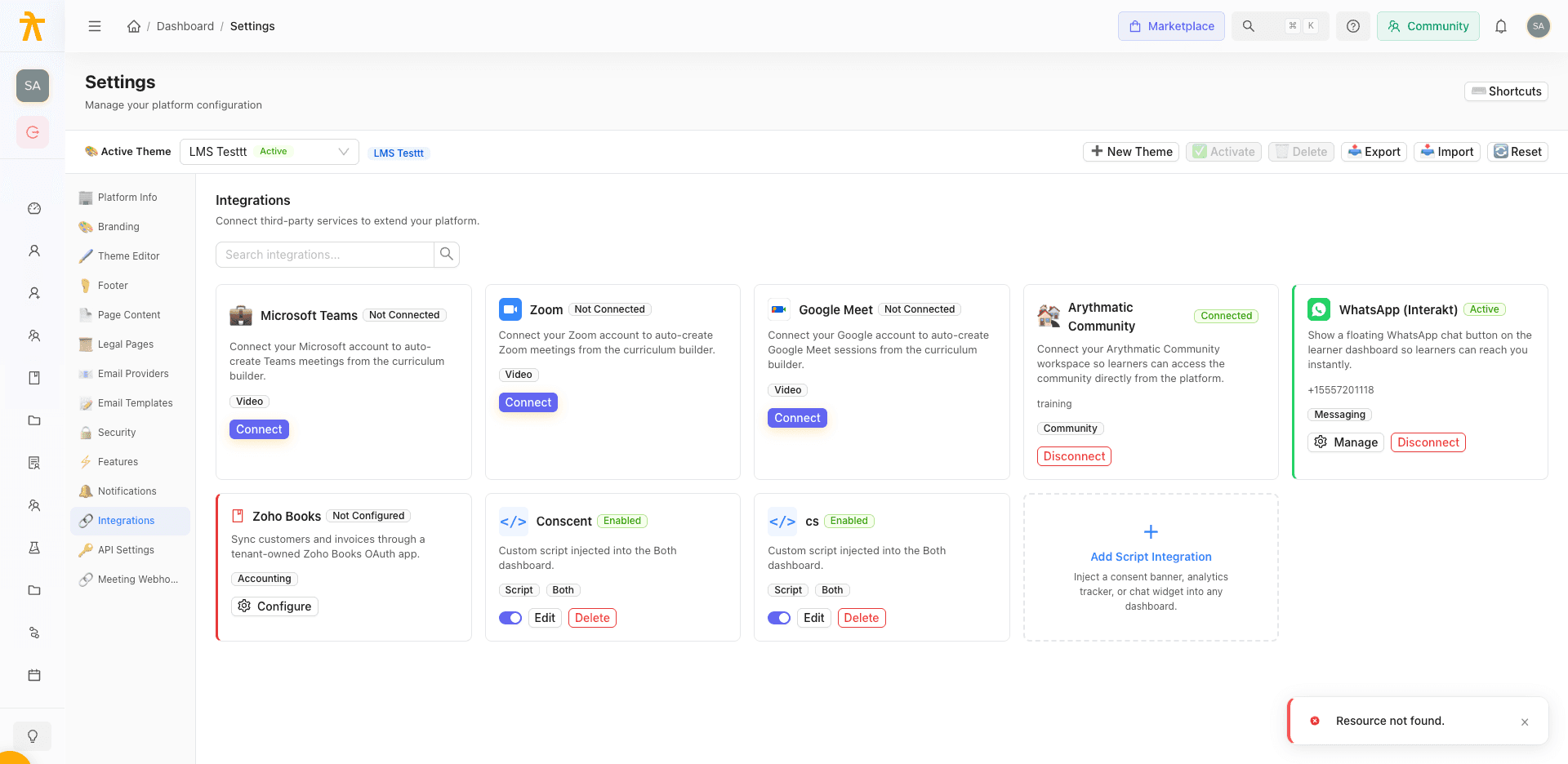
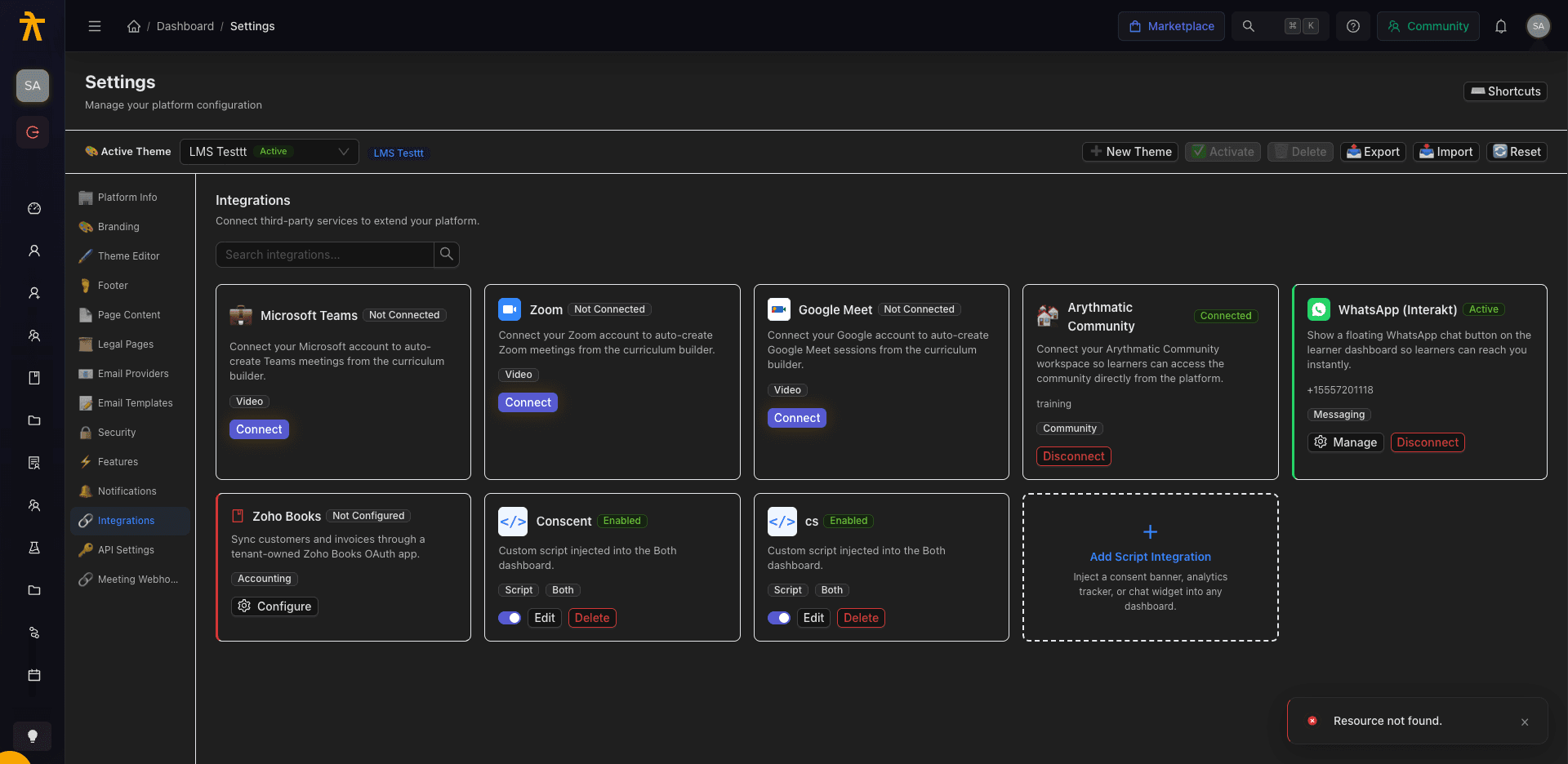
Use the Search integrations… box at the top to filter the grid by name, category (Video, Community, Messaging, Accounting, Script), or keyword.
Meeting providers (Video)
Three video-conferencing providers connect through a live OAuth flow. Once connected, the curriculum builder can auto-create meetings for live sessions without you copy-pasting join links.
| Provider | What it does | Category |
|---|---|---|
| Microsoft Teams | Connect your Microsoft account to auto-create Teams meetings from the curriculum builder. | Video |
| Zoom | Connect your Zoom account to auto-create Zoom meetings from the curriculum builder. | Video |
| Google Meet | Connect your Google account to auto-create Google Meet sessions from the curriculum builder. | Video |
Connecting a provider
- Find the provider card (each shows a Not Connected tag until linked).
- Click Connect. You are redirected to the provider's OAuth consent screen.
- Approve the requested permissions. You return to the Integrations tab and the card flips to a green Connected tag, showing the linked account email.
- To unlink, click Disconnect on the connected card.
After a successful connection the page shows a toast such as "Microsoft account connected successfully!" and cleans the OAuth query parameters out of the URL. If you denied consent you will instead see an authorization-denied message — just click Connect again to retry.
Meeting-provider connections are per instructor, not tenant-wide. Each OAuth token is stored against the individual user who connected it, so every instructor who runs live sessions must connect their own Teams, Zoom, or Google Meet account. Auto-created meetings are made under whichever user's token is connected, one person connecting does not cover the whole team, and a disconnect by one instructor does not affect anyone else's connection. An instructor without their own connection cannot auto-create meetings for that provider.
Arythmatic Community
The Arythmatic Community card (Community category) links your platform to an Arythmatic Community workspace so learners can jump into the community directly.
- Click Connect to open the Connect Arythmatic Community dialog.
- Fill in both required fields:
| Field | Description |
|---|---|
| Workspace Name | Your community workspace, e.g. my-company. |
| Tenant Slug | Your tenant slug, e.g. my-company-slug. |
Then click Save. On success the card shows Connected with your workspace name. Use Disconnect to unlink.
WhatsApp (Interakt)
The WhatsApp (Interakt) card (Messaging category) shows a floating WhatsApp chat button on the learner dashboard so learners can reach you instantly. Its status tag reads Active (configured and visible), Disabled (configured but hidden), or Not Configured.
- Click Configure (or Manage if already set) to open the Configure WhatsApp (Interakt) dialog.
- Set the fields:
| Field | Description |
|---|---|
| WhatsApp Number | Required. E.164 format — country code followed by number, no spaces (e.g. +15557201118). |
| Show button on learner dashboard | Toggle between Visible and Hidden. |
Then click Save. To remove the configuration entirely, click Disconnect and confirm.
The number must be in E.164 format (a leading +, country code, then the number, with no spaces or dashes). A blank number is rejected with "WhatsApp number is required".
Zoho Books (Accounting)
The Zoho Books card syncs customers and invoices through a tenant-owned Zoho Books OAuth app — you supply your own Zoho OAuth credentials rather than sharing a platform-wide app. The status tag walks through several states: Not Configured → Configured → Needs Organization → Connected (and Disabled if you switch the connector off).
1. Save your credentials
Click Configure to open the Configure Zoho Books dialog:
| Field | Description |
|---|---|
| Region | Your Zoho data center: India, United States, Europe, Australia, Japan, Canada, China, or Saudi Arabia. |
| Client ID | Required. Your Zoho OAuth app's client ID. |
| Client Secret | Required on first setup. Leave blank later to keep the current secret. |
| Connector Status | Toggle Active / Disabled to enable or pause the connector. |
The dialog also shows a read-only Authorized Redirect URI with a copy button — paste this exact value into your Zoho OAuth app. When your API base URL is not overridden it defaults to https://api.lms.arythmatic.cloud/api/v1/connectors/zoho-books/callback/. Click Save.
2. Connect via OAuth
Once credentials are saved and the connector is Active, click Connect Zoho. You are redirected to Zoho's consent screen, then returned to the Integrations tab.
3. Select an organization
After connecting, use Refresh Orgs to pull your Zoho Books organizations, then choose one from the dropdown in the config dialog and click Select. The card is only fully Connected (ready for API calls) once an organization is selected — otherwise it shows Needs Organization.
The Delete Config button in the dialog's danger zone removes stored credentials, tokens, and the organization selection. Disconnect only drops the OAuth link; Delete Config wipes the whole setup.
HubSpot CRM
The platform also ships a live, tenant-owned HubSpot CRM connector. Like Zoho Books, it uses your own HubSpot public-app credentials rather than a shared platform app: an admin saves the app's client ID, client secret, and scopes, then runs an OAuth connect flow. Credentials and tokens are encrypted at rest. It is admin-only and scoped per tenant, and is driven through the connector API at /api/v1/connectors/hubspot/ (config, connect, callback, disconnect, contacts, introspect).
Once connected, the platform automatically syncs LMS lifecycle events to HubSpot CRM — no manual export step:
| LMS event | What lands in HubSpot |
|---|---|
| User registration | A HubSpot contact is created/updated. |
| Enrollment created / completed | The learner's contact is synced with the course/enrollment details. |
| Membership activated | The learner's contact is synced with the plan details. |
| Completed revenue transaction | A HubSpot deal is created and associated to the contact. |
Refunds are observed but not reversed in HubSpot. When a transaction is refunded the connector records the event in its sync log and marks it skipped — it does not reverse, re-stage, or delete the corresponding HubSpot deal. If you rely on HubSpot deal stages for revenue reporting, reconcile refunds in HubSpot manually.
Custom script integrations (Admin only)
Administrators see additional Script cards plus an Add Script Integration tile. These inject custom JavaScript — a consent banner, analytics tracker, or chat widget — into a chosen dashboard. Each snippet card shows an Enabled / Disabled tag, a per-card enable switch, and Edit / Delete actions.
Click Add Script Integration to open the editor:
| Field | Description |
|---|---|
| Integration Name | Required label, e.g. Consent Banner. |
| Script HTML | Required. The markup to inject. Only externally hosted <script src="https://…"> tags survive — see the sanitizing rule below. |
| Consent Link HTML | Optional markup for a "Manage Preferences" style link. |
| Target Dashboard | Inject into Admin Dashboard, Learner Dashboard, or Both. |
| Enabled | Toggle whether the snippet is live. |
Inline JavaScript is silently stripped — only externally hosted scripts run. For safety, the backend sanitizes whatever you paste before it is served: inline <script>…</script> blocks (with no src) are removed, any inline body inside an external script tag is dropped, and a src is only kept when it starts with https:// (so javascript:, data:, and plain http: sources are blocked). Tags are whitelisted (script, a, div, span, button, p, img) and javascript: links are dropped. In practice this means a vendor's inline analytics or consent snippet will not run — host the code as an HTTPS .js file and reference it with <script src="https://…" async></script> instead. Only paste trusted code — this is an admin-only surface for a reason.
What is not here
This tab intentionally has no generic "app store." The generic-integration list ships empty, so you will not see filler third-party tiles. Several things people look for live in other settings sections instead:
- Email provider (SMTP / AWS SES / SendGrid) — configured under Settings → Email Providers.
- Meeting webhooks — configured under Settings → Meeting Webhooks (separate from the OAuth meeting connectors above).
- Payment gateways — configured in the platform's payments/billing area, not here.
- API keys / access tokens — the Settings → API panel currently ships as Coming Soon and has no functional controls yet. Likewise the Security, Features, and Notifications settings sections are placeholders labeled "under development."
Do not wait for the API tab — it is a stub today. If you need programmatic access, reach out to platform support rather than expecting a self-serve key generator on that screen.
Related
API Keys & Webhooks
Register meeting webhook endpoints so external systems receive real-time notifications from your workspace, and see what is planned for self-service integration API keys.
Changelog
What changed in your Arythmatic workspace — new capabilities, corrected behavior, and fixes across the admin dashboard, the learner experience, and the API.
