

Live Meetings & Webinars
Schedule live sessions on Zoom or the built-in Arythmatic provider, attach them to course curriculum, and manage recordings from the meetings workspace.
Live Meetings & Webinars
Live meetings let you run instructor-led classes and webinars alongside your on-demand content, so a course can blend recorded lessons with scheduled live sessions. Each meeting is tied to a course section in the curriculum, carries its own platform and join link, and moves through a lifecycle from Scheduled to Live to Completed. The dedicated Meetings workspace gives admins and instructors one place to find every session, start or join it, and manage its recording afterward.
Where meetings are scheduled
Meetings are always created from the course curriculum builder, not from the Meetings list itself. On the list page the Schedule from Course Curriculum button is intentionally disabled with the reminder that "Meetings are scheduled from the course curriculum builder." This keeps every live session anchored to a specific course and section, so learners see it in context and the meeting inherits the course's audience.
To add a session, open the course, go to the curriculum, and add a meeting item to the section where it belongs. See Building Content for how curriculum items are added and ordered.
Because meetings live inside the curriculum, editing a meeting's core details (title, time, platform) also happens there — the Edit button on the meeting detail view is disabled and points you back to the curriculum builder.
Choosing a provider
When you add a meeting you pick a Platform. Arythmatic supports several providers, filterable on the list page:
| Platform | Value | Notes |
|---|---|---|
| Zoom | zoom | Connect your Zoom account; the join link is generated automatically. |
| Google Meet | meet | Join link is generated automatically via Google Meet — no manual URL needed. |
| Microsoft Teams | teams | Join link is generated automatically via Microsoft Teams — no manual URL needed. |
| Arythmatic | arythmatic_meetings | The built-in meeting provider — no third-party account required. |
| Custom | custom | Paste any external join URL (plus meeting ID and passcode) you manage yourself. |
The built-in Arythmatic provider is the fastest path: it needs no external account and generates a join link automatically. Zoom, Google Meet, and Microsoft Teams also generate their join links automatically — Custom is the only option where you paste your own URL. Choose an external platform when your organization already runs sessions there and wants recordings and attendance handled by that tool.
The list-page Platform filter also includes a Cisco WebEx option for older sessions, but WebEx is not selectable when scheduling a new meeting — pick Zoom, Google Meet, Microsoft Teams, Arythmatic, or Custom instead.
Managing sessions from the list
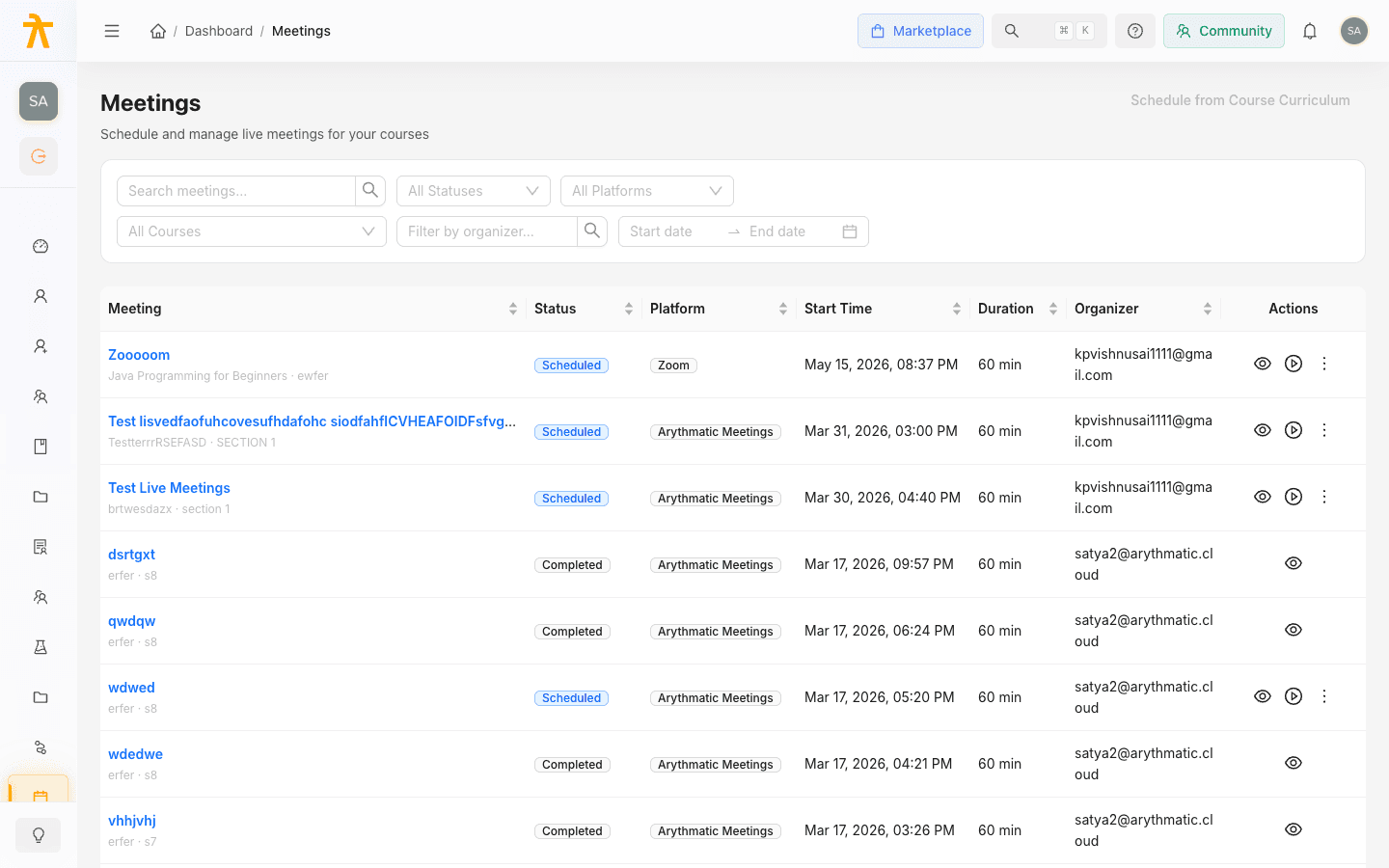
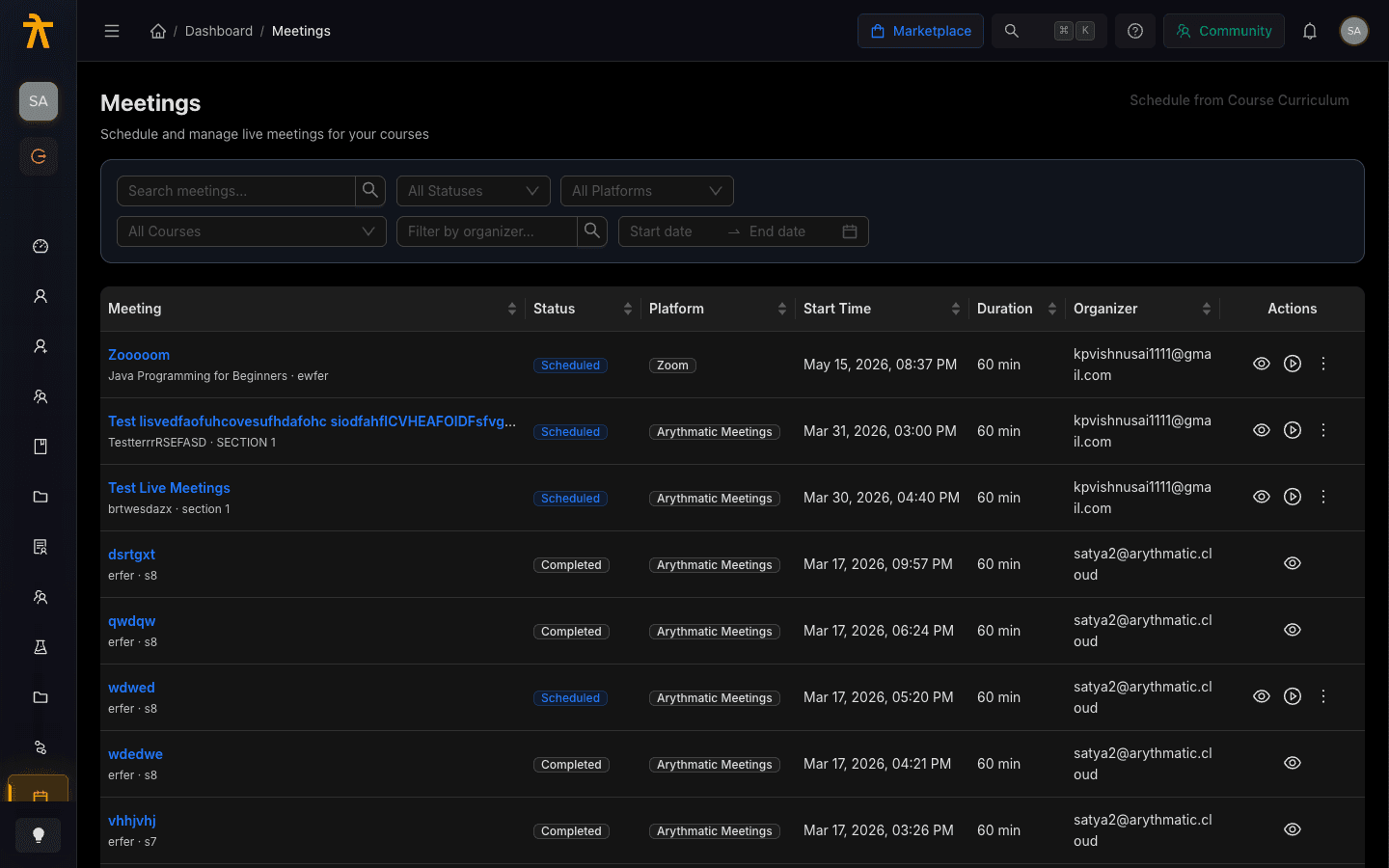
The Meetings page lists sessions across all courses with Meeting, Status, Platform, Start Time, Duration, and Organizer columns. Use the filter bar to narrow the view:
- Search by meeting title in the Search meetings box.
- Filter by Status (Scheduled, Live Now, Completed, Cancelled).
- Filter by Platform or by a specific Course.
- Filter by organizer or a start/end date range, then click Clear Filters to reset.
Row actions depend on the session's status and are available to admins and instructors:
- Start Meeting appears on scheduled sessions and opens the join link in a new tab.
- Join Meeting appears while a session is Live.
- The more actions menu offers Reschedule and Cancel Meeting for scheduled or ongoing sessions.
Only admins and instructors can start, reschedule, or cancel meetings. When you Cancel or Reschedule, leave Notify participants checked so enrolled learners are told about the change. See Roles & Permissions.
The meeting detail view
Selecting a meeting opens its detail page. The left panel shows the full meeting card — Date & Time, Duration, Platform, Organizer, Course, Section, Passcode (copyable when set), and Attendees count. Scheduled (upcoming) meetings show an RSVP summary, while live sessions add a real-time attendees bar; admins and instructors also see a participant table.
The sidebar holds the Join card (labeled Join Now while live, or showing the start time when upcoming) and a copyable Meeting Link. Header buttons let managers Start Meeting, Reschedule, or Cancel depending on status. Live sessions refresh their attendee and recording data automatically while the page is open.
Recordings
After a session ends its status becomes Completed. Recordings surface in two ways:
- If the provider returned recordings, they appear in a Recordings list on the detail page ready to watch.
- If no recording is attached yet, admins and instructors can paste a recording URL into the recording card and click Save to make it available to learners.
On the course meetings view, completed sessions with a recording show a Watch Recording button, so learners can revisit the session on demand.
Pair a recorded session with the rest of the curriculum so learners who missed the live meeting can catch up, and combine it with access rules or paywalls from Monetization when the live cohort is a paid tier.
