

Batches (Cohorts)
Schedule and manage cohort-based batches of an instructor-led course — enrollment windows, capacity, and an assigned instructor.
Batches (Cohorts)
A batch is a scheduled cohort of a single instructor-led course. Each batch has its own start and end dates, an enrollment deadline, an optional student cap, and its own copy of the course content that learners actually work through. Use batches when you run a course as timed sessions — a Spring cohort, a weekend group, a corporate intake — rather than as always-open self-paced content. A batch is not a Group and not a School; those organize people, whereas a batch schedules one delivery of one course.
The batches list
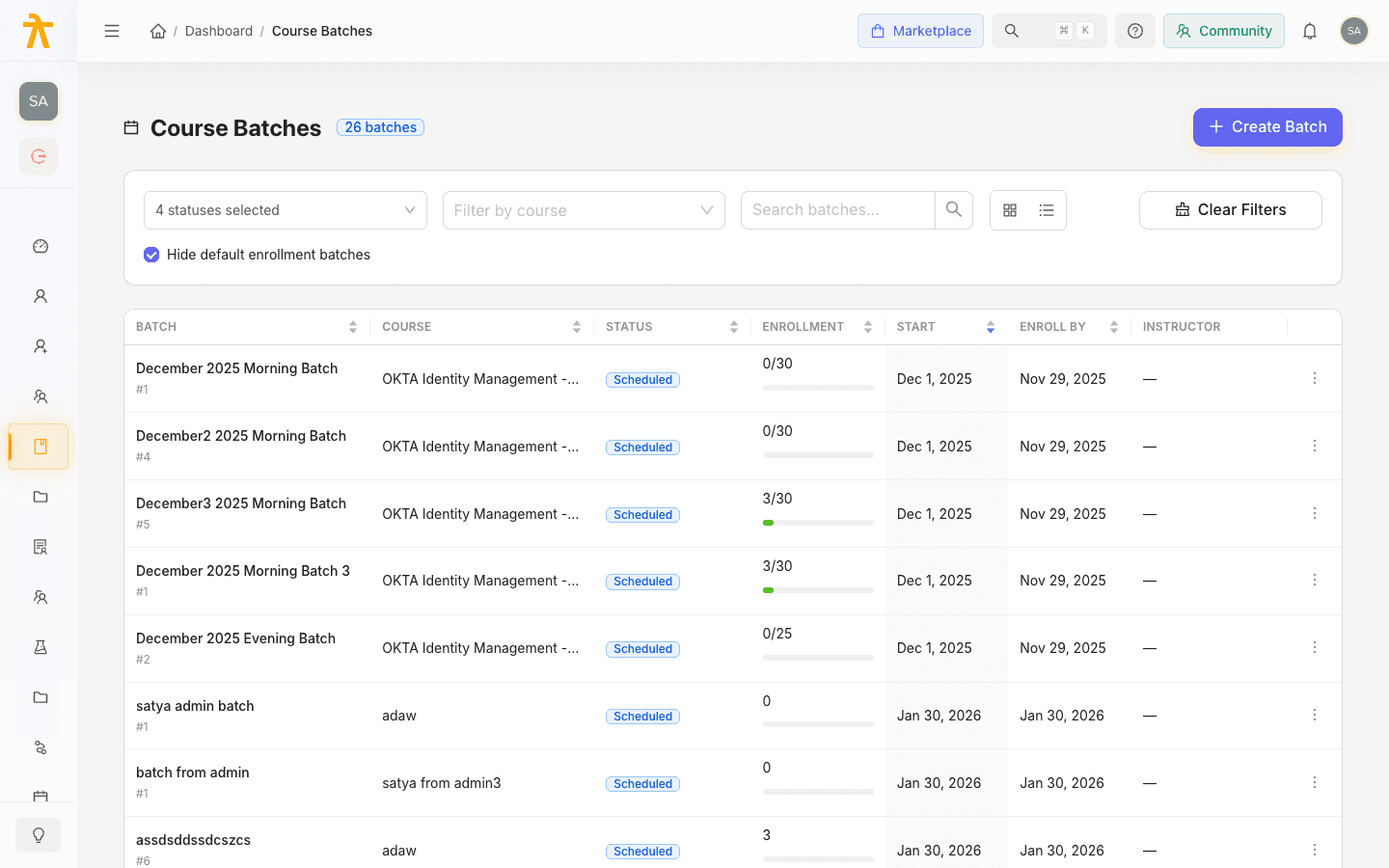
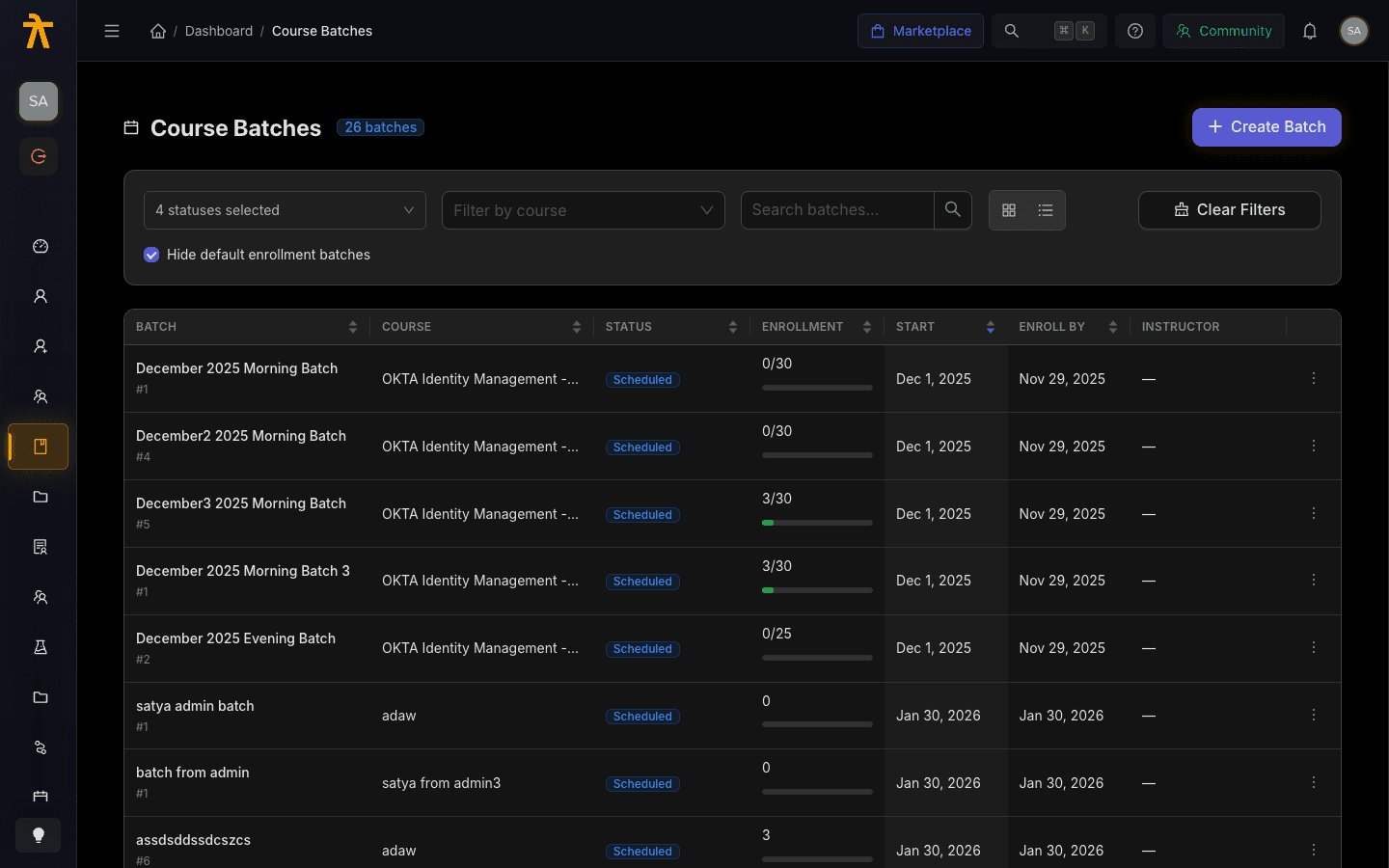
Open Course Batches from the manage dashboard to see every batch in your workspace. A count tag next to the title shows how many batches match the current view. Toggle between the Grid and Table layouts using the view switcher; your choice is remembered for next time.
You can narrow the list with the filters above it:
- Filter by status — a multi-select of Scheduled, Enrollment Open, In Progress, Completed, and Cancelled. Completed batches are hidden by default.
- Filter by course — limit the list to batches of one instructor-led course.
- Search batches — match by batch name.
- Hide default enrollment batches — on by default, so system-generated default batches stay out of the way.
In table view you can sort by batch name, course, status, enrollment, start date, or enrollment deadline. Click Clear Filters to reset everything. Clicking any batch opens its detail page.
Creating a batch
- Click Create Batch in the top right.
- Choose the Course. Only published, instructor-led courses appear — draft courses are hidden, and the modal tells you how many were left out.
- Enter a Batch Name (for example, "Morning Batch" or "Weekend Batch"), at least 3 characters.
- Set the Start Date, and optionally an End Date.
- Set the Enrollment Deadline — the last day learners can join. If you leave it blank it defaults to the start date.
- Set Maximum Students (1–1000) to cap the cohort, or leave it empty for unlimited enrollment.
- Optionally add a Description (shown to students) and Instructor Notes (private to instructors).
- Optionally set custom pricing for this batch under the Pricing section, otherwise the parent course prices are used.
- Click Create Batch.
When a batch is created, Arythmatic clones the parent course into a batch course — a separate copy of the content that this cohort's learners work through. Editing the parent course later does not automatically change a running batch.
Default enrollment batches
An instructor-led course can turn on a default enrollment batch — a special always-open batch used for self-serve enrollment when you don't yet have dated cohorts scheduled. When it is enabled, this batch stays permanently in Enrollment Open status (it uses far-future sentinel dates, so it never expires and ignores enrollment deadlines), letting learners enroll at any time; the trainer then schedules real dated batches afterward and contacts each learner.
Two things make it behave differently from a normal batch:
- Enrolling into the default enrollment batch puts the learner directly into the parent course, not a cloned batch course.
- It cannot be Started — attempting to start it is rejected. Its status is pinned to Enrollment Open.
The Hide default enrollment batches filter (on by default) keeps these system batches out of the normal batches list.
Fields reference
| Field | Meaning |
|---|---|
| Batch Name | Label for the cohort; required, 3–100 characters. |
| Start Date | When the cohort begins. Cannot be changed once the batch is in progress or completed. |
| End Date | Optional; must fall on or after the start date. |
| Enrollment Deadline | Last day to enroll; defaults to the start date. |
| Maximum Students | Capacity cap (1–1000 when set); empty means unlimited. Cannot be set below the current enrollment count. |
| Description | Batch-specific notes shown to students. |
| Instructor Notes | Private notes visible only to instructors. |
| Status | Scheduled, Enrollment Open, In Progress, Completed, or Cancelled. |
| Active | Whether the batch is available for enrollment. |
| Hidden | Hide the batch from public listings. |
The batch detail page
Each batch has a detail page with stat cards for Enrolled Students (against capacity), Start Date, Enrollment Deadline, and Available Slots. Status tags show whether enrollment is open and whether the batch is active or hidden. Three tabs organize the rest:
- Overview — the parent course and the cloned batch course side by side, plus the description, instructor notes, schedule, and metadata.
- Enrollments — the roster for this cohort, with a live count badge. See Enrolling learners for how to add people.
- Curriculum — manage the batch course's content for this cohort specifically.
From the header you can Edit the batch, Start Batch (moves it to In Progress), or Mark Complete (once in progress). The overflow menu adds Issue Certificates for enrolled learners, Cancel Batch, and Delete Batch.
Editing a batch
Open a batch and click Edit to change its name, dates, enrollment deadline, maximum students, description, instructor notes, status, and the Active / Hidden flags. The start date is locked once the batch is in progress or completed, and you cannot lower the maximum below the current number of enrolled students. Completed and cancelled batches cannot be edited. Click Save Changes to apply.
Related
Enrolling Learners
Enroll learners individually or in bulk, then track status, progress, and certificates across courses, batches, and learning paths.
Live Meetings & Webinars
Schedule live sessions on Zoom or the built-in Arythmatic provider, attach them to course curriculum, and manage recordings from the meetings workspace.
