

Forms
Build a form, assign it to an audience with an opening date and a deadline, and collect structured answers from learners — attributed or genuinely anonymous — then read a summary or export the responses.
Forms
A form collects structured answers from learners: a pre-course questionnaire, a post-session evaluation, a compliance declaration, a dietary requirement for a workshop. You build the questions once, assign the form to an audience, and read the answers back as a summary or a CSV.
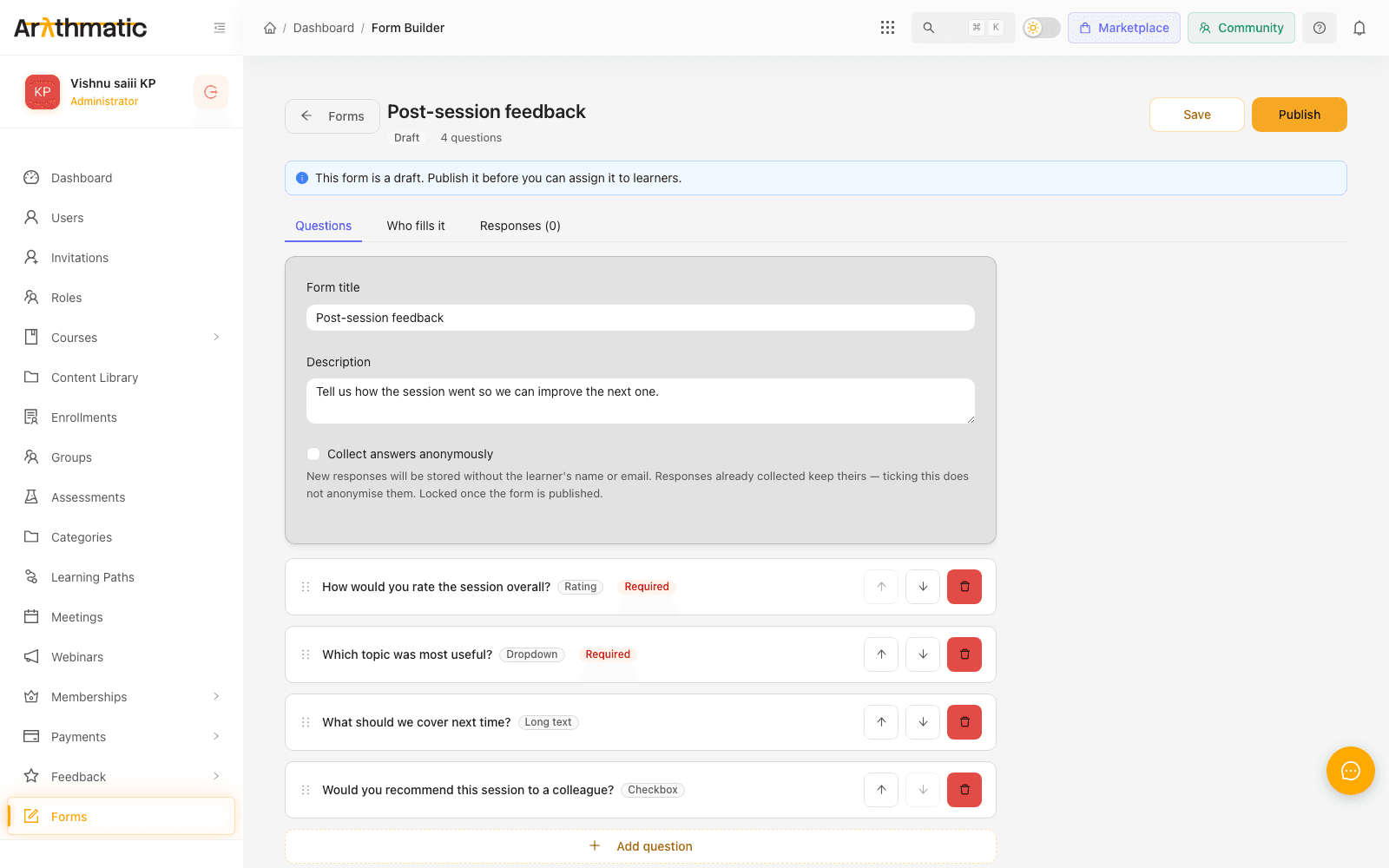
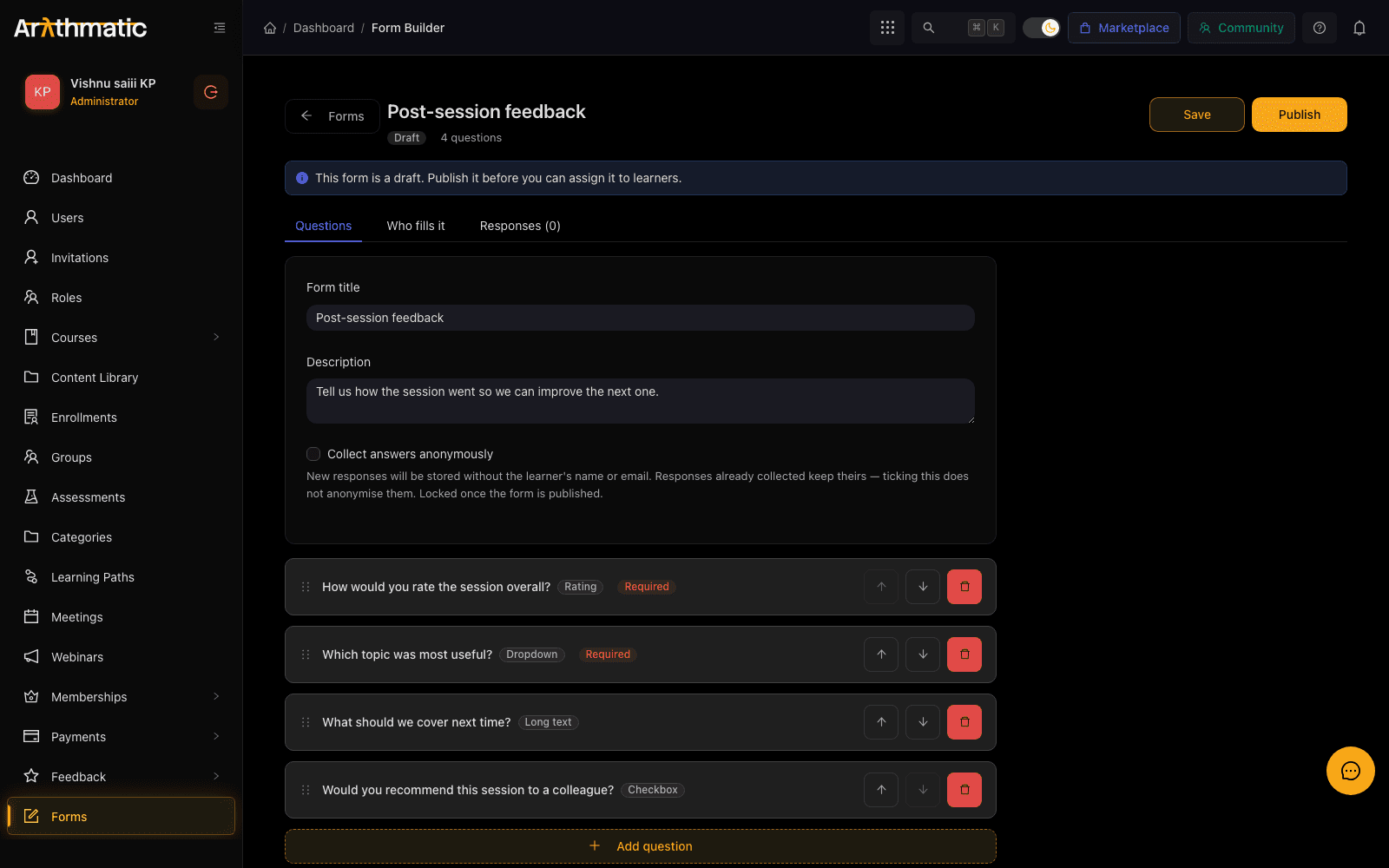
Forms are directly assignable — collect this from everyone on this course, by Friday. They are not the same thing as the form step inside a workflow, which only appears when an automation sends somebody a one-time link. Use a form here when you want to ask an audience something; use a workflow form when the question is one step of a larger automated sequence.
Building a form
Forms is a top-level item in the left-hand navigation. Click New form, give it a title and an optional description, then add your fields.
Field types
| Type | Answer | Use it for |
|---|---|---|
| Short text | One line | Names, job titles, reference numbers |
| Long text | Paragraphs | Comments, explanations |
| Number | Numeric | Years of experience, headcount |
| Validated address | A contact address that is not their login | |
| Phone | Phone number | Contact details |
| URL | Validated link | Portfolio, LinkedIn |
| Date | Calendar date | Qualification dates, availability |
| Dropdown | One from a list | Department, region |
| Single choice | One from a list, all shown | Short option sets where seeing them all matters |
| Multi-select | Several from a list | Systems used, languages spoken |
| Checkbox | Yes/no | Declarations, consent to a condition |
| Rating | A score | Satisfaction, confidence |
Each field takes a label (the question), optional help text and placeholder, and can be marked required. Dropdown, Single choice and Multi-select also take the list of options.
Field labels can be rewritten freely, but the field's underlying key is what answers are stored against and what becomes the CSV column header. Renaming a label keeps the answers lined up; deleting a field and adding a replacement does not, and existing responses will not fill the new column.
Draft, published, closed
A form has three states, and they behave differently:
| State | Learners | You |
|---|---|---|
| Draft | Cannot see it, even if assigned | Edit freely |
| Published | Can open and submit it | Collect responses |
| Closed | Cannot submit; assignments stop appearing | Read and export what you have |
Build in draft, publish when the questions are settled, and close when you no longer want answers. Closing is how you stop collection without deleting the form or the responses you already have.
Changing questions on a published form that already has responses leaves the earlier answers as they were. Those responses were given against the old wording, so a mid-flight edit gives you one dataset answering two different questions. Prefer closing the form and publishing a new one.
Assigning it to an audience
Publishing a form does not put it in front of anybody. An assignment does that, and one form can have several. Assignments live on the form's Who fills it tab.
Choose the audience:
- All learners — everybody in the workspace.
- Learners enrolled in a course — scoped to one course's enrolment.
- Members of a group — see Groups.
- Specific learners — picked individually.
- Anyone with the link — people outside your workspace, with no account needed. See Sharing a form by link.
Then set the timing:
| Setting | Effect |
|---|---|
| Opens at | Hidden from learners until this moment. Leave empty to open immediately. |
| Due at | Shown to the learner as the deadline. Leave empty for no deadline. |
| Allow late submission | On by default — after the deadline the form still accepts answers, flagged as late |
Allow late submission is on by default on purpose. A deadline that hard-blocks submission throws away an answer a learner was willing to give, and for most forms a late answer is worth more than no answer. Turn it off only when the deadline is the point — a declaration that must be made before an event, not after it.
You can deactivate an assignment to withdraw a form from one audience while leaving others running.
Sharing a form by link
Choose Anyone with the link to collect answers from people who are not learners in your workspace — event attendees, applicants, a customer survey. Save the assignment and its link appears on the Who fills it tab, ready to copy. Nobody needs an account to open it.
- Your address and your branding. The link is built on your learner portal's custom domain when you have a verified one, and the page carries your workspace's logo, font and colours. Long forms are split into pages of up to five questions.
- Opens at and Due at still apply. Before the form opens, the page says when it will and keeps the questions hidden. Once the form is closed, or its deadline has passed with late submission off, the page says so instead of taking an answer.
- Stop after caps how many submissions the link accepts, and the progress column then reads 37 of 500. Leave it empty for no limit — but an open link has no other brake, so size the cap to the audience you expect.
- Revoke link turns the link off. Answers already collected stay on the Responses tab.
If the form has Show results after submit switched on, everyone who submits through the link sees their score and every correct answer. The warning next to the link says so; on a quiz you want to reuse, leave results off.
Anonymous forms
A form can be marked Collect answers anonymously, which stores the answers with no record of who gave them. Use it where attribution would change the answer — candid feedback about a course, or about an instructor.
The setting is locked once the form is published, and it is not retrospective: ticking it later does not anonymise responses you have already collected — those keep the respondent they were saved with. Decide before you publish, because afterwards neither direction is available.
Anonymity here is real rather than a display setting: the response carries no respondent, so there is no way for anyone — including you, and including an export — to work back to the person.
That creates one problem worth understanding. With nothing to attribute, a form has no way of knowing whether you have already answered, so a double-click could submit twice and inflate the count. To handle that, an anonymous form records a separate submission receipt noting that you submitted, kept deliberately apart from the answers and with no link between the two — a marked electoral roll beside a box of unsigned ballots.
On an anonymous form, the completion count tells you how many of your audience have answered but never which of them. If you need to chase specific non-responders — a mandatory declaration, for instance — do not mark the form anonymous.
Reading the answers
Open a form and use its Responses tab, which carries a live count in the tab label.
- Summary aggregates per question — counts per option for choice fields, so you can read the shape of the answers without opening them one by one.
- Responses lists submissions individually, showing the respondent on an attributed form and late submissions flagged as such.
A response a learner has started but not sent is a draft and is not counted as submitted. Learners can come back and finish it.
Exporting to CSV
Export gives you one row per response and one column per field, using the field labels as headers. Choice fields export the option label rather than its internal value, so the file reads the way the form did.
Values that a spreadsheet would otherwise interpret as a formula are escaped on the way out, so an answer beginning with =, +, - or @ arrives as text instead of being evaluated by Excel or Google Sheets.
What learners see
Assigned forms appear in the learner's dashboard with their deadline, if one is set. A learner sees only forms that are published, assigned to them, and past their opens at time. They can save a partial answer and return to it, and once submitted the form moves out of their to-do list.
Deleting a form
Deleting a form takes it out of your Forms list and withdraws every assignment, so learners stop seeing it and its share links stop working. The responses are kept on record rather than destroyed, but a deleted form cannot be opened from the dashboard, so you can no longer read or export them there.
If you only want to stop collecting, close the form instead — it stays in your list with every answer readable and exportable. Export first if you do decide to delete.
Next
- Groups — define the audiences you assign to.
- Workflows — automated sequences, including their own form step.
- Ratings & reviews — structured course feedback, without building a form for it.
