

Webinars
Run standalone live sessions that people register for — create and publish a webinar, take registrations with or without approval, go live, and understand why a published webinar is called "scheduled".
Webinars
A webinar is a live session that stands on its own. People register for it, it has a capacity and a deadline, and it is not attached to a course or a curriculum. That is the whole difference from a live meeting, which is a session inside a course section for the learners already enrolled in it.
| Live meeting | Webinar | |
|---|---|---|
| Lives in | A course section | Its own Webinars workspace |
| Audience | Learners enrolled in that course | Anyone who registers |
| Has registration | No | Yes, with optional approval |
| Has a capacity and deadline | No | Yes |
Reach for a webinar when the session is the product — an open masterclass, a launch event, a monthly clinic. Reach for a live meeting when it is one scheduled lesson within a course somebody already bought.
Before you start
Hosting a webinar needs a host licence, which follows the Admin and Instructor roles. If you cannot see the controls to create or start one, that is why — see Meetings licensing & staff seats.
Creating a webinar
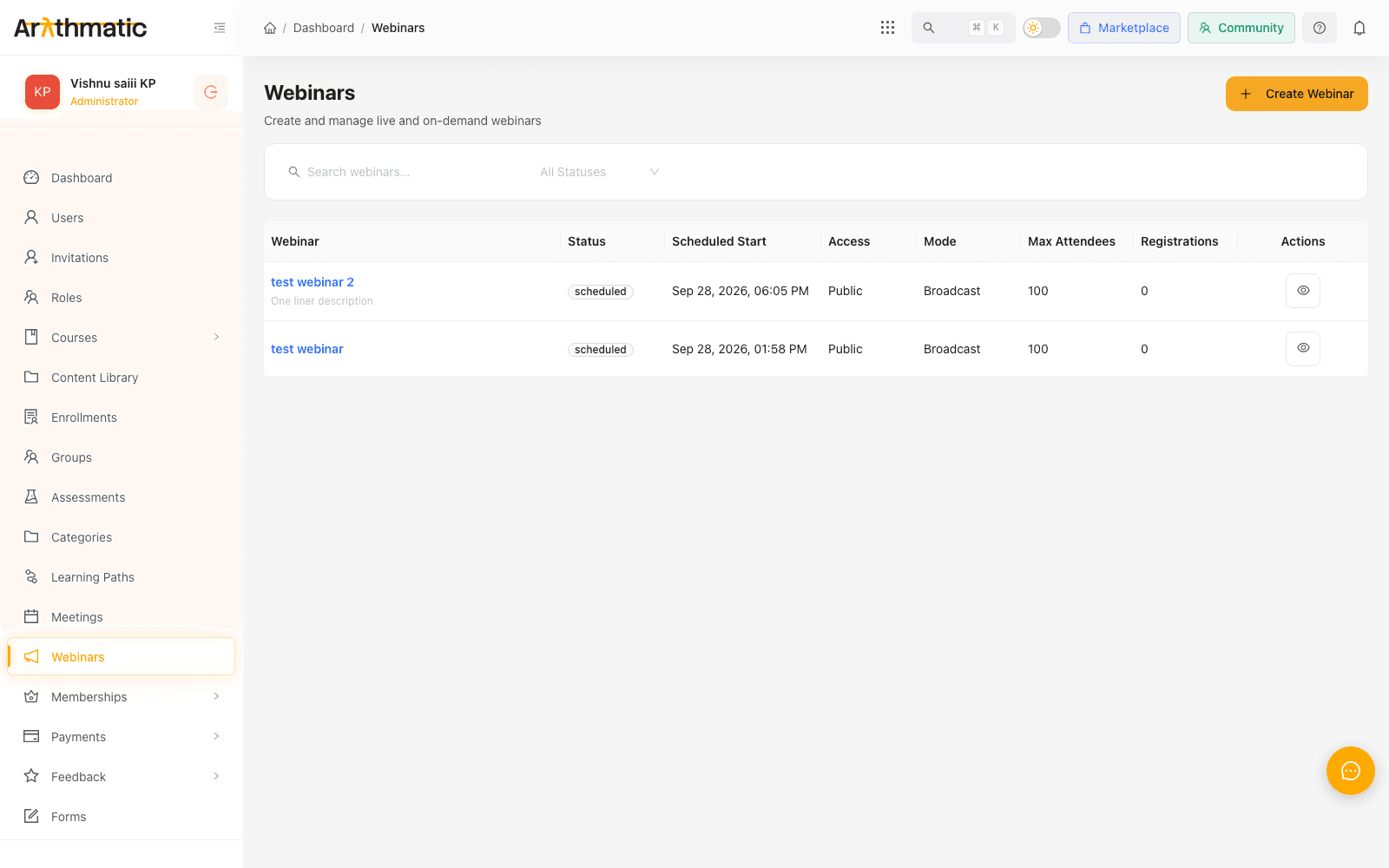
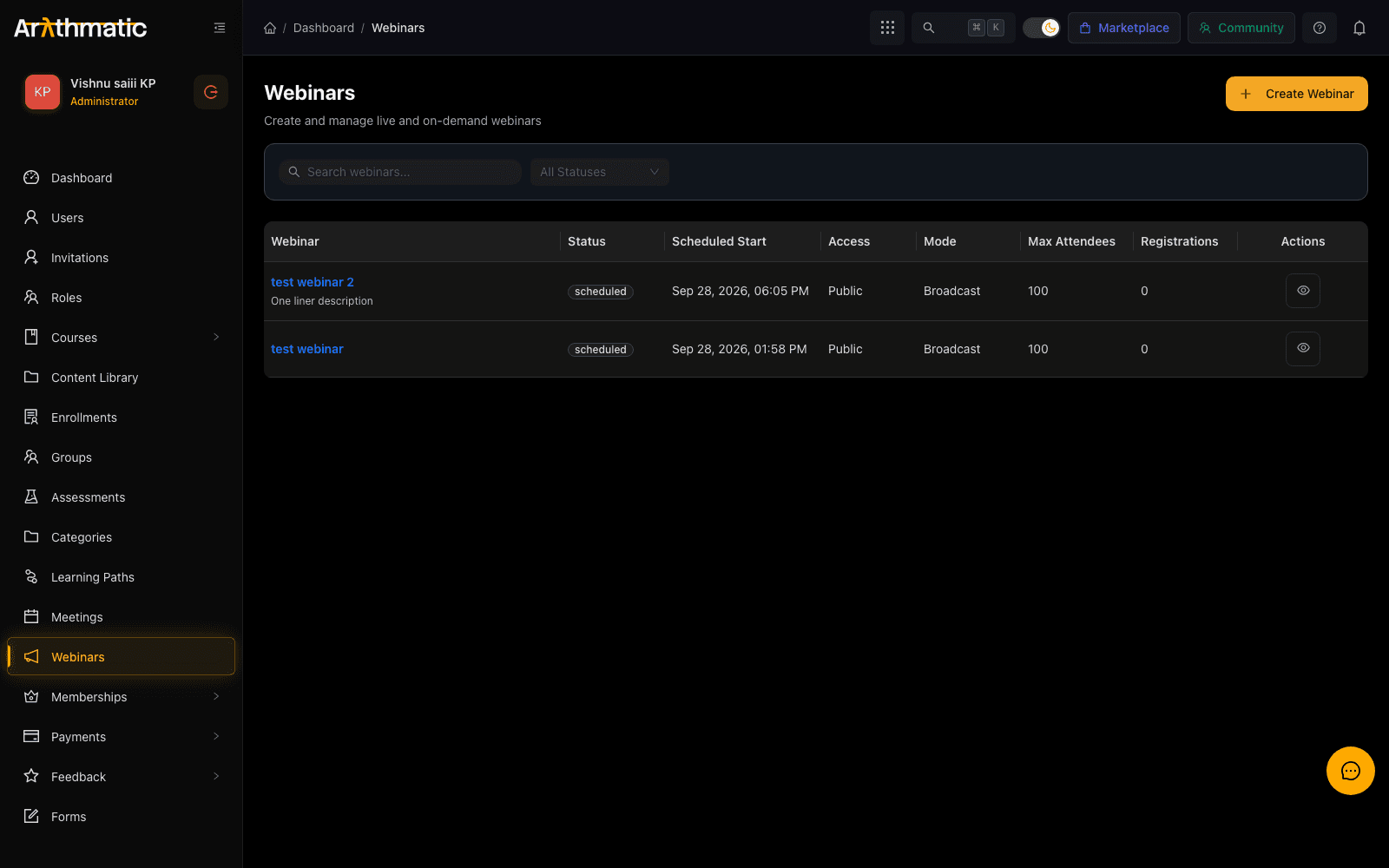
Open Webinars in the left-hand navigation and click Create Webinar.
What it is
| Field | Notes |
|---|---|
| Title | What registrants see first |
| Short description | One line, shown in listings |
| Description | The full detail on the registration page |
| Type | Single, Recurring, or On demand |
| Access | Public, Private or Paid |
| Mode | Broadcast — you present, attendees watch. Interactive — attendees can participate |
Access decides who can find it. Public webinars are the ones your learners can discover and register for themselves. Choose Broadcast for a one-to-many talk and Interactive for a workshop where people are expected to join in — it sets the expectation for attendees as much as the capability.
When it runs
| Field | Notes |
|---|---|
| Scheduled start | Date and time it begins |
| Duration (minutes) | How long you expect it to run |
| Timezone | The timezone the start time is expressed in |
| Max attendees | Capacity |
| Registration deadline | Optional. Registration closes at this moment |
Set the timezone deliberately rather than leaving whatever was prefilled. It is the timezone the start time is interpreted in, and getting it wrong moves a session by hours for every registrant — the kind of mistake nobody notices until people arrive at the wrong time.
What attendees can do
Seven switches, all independent:
- Enable registration — people must register before they can attend
- Require approval — registrations wait for you to approve them
- Enable recording — record the session
- Enable Q&A, polls, chat, hand raise — the interaction available during the session
Draft, scheduled, live, ended
A webinar moves through a lifecycle, and the naming trips people up, so it is worth stating plainly:
| Status | What it means | How it gets there |
|---|---|---|
| Draft | Only you can see it | Where every webinar starts |
| Scheduled | Visible, open for registration | You click Publish |
| Live | Running now | You click Start (Go Live) |
| Ended | Finished | It ran its course |
| Cancelled | Called off | Not from the dashboard — see Changing or withdrawing a webinar |
There is no "published" status. Publishing a webinar moves it from Draft to Scheduled — "scheduled" is the published state. If you are looking for a published webinar in a filter, or wondering why a webinar you definitely published is not in a "published" list, this is why: look for Scheduled.
So the sequence is: create it (Draft) → Publish it (Scheduled, registration opens) → Start (Go Live) when it is time (Live).
Start (Go Live) only appears on a Scheduled webinar. A draft cannot be started — publish it first — and a webinar already live has nothing left to start.
Managing registrations
Open a webinar to see everyone who has registered, with their name, email and when they signed up.
A registration is in one of three states:
| State | Meaning |
|---|---|
| Confirmed | They are in, and have their joining details |
| Pending | Waiting for your approval |
| Cancelled | Withdrawn, by them or by you |
Three actions per row:
- Approve — confirm a pending registration. Only offered while it is pending.
- Cancel — withdraw a registration.
- Resend — send the confirmation again, for the registrant who cannot find the email.
Approval
With Require approval off, a registration is confirmed immediately. With it on, every registration arrives pending and waits for you.
Turn approval on when the audience matters more than the headcount — a partner-only briefing, or a session where you want to screen registrants against your customer list. Leave it off for open sessions, where the friction costs you attendance and buys you nothing.
What learners see
A learner sees a webinar only when it is both Scheduled and Public. Drafts, private webinars and cancelled ones never reach them — that filtering happens on the server, so it holds however they reach the page.
Registering asks for their email, first and last name, and optionally company, job title and phone. Once registered they see one of:
- Registered — with a Join link when the session is live
- Awaiting approval — you have their registration and have not approved it yet
- Registration closed — the webinar has ended
- Registration not open — registration is switched off for this webinar
Changing or withdrawing a webinar
The dashboard creates, publishes, starts and deletes webinars. It does not yet edit one after it is created, or cancel one, so check the title, scheduled start and capacity before you click Publish — those are what people register against.
Delete appears only on a Draft or Cancelled webinar, so a scheduled or live session cannot be deleted out from under the people registered for it — and there is no Cancel control to get it there. If a published webinar has to move or be withdrawn, raise it from the Support page. A cancelled webinar stops appearing to learners, and its registration list is kept.
Recordings
With Enable recording on, the session is recorded and the recording is available afterwards. Recording behaviour, storage and playback are the same as for live meetings — see Live meetings.
Next
- Live meetings — scheduled sessions inside a course.
- Meetings licensing & staff seats — who is allowed to host.
- Enrolling learners — getting people into courses, as opposed to sessions.
Live Meetings
Schedule live sessions on Zoom or the built-in Arythmatic provider, attach them to course curriculum, and manage recordings from the meetings workspace.
Meetings Licensing & Staff Seats
Enable Meetings for your workspace, understand why host licences follow the Admin and Instructor roles automatically, and buy an extra staff seat when every slot on your plan is taken.
