

Scheduled Campaigns
Set up recurring email campaigns that fire automatically on a cadence you define, targeted at a specific learner audience.
Scheduled Campaigns
Scheduled campaigns let you send recurring emails without lifting a finger each time. Use them for weekly motivation nudges, monthly digests, or re-engagement outreach to learners who have gone quiet. Each schedule pairs a cadence (daily, weekly, monthly, or a custom cron expression) with an audience and a workflow that does the actual sending. Schedules run in the timezone you choose, so a "9 AM" send lands at 9 AM for your learners, not on the server.
Before you start
A schedule doesn't contain email content on its own — it fires a workflow, and that workflow sends the email. Because of this, you need a workflow whose trigger is schedule.fired before you can create a schedule. If the Workflow dropdown is empty, you'll see a prompt to Create a workflow first — build one in the workflow builder with the schedule.fired trigger, then return here.
Design the workflow and its email template first, confirm they work with a manual test, then attach the schedule. The schedule only controls when and to whom — the workflow controls what gets sent.
Create a schedule
- Open the Scheduled Workflows page under the Automation menu (Automation → Scheduled Workflows).
- Click Create Schedule (or Create Your First Schedule on the empty-state banner).
- Fill in the Basics, Schedule, and Audience sections described below.
- Review the Next fire preview near the bottom of the form, then click OK to save.
Basics
| Field | What it does |
|---|---|
| Name | A label for the schedule, shown in the table (for example, Weekly Motivation). |
| Workflow | The schedule.fired workflow that runs each time the schedule fires. |
Schedule (cadence)
Pick a Frequency, and Arythmatic builds the underlying cron expression for you:
| Frequency | What you set |
|---|---|
| Daily | A single send Time. |
| Weekly | One or more Day(s) of Week plus a Time. |
| Monthly | A Day of Month (1–31) plus a Time. |
| Custom | A raw 5-field Cron Expression (minute hour day month weekday), for example 0 9 * * 1. |
Then choose a Timezone (searchable) — the cadence is interpreted in this timezone. You can optionally set a Start Date and End Date to bound when the schedule is allowed to run. As you edit, a Next fire line previews the next scheduled send in plain language.
A Custom cron expression must have exactly five fields. If it doesn't, saving fails with a validation error. When in doubt, use one of the Daily, Weekly, or Monthly presets and let Arythmatic write the cron for you.
Audience
Choose an Audience Type to control who receives the campaign:
| Audience Type | Recipients |
|---|---|
| All Active Learners | Every active user who holds the learner role in the workspace. |
| Group | Members of a selected Group. |
| Course Enrollees | Learners enrolled in a selected course, excluding anyone whose enrollment is dropped or suspended. |
| Learning Path Enrollees | Learners enrolled in a selected learning path, excluding anyone whose enrollment is dropped or suspended. |
| Inactive Learners | Learners whose last login was more than a set number of Days Inactive ago — ideal for re-engagement. |
For Group, Course Enrollees, and Learning Path Enrollees, a follow-up selector appears so you can pick the specific Group, course, or path. For Inactive Learners, enter the number of days of inactivity that qualifies a learner.
Two audiences — All Active Learners and Inactive Learners — are built from your tenant's active role literally named learner. If your workspace renamed or removed that role, both audiences resolve to zero recipients: the campaign still fires on schedule but reaches nobody, with no error surfaced (only a warning in the logs). "Inactive" is measured by last login date, not general course or lesson activity — a learner who has been studying without signing out again may still count as inactive. Use Preview Audience when editing to confirm the recipient count before relying on either audience.
When editing an existing schedule, use Preview Audience to see the recipient count and a sample of matched learners before you commit — a quick sanity check that your filter isn't too broad or too narrow.
Manage existing schedules
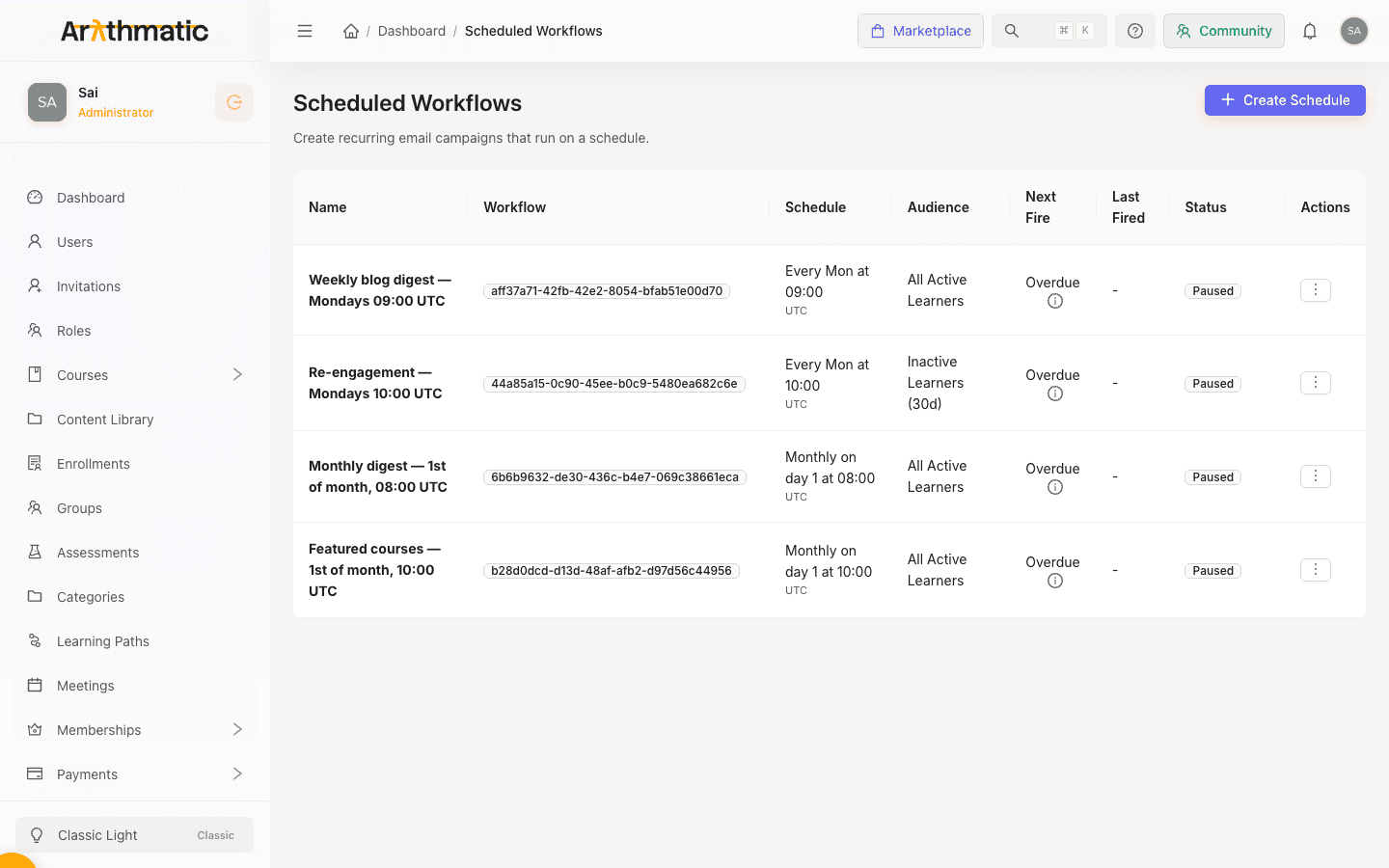
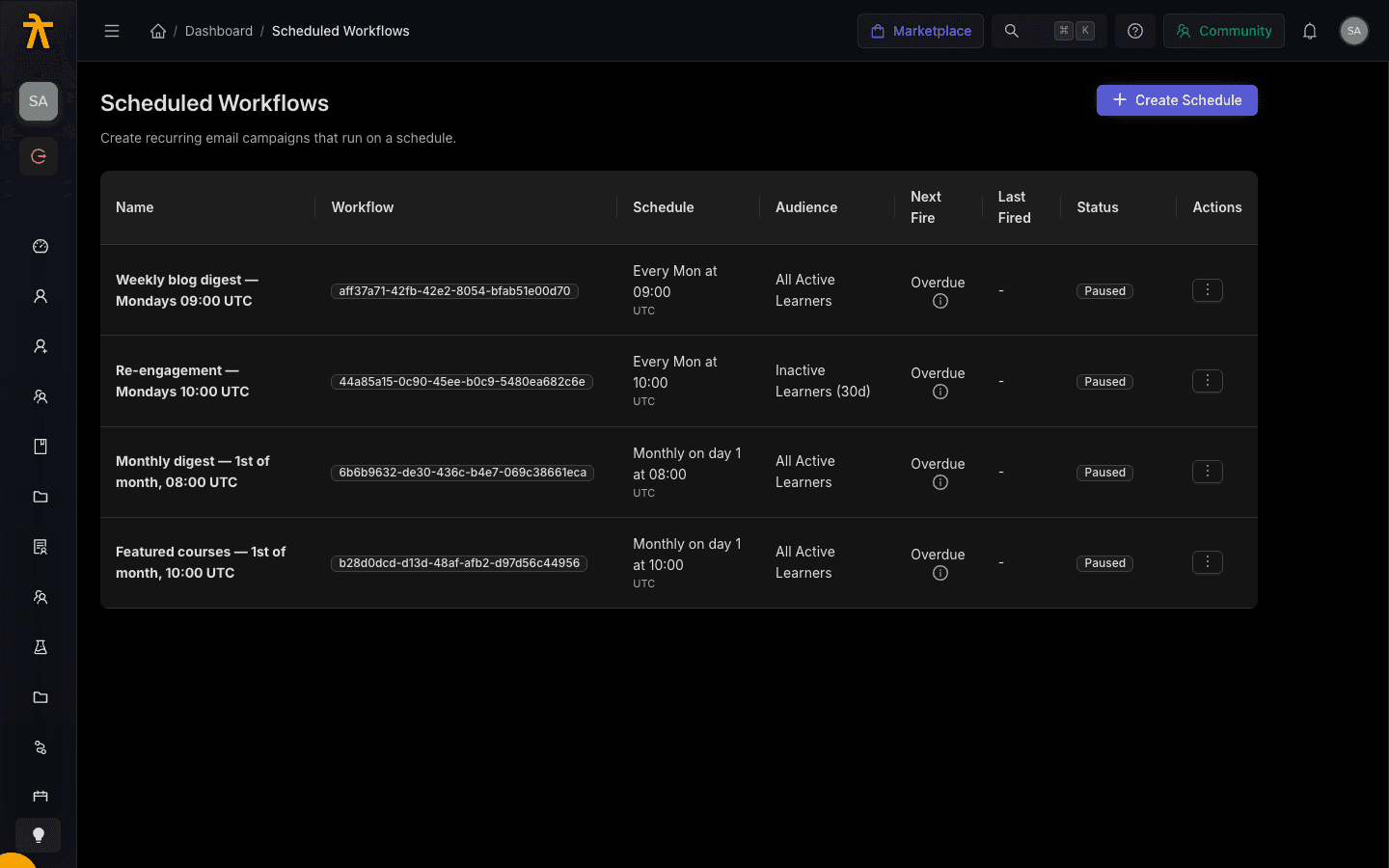
Each row in the Scheduled Workflows table shows the cadence (hover to see the raw cron), timezone, audience, Next Fire time, Last Fired time, and a status of Active, Paused, or Expired. Open the actions menu on any row to:
- Pause / Resume — stop or restart automatic firing without deleting the schedule.
- Run Now — fire the campaign immediately. A confirmation dialog shows how many recipients will receive it before you proceed.
- Edit — change the name, cadence, timezone, dates, or audience.
- Delete — remove the schedule permanently.
Run Now sends to the current audience right away, outside the normal cadence. Confirm the recipient count in the dialog before firing to avoid an unintended blast. A schedule past its End Date shows as Expired and will not fire again until you extend the date.
What happens if a fire is missed
Schedules use a fire-once-on-resume policy. Each scan fires any schedule whose next send time has already passed, then advances it to the next future slot in its cadence. If the system was unavailable across several due times, the schedule fires exactly once on the next successful scan and skips ahead — past misses are not backfilled or replayed.
Don't expect catch-up sends: a daily digest that missed a day sends one digest when firing resumes, not two. Likewise, a single missed window is not a permanent gap — the schedule simply fires again at its next slot. Schedules also honor Start Date and End Date, so a schedule outside those bounds never fires.
Related
Email Sending Setup
Connect your own email provider and verify a sender identity so transactional and campaign email is delivered from your domain.
Email Suppressions
Manage the per-tenant suppression list that blocks emails to unsubscribed, bounced, or complaining recipients to protect your sender reputation.
