

Audit Log
Review every system activity, security event, and compliance action across your workspace from one searchable timeline.
Audit Log
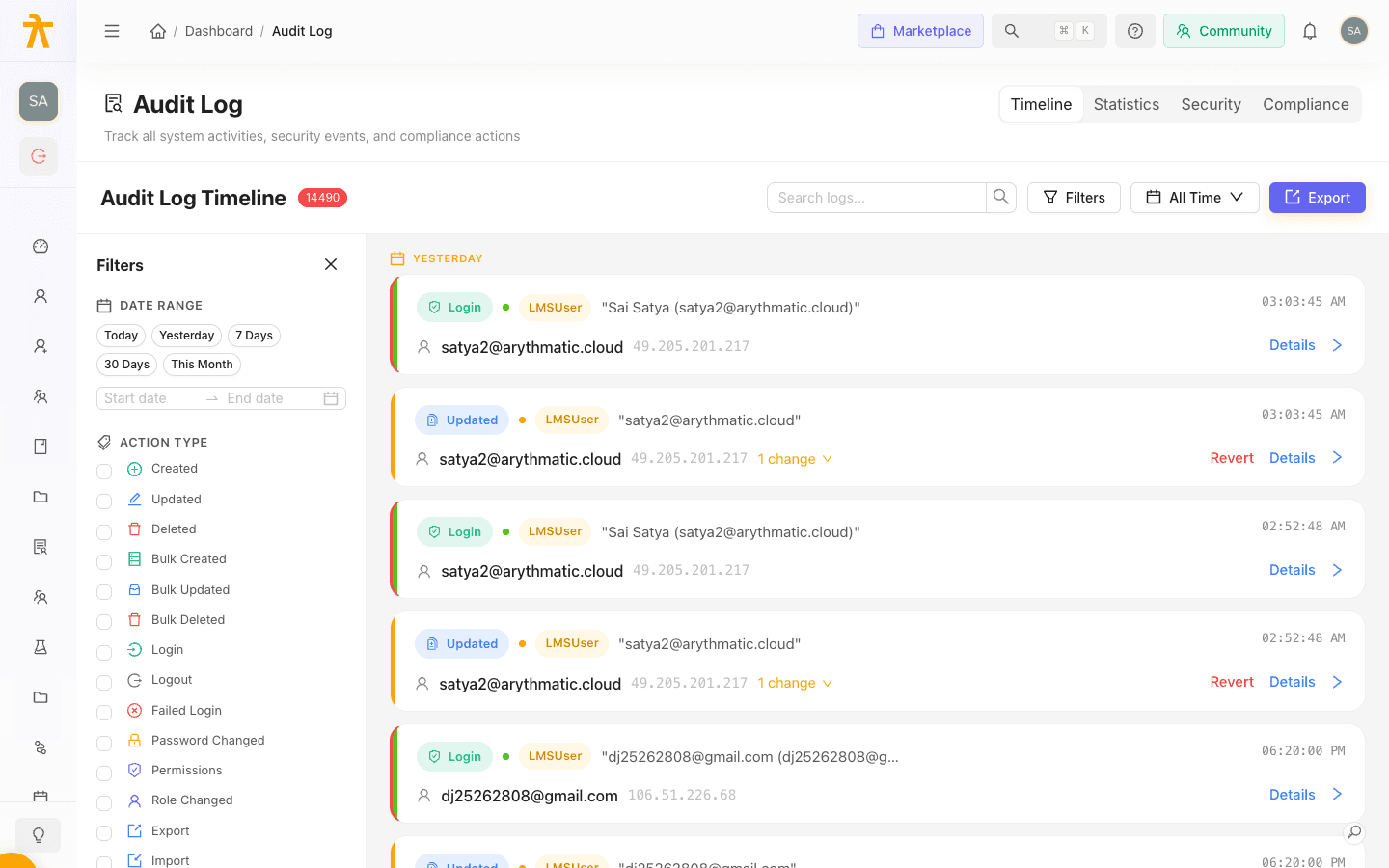
The Audit Log is the tamper-evident record of what happened in your workspace, who did it, and when. Every create, update, delete, login, export, and permission change is captured with the actor, IP address, timestamp, and the exact fields that changed. Use it to investigate an incident, satisfy an auditor, or simply understand recent activity. The page is organized into four tabs — Timeline, Statistics, Security, and Compliance — reachable from the segmented control in the top-right corner.
Timeline
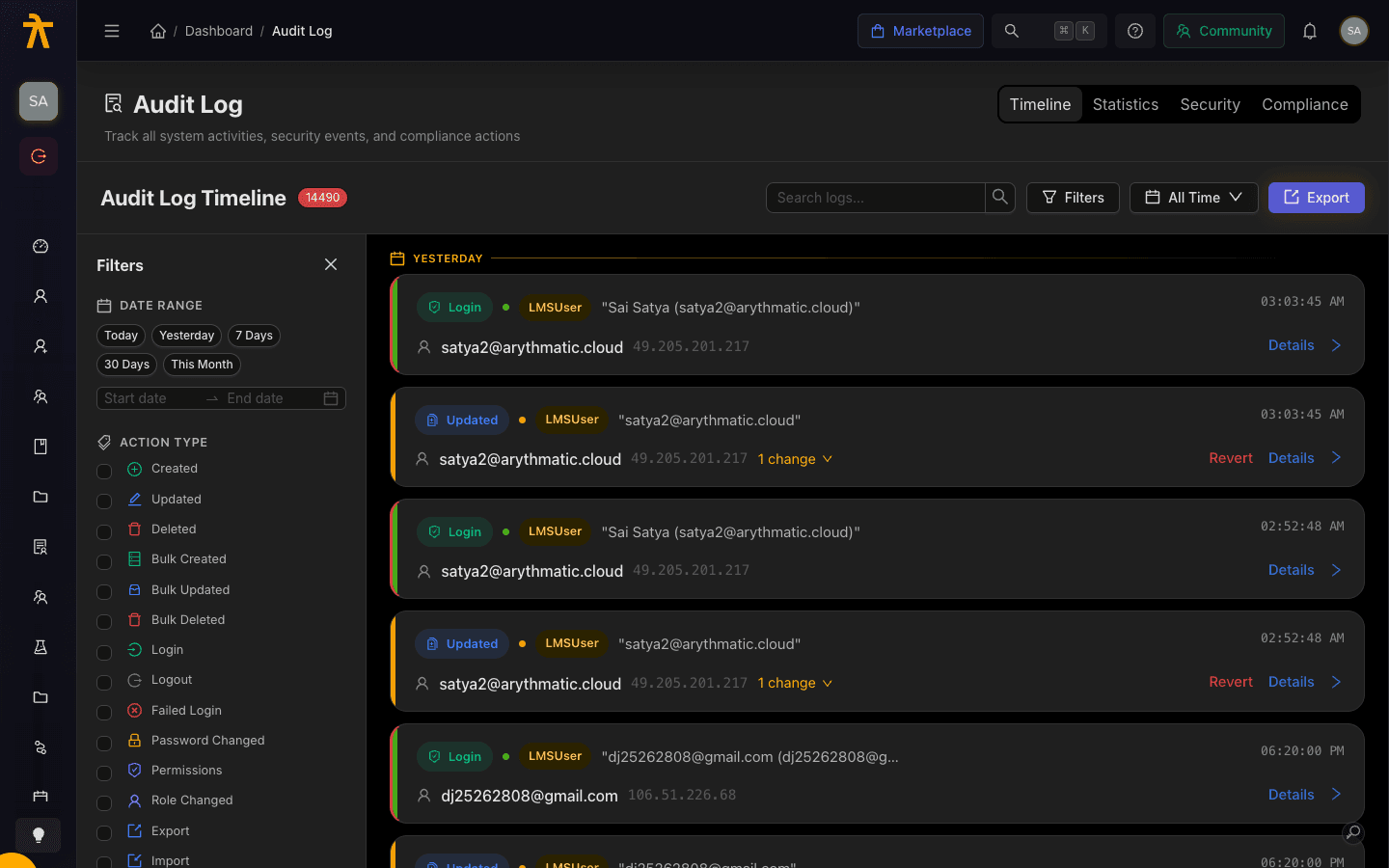
The Timeline tab lists activity newest-first, grouped under date separators, with a running total badge next to the Audit Log Timeline heading. Each card shows the action, the person who performed it, the affected entity, and a severity indicator. Scroll to load more — entries page in automatically as you reach the bottom, and an All logs loaded marker appears when you reach the end.
Search and quick dates
- Type in the Search logs... box and press Enter to match across entries.
- Use the calendar dropdown to jump to Today, Yesterday, Last 7 Days, Last 30 Days, or This Month.
- Click Filters to open the sidebar for finer control.
Filtering
The filter sidebar narrows the timeline across several dimensions:
| Filter | What it does |
|---|---|
| Date Range | Quick presets or a custom start/end range picker. |
| Action Type | Checkboxes for actions such as Created, Updated, Deleted, Login, Failed Login, Export, and Role Changed. |
| Severity | Low, Medium, High, or Critical. |
| Entity Type | Multi-select of the object types present in your data. |
| User | Filter by the performer's email. |
| IP Address | Filter by originating IP. |
| Sensitive Data | Show only entries touching sensitive data. |
| Compliance Relevant | Show only compliance-flagged actions. |
| Bulk Operations Only | Show only bulk actions. |
| Revertable Only | Show only actions that can be undone. |
| Compliance Tags | GDPR, HIPAA, SOC2, or ISO 27001. |
Use Clear All Filters to reset. Keyboard shortcuts speed this up: f toggles filters, t / w / m set Today / Last 7 days / Last 30 days, c clears, and r refreshes.
Inspecting and reverting an entry
Click any card to open its detail dialog. It shows the performer, timestamp, IP address, entity name and ID, session and request details, compliance tags, a list of Related Entities, an expandable Additional Metadata section with the raw JSON, and a Field Changes diff of old and new values. A Copy Log action copies the full entry to your clipboard. Where an action supports it, you can revert it and record a reason; reverted entries are marked with a Reverted badge and note who reverted them and why.
Reverting is reserved for Arythmatic platform staff (superusers). A workspace Admin can open any entry and see the Revertable flag, but attempting the revert returns "Only superusers can revert actions." If you need an action undone, raise it with Arythmatic support rather than expecting to revert it yourself. When a revert does run, it undoes the recorded change on the underlying record and is itself logged.
Statistics
The Statistics tab summarizes activity over a selectable window (7, 14, 30, 60, or 90 days). Four headline cards show Total Logs, Sensitive Access, Critical Events, and Reverted Actions. Below them:
- Top Actions — the most frequent action types as proportional bars.
- Severity Distribution — how activity breaks down across Low through Critical.
- Most Active Users — a table of users by action count.
- Top IP Addresses — a table of IPs with action counts and unique-user counts.
- Entities Modified — chips counting activity per entity type.
- Bulk Operations — operation count and total records affected.
Use the day selector and Refresh to update the view.
Security
The Security tab focuses on authentication and risk signals. Summary cards show Total Security Events, Critical Events, Failed Logins, and Unique IPs for the reporting period. Below that, a Security Event Logs list shows each event's time, action, user, and IP, color-coded by severity so critical items stand out. This is the fastest place to spot a burst of failed logins or activity from an unfamiliar address.
A cluster of Failed Login events from one IP, or logins from an unexpected location, is worth investigating alongside your roles and permissions settings.
Compliance
The Compliance tab generates an on-demand report you can scope to a framework — GDPR, HIPAA, SOC2, or ISO 27001 — or run across all activity. The report header records when it was generated and the period it covers. It summarizes Total Actions, Sensitive Actions, Compliance Relevant actions, Critical Actions, and Failed Operations, then breaks down Data Operations (accesses, exports, downloads, modifications, deletions), Activity Metrics (active users, unique entities accessed), and a per-entity breakdown table with sensitive counts. Choose a framework, click Generate Report, and export the underlying entries as CSV or JSON from the Timeline tab when you need to hand evidence to an auditor.
Exporting
From the Timeline tab, use the Export button to download the currently filtered entries as CSV or JSON. Apply your filters and date range first so the export contains exactly the records you need.
Who can see this
The Audit Log — and every one of its tabs, exports, and reports — is restricted to workspace Administrators. Instructors and learners cannot open it. Each workspace only ever sees its own activity: entries are scoped to your tenant, so one customer's audit trail is never visible to another. (Arythmatic platform staff can see across tenants for support, but no tenant admin can.)
Retention
The audit log is not kept forever. A cleanup routine makes older entries eligible for deletion once either condition is met:
- The entry's retention window (
retention_until) has passed, or - The entry is older than the age threshold (365 days by default) and is not flagged Compliance Relevant.
Compliance-relevant entries are retained past the age threshold; ordinary events are not. That means an auditor querying well beyond the retention window may find that routine, non-compliance activity has aged out, while compliance-flagged actions remain.
If you need a permanent copy of activity for a period, Export it to CSV or JSON from the Timeline tab before it ages out — exported files are yours to keep regardless of the retention window.
