

Your Account
Manage your own account in Arythmatic — edit your profile, set personal preferences for theme, language and notifications, and review the devices where you're signed in.
Your Account
Every person who signs in to Arythmatic has an account they control. From the settings area you can update your personal details, tune how the interface looks and behaves, choose which notifications reach you, and keep an eye on the sessions and devices where you're currently signed in. This page walks through each of those areas and calls out the parts that are read-only or still in progress.
Your Profile
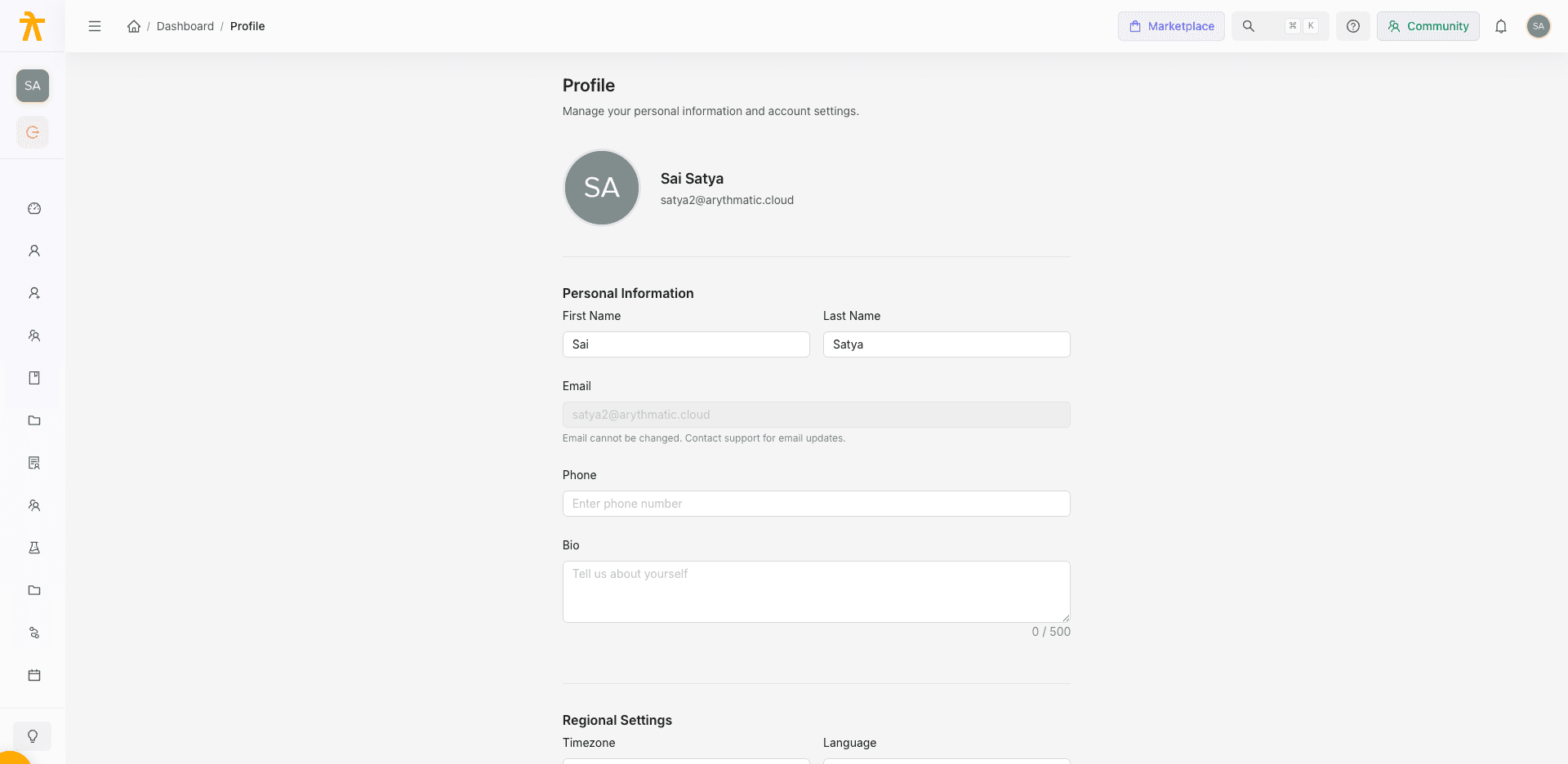
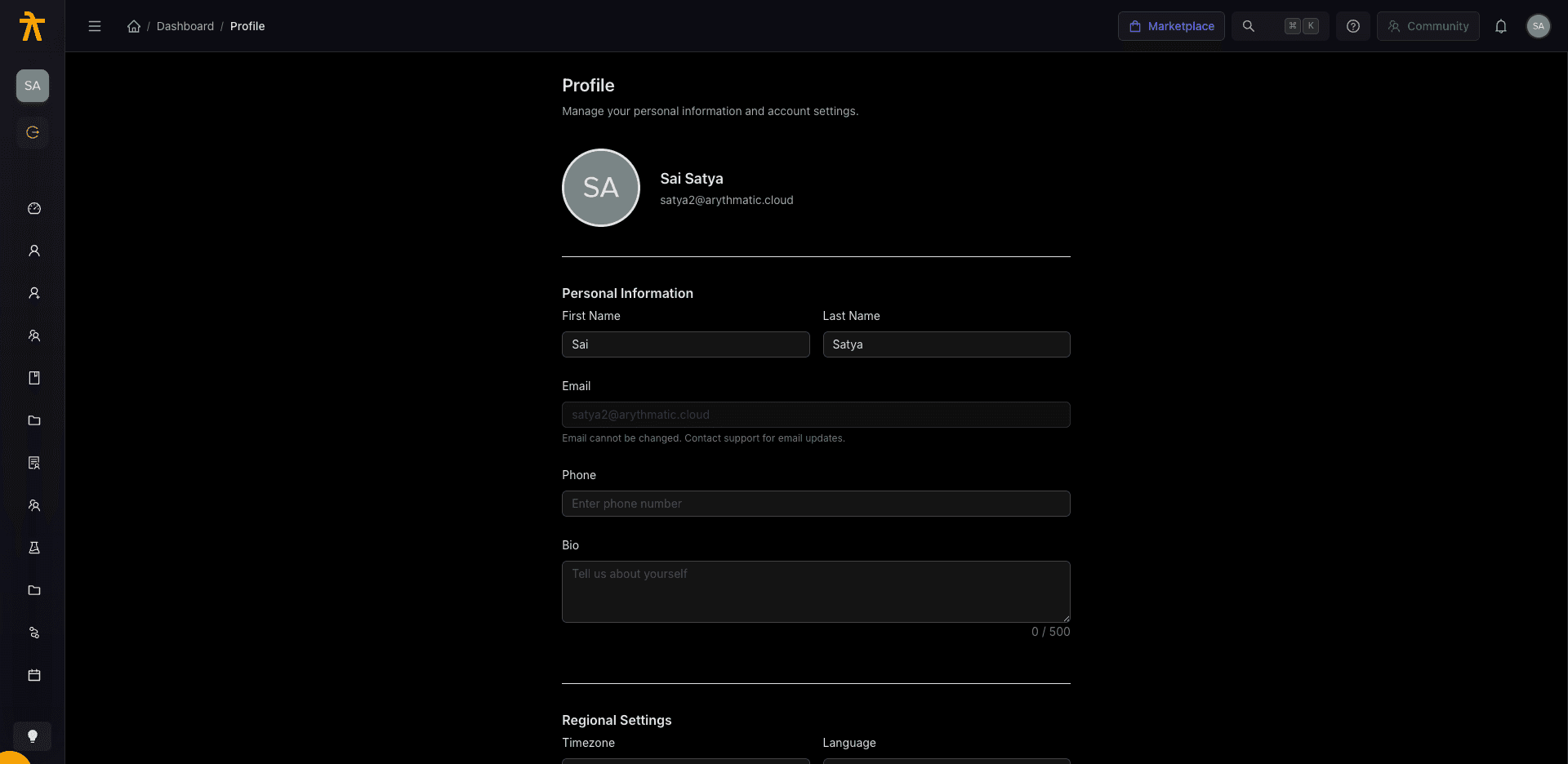
The Profile page (Manage your personal information and account settings.) is where you edit the details other people see and the account fields tied to you.
Avatar
At the top of the page your avatar appears next to your name and email. Hovering the image reveals a Change overlay. Selecting it currently shows an "Avatar upload coming soon" message — avatar uploading is a placeholder and is not yet wired up, so the picture shown is whatever profile image is already on your account.
Changing your avatar isn't available yet. The Change overlay is present, but choosing it only surfaces a "coming soon" notice.
Personal information
The Personal Information section holds the core account fields:
| Field | Editable? | Notes |
|---|---|---|
| First Name | Yes | Required — you can't save with it blank. |
| Last Name | Yes | Required — you can't save with it blank. |
| No | Read-only. The hint reads "Email cannot be changed. Contact support for email updates." | |
| Phone | Yes | Optional phone number. |
| Bio | Yes | Free-text, up to 500 characters, with a live character count. |
Only First Name and Last Name are validated as required; if either is empty when you press Save Changes, an inline error appears and the save is blocked.
Regional settings
The Regional Settings section carries two dropdowns:
- Timezone — a searchable list built from your browser's supported time zones.
- Language — one of English, Spanish, French, or German.
Saving and resetting
Two buttons sit at the bottom of the form:
- Save Changes — validates the required fields, then writes your first name, last name, phone, bio, timezone and language back to your account. A success message confirms the update.
- Reset — reloads the form from your saved account values and clears any validation errors, discarding unsaved edits.
Because email is locked, treat it as your stable identity for the account. If you genuinely need it changed, reach out to support as the field hint suggests.
Changing your password
The Change Password section doesn't ask for a new password inline. Instead, pressing Send Password Reset Email sends a reset link to your account email. The page tells you plainly: "We'll send a password reset link to [your email]. Follow the link to set a new password." Open the email, follow the link, and set the new password there.
User Preferences
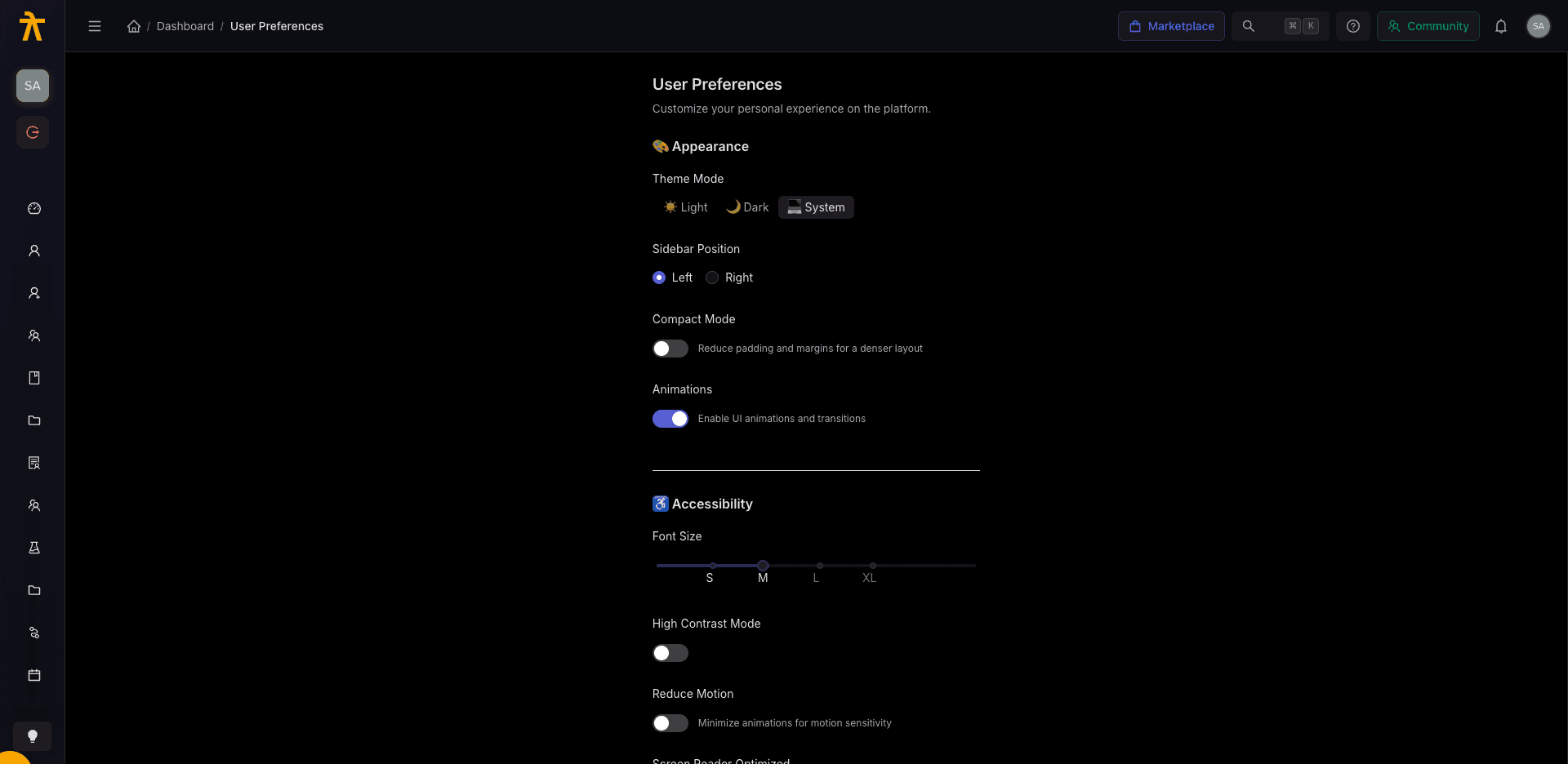
The User Preferences page (Customize your personal experience on the platform.) collects the personal, interface-level settings that shape how Arythmatic looks and feels for you.
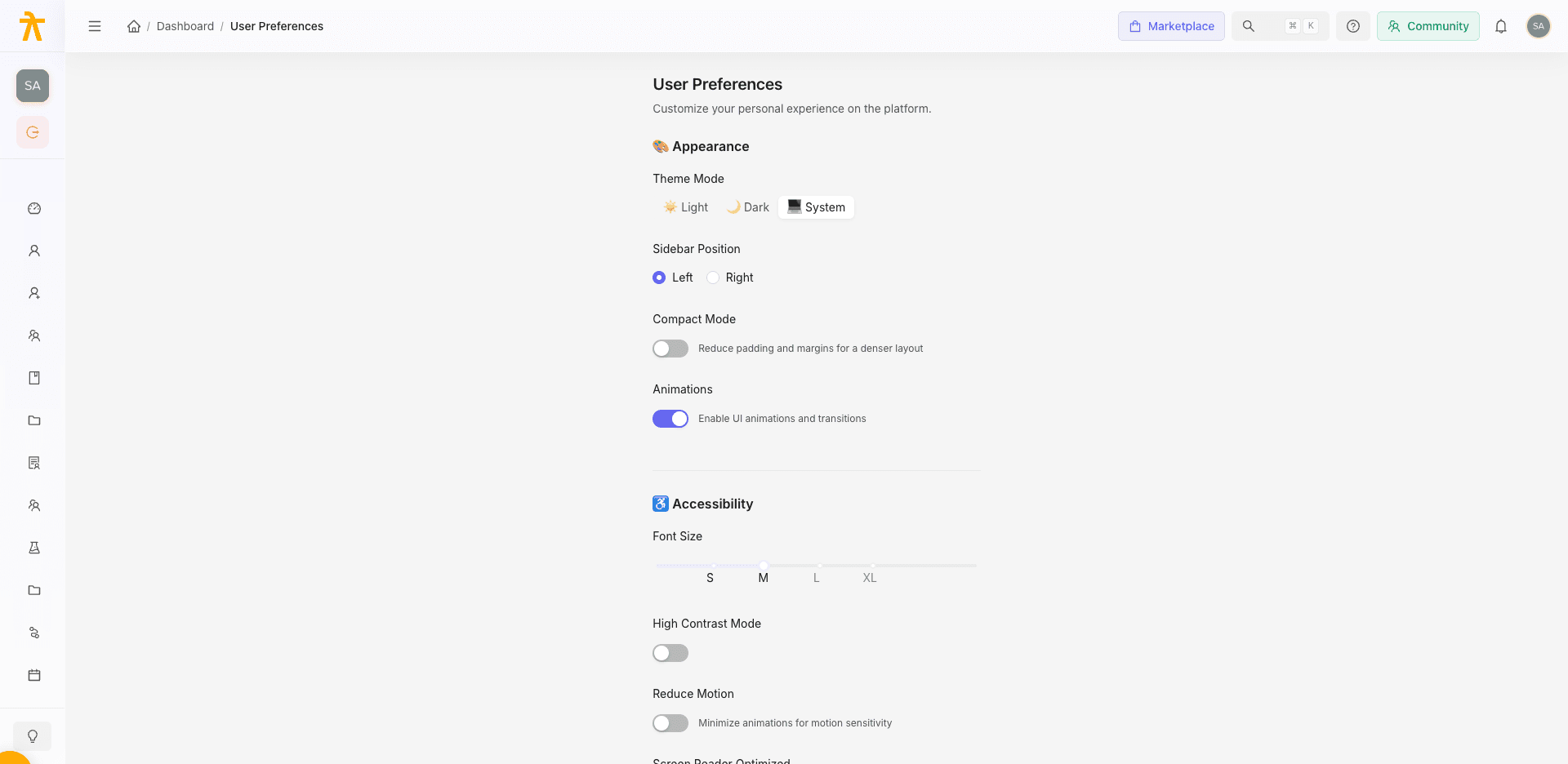
The settings are grouped into sections:
- Appearance — Theme Mode (Light, Dark, or System), Sidebar Position (Left or Right), Compact Mode (denser layout with reduced padding), and Animations (toggle UI animations and transitions).
- Accessibility — Font Size (a slider from 12 to 24, with S/M/L/XL marks), High Contrast Mode, Reduce Motion (minimize animations for motion sensitivity), and Screen Reader Optimized.
- Notifications — Desktop Notifications, Sound Notifications, and Notification Sound (Default, Chime, Ping, or None; the sound picker is disabled unless sound notifications are on).
- Language & Region — Language (English, Spanish, French, German), Date Format (
MM/DD/YYYY,DD/MM/YYYY,YYYY-MM-DD), and Time Format (12-hour or 24-hour). - Dashboard — Default Dashboard View (Overview, Analytics, Courses, Students), Items Per Page (10, 25, 50, 100), and Auto-refresh Dashboard.
Press Save Preferences to store your choices, or Reset to Defaults to return every option to its starting value (System theme, left sidebar, 16px font, and so on).
User Preferences are saved to your browser's local storage, not to your account on the server. That means the preferences you set live on the device and browser you set them in, and won't automatically follow you to another machine.
Notification preferences (channels and events)
A dedicated Notification Preferences panel goes a level deeper than the on/off toggles above (Configure how and when notifications are sent.). It's organized by channel:
- Email, Browser Push, and Slack each have a master switch.
- When a channel is enabled, you can pick which events it delivers — for example Course Enrollment, Course Completion, Payment Received, New Review, and Support Request — via per-event checkboxes.
- Email Digest lets you choose No digest, Daily, or Weekly; a Daily digest adds a "Send at" time.
- Quiet Hours can be enabled with a From and To time to suppress notifications during those hours.
Slack ships switched off by default. Turn on the Slack channel and pick its events if you'd rather get notified there than by email.
Active Sessions
The Session Security page lets you manage your active sessions and monitor where you're signed in across all devices. It's your window into every place your account is currently authenticated.
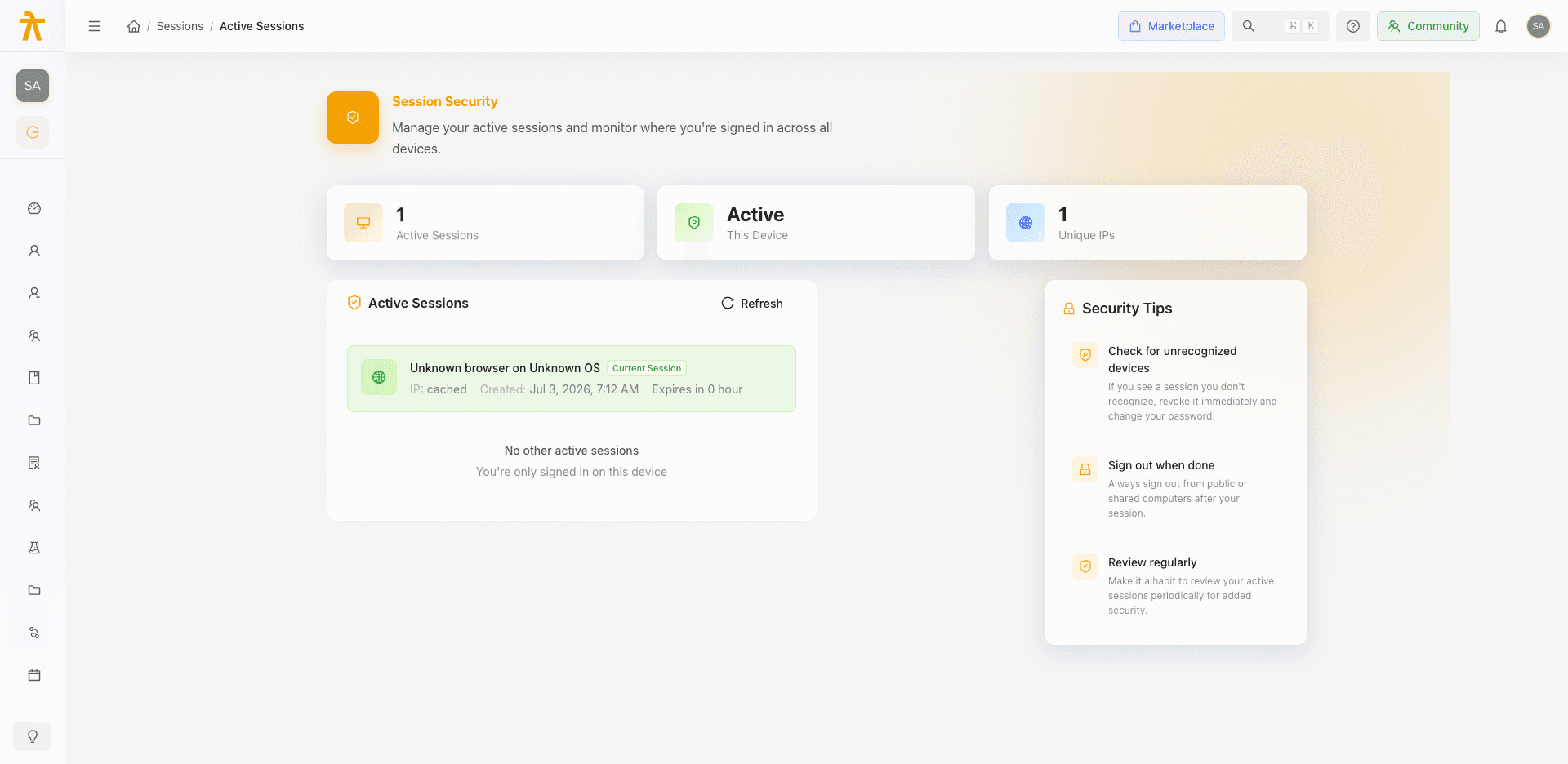
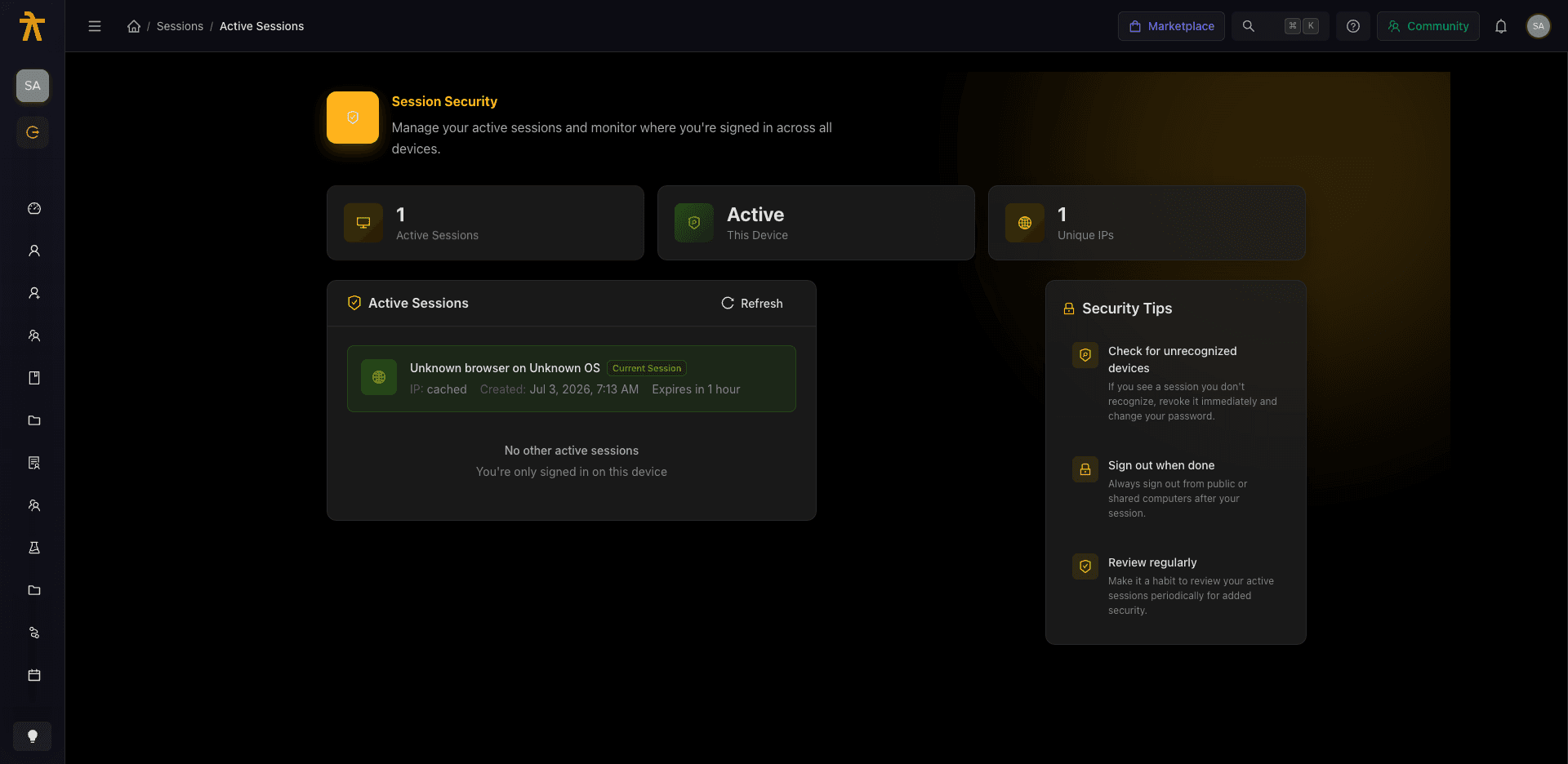
At the top, three stat cards summarize your footprint:
| Stat | Meaning |
|---|---|
| Active Sessions | The total number of sessions currently signed in. |
| This Device | Shows Active when the current device has a live session. |
| Unique IPs | The count of distinct IP addresses across your sessions. |
Below the stats, the Session Manager lists your individual sessions so you can spot anything unfamiliar and sign it out. Each row shows an Expires in N days value — this is the session's refresh-token expiry. Every session is backed by a short-lived access token (1 hour, refreshed silently in the background) and a 7-day refresh token that acts as a hard cap: after 7 days that device must sign in again regardless of activity. The list shows only your 10 most recently created active sessions, newest first.
Each session has a Revoke action, and when you have other devices signed in a Sign Out All Other Devices button appears — it revokes every session except the one you're using right now in a single click. Revocation takes effect immediately: the affected device's tokens are added to a server-side blacklist and blocked on their very next request, rather than lingering until the token would have expired. This is the primary security-response tool after a suspected compromise.
A Security Tips sidebar reinforces the workflow:
- Check for unrecognized devices — "If you see a session you don't recognize, revoke it immediately and change your password."
- Sign out when done — "Always sign out from public or shared computers after your session."
- Review regularly — "Make it a habit to review your active sessions periodically for added security."
You can be signed in on up to 3 devices at once. Signing in on a 4th device automatically revokes your oldest session — that device is quietly logged out on its next request, with no warning. If a device you didn't expect gets signed out, this concurrent-session limit is the usual cause, not a security incident.
If a session looks unfamiliar, revoke it right away and then change your password (using Send Password Reset Email on your Profile). An unrecognized session can mean someone else has access to your account.
