Roles and Permissions
Arythmatic uses four roles to control what users can see and do. Roles apply at the workspace level and are enforced by the backend — the manage dashboard hides menu items based on role, but the API independently verifies permissions on every request.
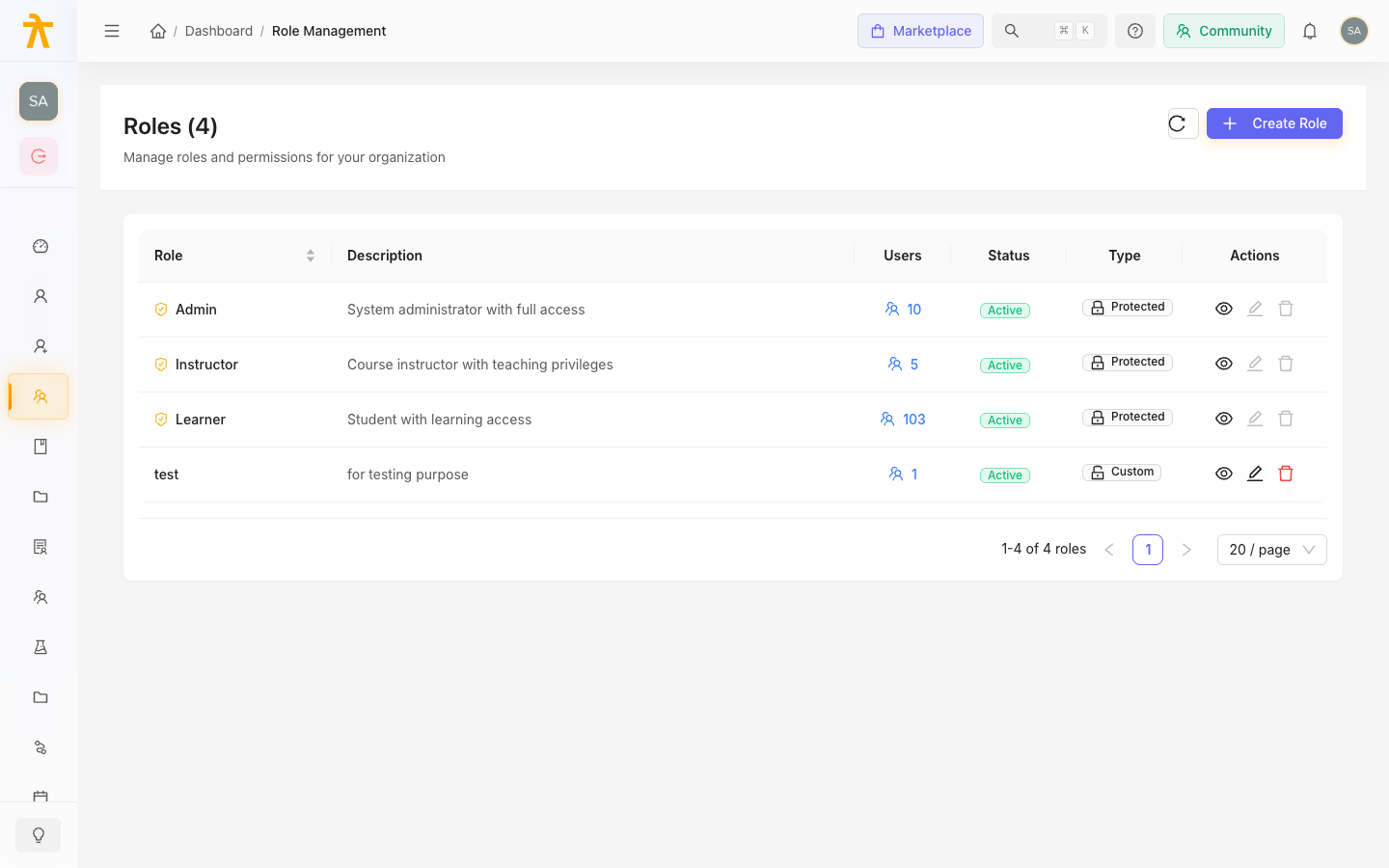
A single user can hold more than one role. When a user has multiple roles, the manage dashboard shows a Role Switcher in the header so they can change their active context without logging out.
The Four Roles
Admin
The Admin role has full access to the workspace. Admins can configure all settings, manage all users, create and publish all content, and access all analytics and billing information.
Assign the Admin role to:
- Workspace owners and L&D managers
- Operations staff who manage the platform day-to-day
- Anyone who needs to configure workspace-level settings, billing, or branding
GroupAdmin
The GroupAdmin role is designed for organizations that run schools or departments within a single workspace. A GroupAdmin manages their own school or group — they can add and remove learners, assign courses to their group, and view analytics for their group. They cannot access workspace-wide settings, billing, or content outside their group.
Assign the GroupAdmin role to:
- Department heads or school administrators in a multi-department setup
- External partners or franchise owners who manage their own learner cohort
- Team leads who need self-service enrollment control within a bounded scope
Instructor
The Instructor role is for content creators and course facilitators. Instructors can create and edit courses, build assessments, manage enrollments for courses they own, schedule meetings, and view analytics for their courses. They cannot access billing, workspace settings, or courses owned by other instructors (unless granted explicit access).
Assign the Instructor role to:
- Subject-matter experts who build and maintain course content
- Facilitators who run live sessions or batch cohorts
- Staff who manage learner progress and completions for specific courses
Learner
The Learner role is for end users who consume content. Learners access the learner portal (not the manage dashboard), can enroll in courses, complete assessments, earn badges and certificates, and track their own progress. They have no administrative access.
Assign the Learner role to:
- Employees, customers, or students who take courses
- Anyone who should only consume content, not manage it
Permissions Reference
The table below shows which actions each role can perform. "Yes" means full access; "Own" means the role can only act on resources they created or are assigned to; "—" means no access.
Workspace and Settings
| Action | Admin | GroupAdmin | Instructor | Learner |
|---|---|---|---|---|
| View workspace settings | Yes | — | — | — |
| Edit workspace settings | Yes | — | — | — |
| Manage branding and themes | Yes | — | — | — |
| View audit log | Yes | — | — | — |
| Manage billing and subscription | Yes | — | — | — |
| View billing and plan status | Yes | — | — | — |
| Manage webhooks and integrations | Yes | — | — | — |
Users and Roles
| Action | Admin | GroupAdmin | Instructor | Learner |
|---|---|---|---|---|
| Invite net-new workspace users | Yes | — | — | — |
| Add existing workspace users to own group | Yes | Yes | — | — |
| Assign roles to users | Yes | — | — | — |
| Deactivate or remove users | Yes | Own group | — | — |
| View all users | Yes | Own group | — | — |
| View own profile | Yes | Yes | Yes | Yes |
| Edit own profile | Yes | Yes | Yes | Yes |
Schools and Groups
| Action | Admin | GroupAdmin | Instructor | Learner |
|---|---|---|---|---|
| Create and manage schools | Yes | — | — | — |
| Manage own school | Yes | Yes | — | — |
| Create groups within a school | Yes | Yes | — | — |
| Add/remove learners from groups | Yes | Yes | — | — |
| Assign courses to groups | Yes | Yes | — | — |
| View group analytics | Yes | Yes | — | — |
Courses and Content
| Action | Admin | GroupAdmin | Instructor | Learner |
|---|---|---|---|---|
| Create and publish courses | Yes | — | Yes | — |
| Edit any course | Yes | — | — | — |
| Edit own courses | Yes | — | Yes | — |
| Delete courses | Yes | — | — | — |
| Manage course categories | Yes | — | — | — |
| Build learning paths | Yes | — | — | — |
| Upload media to library | Yes | — | Yes | — |
| Create and edit assessments | Yes | Yes | Yes | — |
| Assign assessments to courses | Yes | — | Yes | — |
Enrollments
| Action | Admin | GroupAdmin | Instructor | Learner |
|---|---|---|---|---|
| Enroll learners in any course | Yes | Own group | Own courses | — |
| Bulk enroll via CSV | Yes | Own group | Own courses | — |
| View enrollments across workspace | Yes | Own group | Own courses | — |
| Self-enroll in a course (learner portal) | — | — | — | Yes |
Analytics and Reporting
| Action | Admin | GroupAdmin | Instructor | Learner |
|---|---|---|---|---|
| View workspace-wide analytics | Yes | — | — | — |
| View course analytics | Yes | Own group | Own courses | — |
| View learner progress | Yes | Own group | Own courses | Own |
| Export reports | Yes | Own group | Own courses | — |
Certificates and Gamification
| Action | Admin | GroupAdmin | Instructor | Learner |
|---|---|---|---|---|
| Design certificate templates | Yes | — | — | — |
| Issue certificates | Yes | — | Yes (own courses) | — |
| View earned certificates | Yes | Own group | Own courses | Own |
| Configure badges and points | Yes | — | — | — |
| View leaderboard | Yes | Yes | Yes | Yes |
Assigning and Changing Roles
Roles are set per user from the Users section of the manage dashboard.
To assign a role:
- Go to Users in the left sidebar.
- Find the user and click their name or the Edit icon.
- In the Roles field, select the role or roles to assign.
- Click Save.
To remove a role, follow the same steps and deselect the role. If you remove all roles from a user, they lose access to the manage dashboard entirely. Learners who lose their Learner role lose access to the learner portal.
Tip: A user can hold both Admin and Instructor roles. This is useful for an L&D manager who also authors content — they can switch between admin context and instructor context using the Role Switcher in the header.
Role Switching
Users with multiple roles see a Role Switcher in the manage dashboard header. Switching roles changes the active context — the sidebar menu, accessible routes, and some UI labels update to reflect the active role. The switch is instant and does not require logging out.
The active role is remembered per browser across sessions. If you notice the dashboard looks different from what you expect, check the Role Switcher to confirm which role is active.
Related Pages
- Inviting Users — how to add users and assign their initial roles
- Login and SSO — how authentication and workspace membership work
- Users & Groups — managing schools, groups, and learner cohorts