Inviting Users
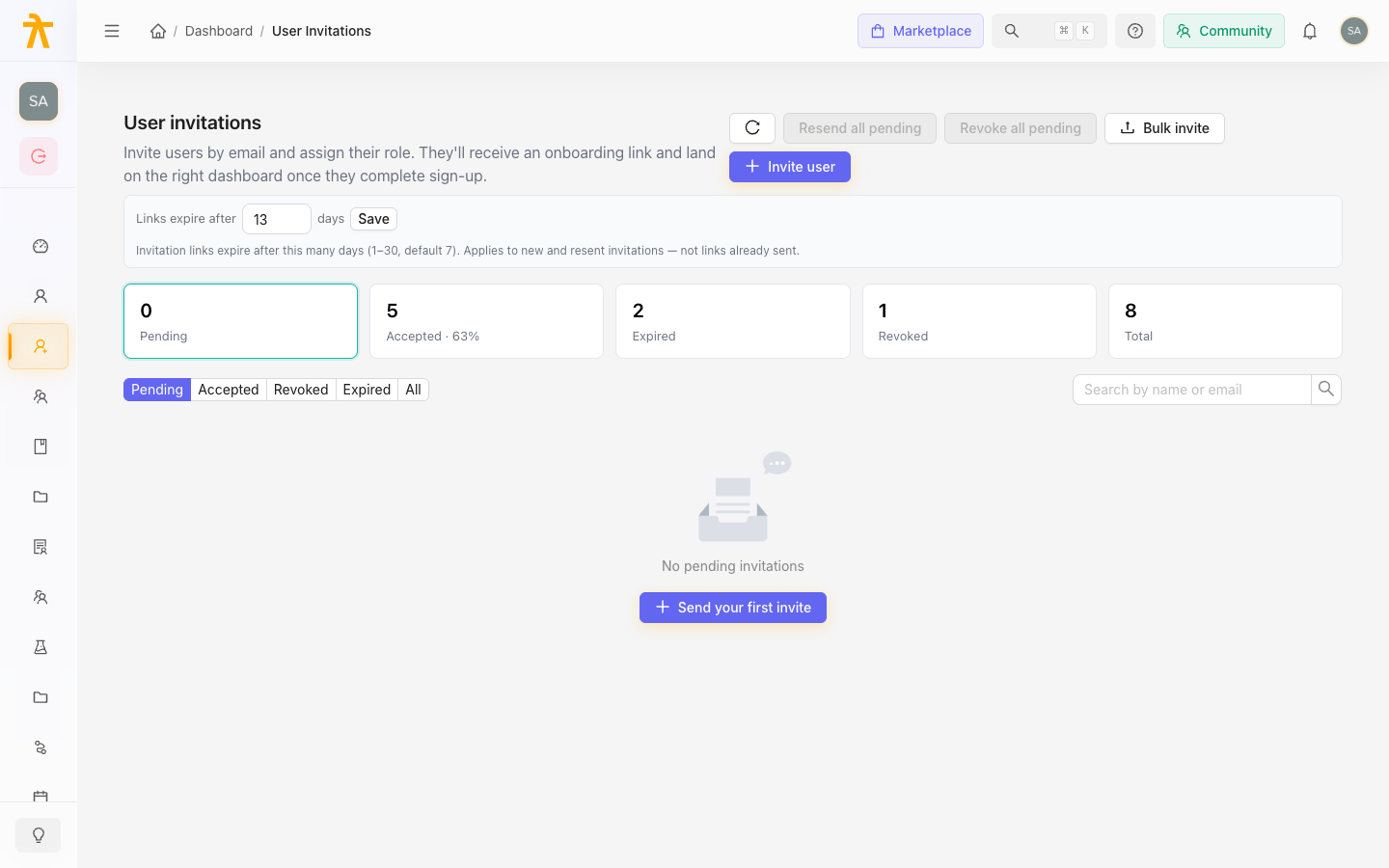
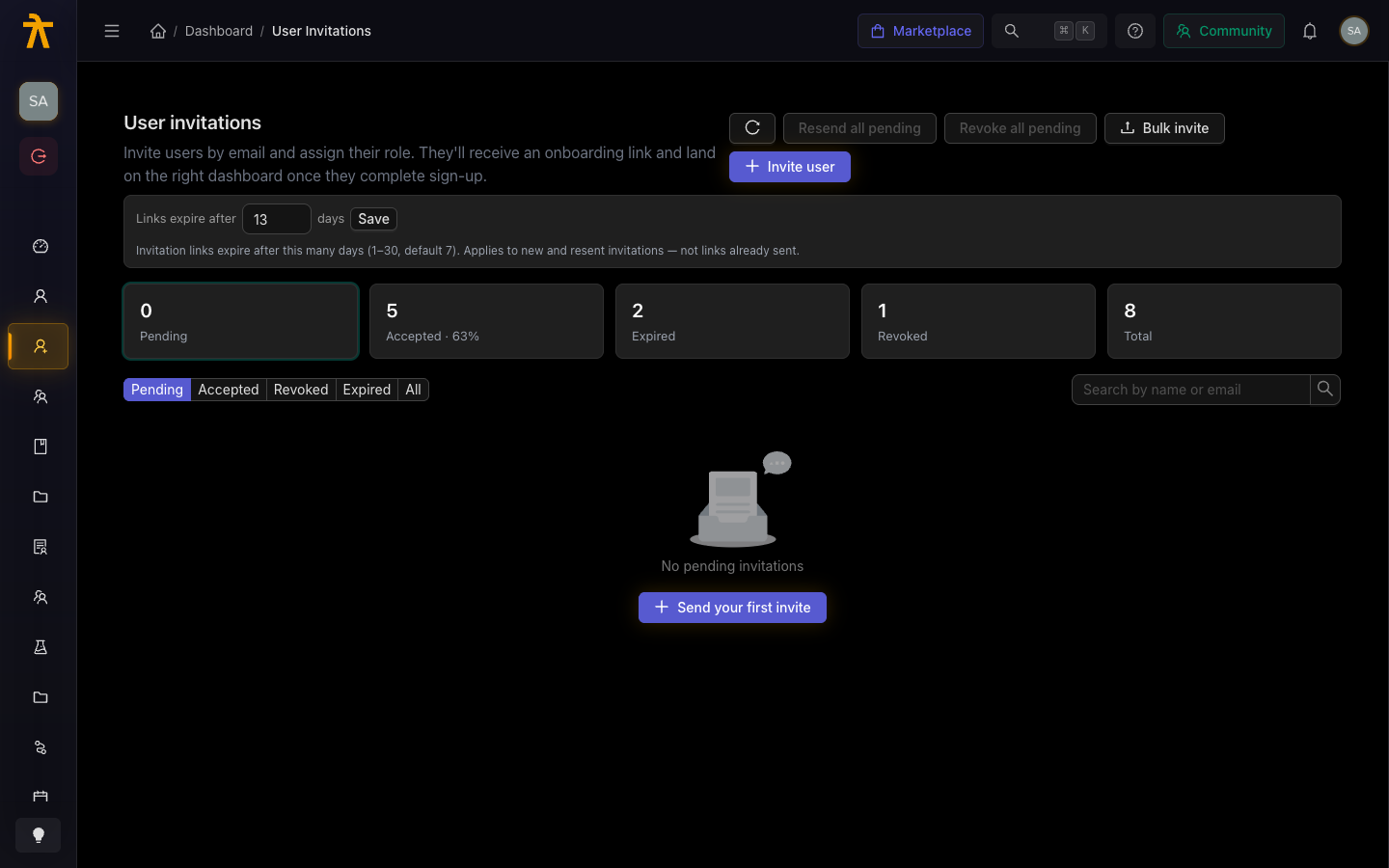
Admin, Instructor, and GroupAdmin accounts are always invitation-only — an Admin must invite these users into the workspace. Learner accounts are created by invitation or, when public catalog access is enabled, via self-registration at enrollment or checkout (a learner can browse the public catalog and create an account when they first enroll in or purchase a course). Sending an invitation creates the user's workspace membership and sends them an email with a link to set their password and log in for the first time.
This page explains how to invite users, what each user experiences, and how to manage the onboarding process at scale.
Before You Invite
Decide on the Role
Before you invite someone, decide which role they need:
| Role | Use when… |
|---|---|
| Admin | The person needs full workspace access — settings, billing, all users, all content |
| GroupAdmin | The person manages a school or department and should only see their own group |
| Instructor | The person will create or facilitate courses but should not access settings or billing |
| Learner | The person will take courses — they land in the learner portal, not the manage dashboard |
See Roles and Permissions for a full breakdown of what each role can do.
Gather Email Addresses
Invitations are sent by email. Make sure you have the correct email address for each user. The email address becomes the user's login identifier and cannot be changed by the user after the account is created (contact support if a user's email address changes).
Inviting a User
Single Invitation
- In the manage dashboard, go to Users in the left sidebar.
- Click Invite User (or Add User, depending on your workspace version).
- Enter the user's email address.
- Select their role (Admin, GroupAdmin, Instructor, or Learner).
- Click Send Invitation.
The user receives an invitation email within a few minutes. The email contains a link to set their password and activate their account. The link is valid for 24 hours. If it expires, you can resend the invitation (see below).
Bulk Inviting Learners via CSV
For onboarding large groups of learners at once, use the CSV import:
- Go to Users in the left sidebar.
- Click Import Users or find the bulk import option.
- Download the CSV template and fill in the required columns:
email,first_name,last_name, androle. - Upload the completed CSV.
- Review the preview — the platform will flag any formatting errors before importing.
- Click Import to send invitations to all valid rows.
Each user on the list receives their own invitation email. Failed rows (duplicate email, missing required field) are shown in the results and can be corrected and re-uploaded.
Inviting a User to a School or Group
If your workspace uses schools and groups (see Users & Groups), you can assign a learner to a school or group at invitation time:
- Follow the single invitation steps above.
- After selecting the Learner role, select the School and optionally the Group they belong to.
- Send the invitation.
The learner is enrolled in any courses already assigned to that group as soon as they activate their account.
The Invitation Email
The invitation email contains:
- Your workspace name as the sender display name
- A personal greeting and a brief explanation of what Arythmatic is
- A Set Password and Get Started button (or equivalent CTA)
- The link expiry notice (24 hours)
The invitation email is sent from Arythmatic's email infrastructure using your workspace name as the sender. If you want to customize the sender name, see Workspace Settings.
Tip: Ask new users to check their spam or junk folder if they do not see the invitation within a few minutes. Add your workspace domain to your organization's email allowlist if delivery is consistently unreliable.
Resending an Invitation
If a user's invitation link has expired or they did not receive the email:
- Go to Users in the left sidebar.
- Find the user — they will appear with a Pending status if they have not yet activated their account.
- Click Resend Invitation next to their name (or from the user's detail page).
A fresh invitation email is sent immediately, with a new 24-hour link. The old link is invalidated.
What Happens When a User Activates
When a user clicks the invitation link and sets their password:
- Their account is activated in your workspace.
- They are redirected to the Arythmatic login page.
- They log in with their email and new password.
- Arythmatic routes them to the correct interface based on their role:
- Admins, GroupAdmins, and Instructors land in the manage dashboard.
- Learners land in the learner portal.
- If they were invited into a group, any group-assigned courses are already visible and accessible.
Managing Users After Onboarding
Changing a User's Role
You can change a user's role at any time without re-inviting them:
- Go to Users and open the user's profile.
- Update their role in the Roles field.
- Save.
The change takes effect immediately on their next page load or login.
Deactivating a User
To remove a user's access without permanently deleting their record:
- Go to Users and open the user's profile.
- Click Deactivate (or toggle their status to inactive).
A deactivated user cannot log in. Their enrollment history, progress, and certificate records are preserved. You can reactivate them at any time.
Removing a User
Removing a user permanently revokes their access and removes their membership from the workspace. This action is irreversible — if you might need to restore access later, deactivate instead of removing.
Frequently Asked Questions
Can a user be both an Instructor and a Learner? Yes. A user can hold multiple roles simultaneously. If you want someone to be able to both build courses and take courses, assign both the Instructor and Learner roles. They can switch context using the Role Switcher in the manage dashboard.
Can I invite someone who already has an Arythmatic account on another workspace? Yes. Each workspace is independent. Inviting an email address that exists on another workspace creates a separate membership on your workspace. The user's credentials from the other workspace work on yours after they accept your invitation.
What if a user's invitation link expires before they activate? Resend the invitation from the Users page. The new link is valid for another 24 hours.
Can I see which invitations are pending? Yes. In the Users list, pending (unactivated) accounts appear with a Pending badge. You can filter by status to see only pending invitations.
Can an Instructor invite users? No. Only Admins can invite new users to the workspace. GroupAdmins can add learners to their own group, but the learner must already exist in the workspace.
Related Pages
- Roles and Permissions — what each role can do
- Login and SSO — how the invitation activates authentication
- Users & Groups — managing schools, groups, and cohorts after onboarding