Curriculum Builder
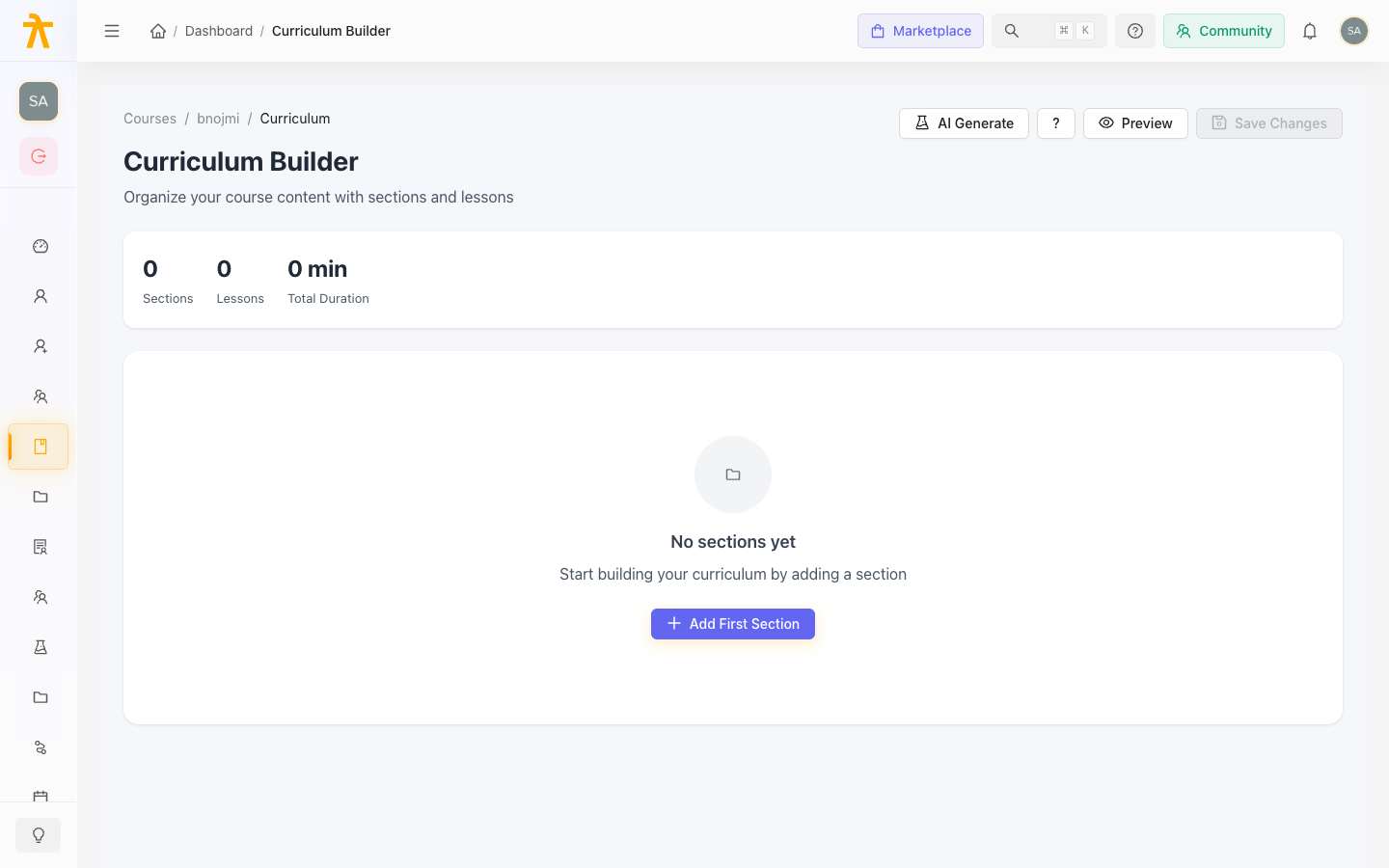
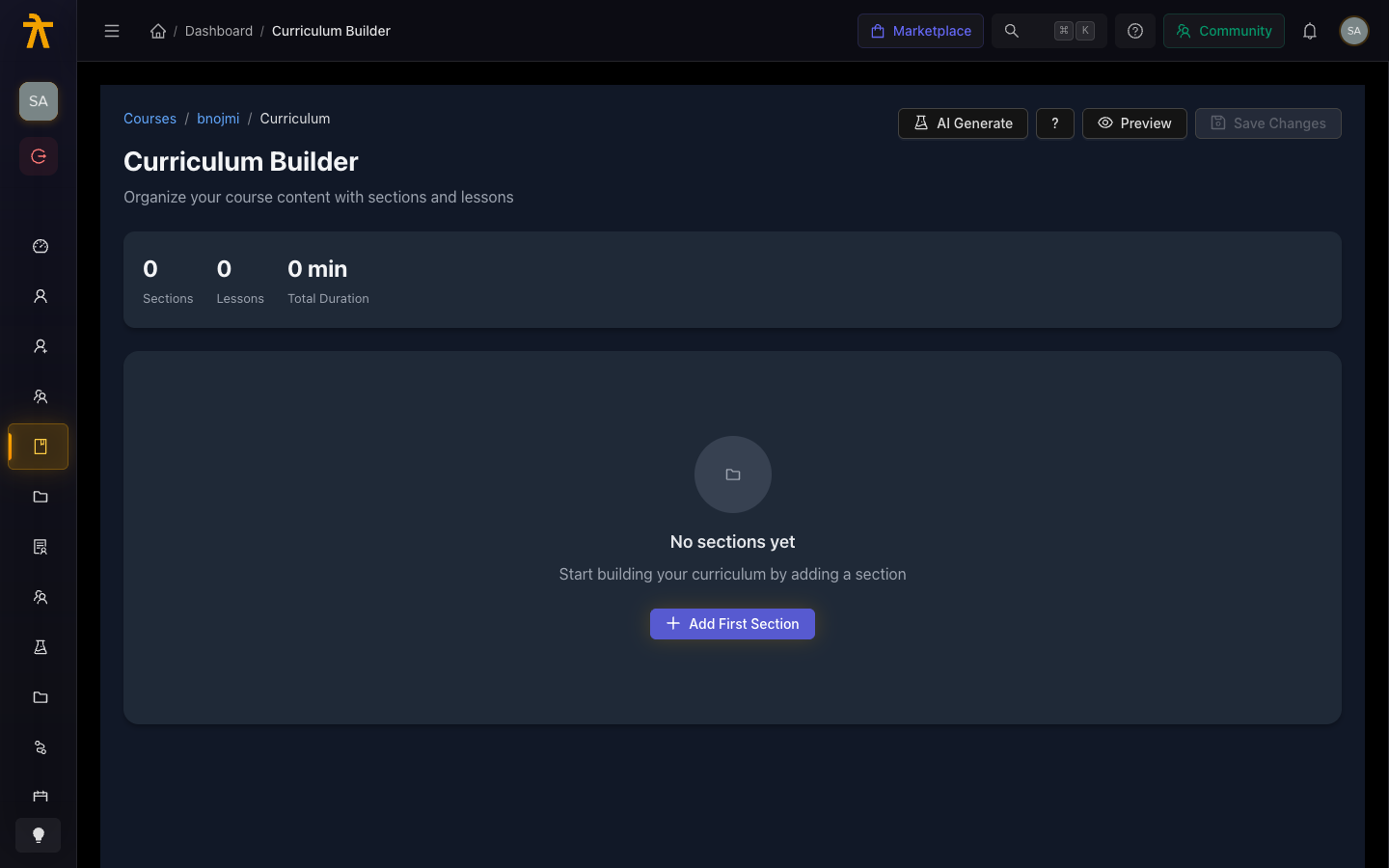
The Curriculum Builder is where you structure your course. You add sections (chapters or modules) and then fill each section with content items (lessons). You can reorder everything by dragging.
Opening the Curriculum Builder
- Open the course from the Courses list.
- Click the Curriculum tab at the top of the course detail page.
The builder shows your existing sections (if any) and an option to add new ones.
Adding a section
Sections are the top-level groupings in your curriculum. Think of them as chapters or modules.
- Click + Add Section (shown at the bottom of the section list, or between existing sections).
- Type a title for the section (e.g., "Introduction", "Module 1: Fundamentals").
- Press Enter or click the checkmark to save.
The section is added immediately. You can edit the title at any time by clicking on it.
Keep section titles short and descriptive. Learners see these titles in the sidebar navigation when they are taking the course.
Adding content to a section
Each section contains one or more content items (lessons). To add a lesson:
- Inside a section, click + Add Content (shown below any existing content, or in an empty section).
- A picker appears — choose the content type for this lesson:
- Video
- Audio
- Text / Article
- Document
- External URL
- Quiz
- Assignment
- Give the lesson a title when prompted.
- The content editor for that type opens. Fill in or upload the content.
- Save the lesson — it appears in the section.
For a detailed explanation of each content type, see Content Types.
Reordering sections
To change the order of your sections:
- Hover over a section — a drag handle (six dots) appears on the left.
- Click and drag the handle to move the section up or down.
- Release to drop it in the new position.
The order updates immediately and is saved automatically.
Reordering content within a section
To change the order of lessons inside a section:
- Hover over a content item — its drag handle appears on the left.
- Drag it to the desired position within the same section.
You can only move a content item within its own section by dragging. To move a lesson to a different section, reorganize your sections so the content ends up in the intended section, or consult the content library to reuse existing media assets in a new lesson in the target section.
Editing a content item
Click the title of any content item to open its editor. Changes you save are immediately reflected in the curriculum.
Deleting a section or content item
- To delete a content item, click the three-dot menu (
···) on the item row and select Delete. This cannot be undone. - To delete a section, click the three-dot menu on the section header and select Delete Section. Deleting a section also removes all content items inside it.
Deleting a section with content inside it is permanent. If you want to restructure, consider moving content first.
Curriculum completion checklist
Before you publish, verify:
- Every section has at least one content item
- All video lessons have finished processing (video shows a playable preview, not "processing")
- Quiz lessons have at least one question
- Section and lesson titles are clear and spell-checked
- The order of sections and lessons matches the intended learning flow
When you are happy with the curriculum, proceed to Preview and Publish.